Add a Manifest
After creating a plugin, the next step is to add a Manifest. A manifest contains important configuration details that tell the system how to communicate with the API you’re integrating.
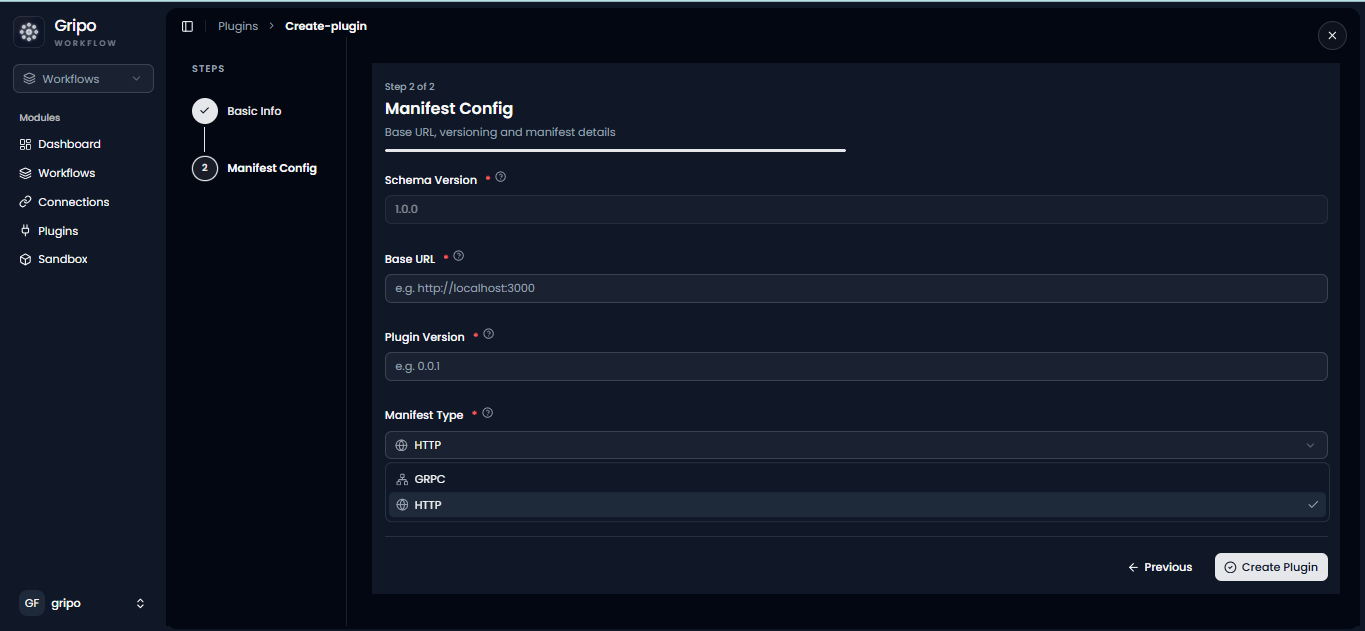
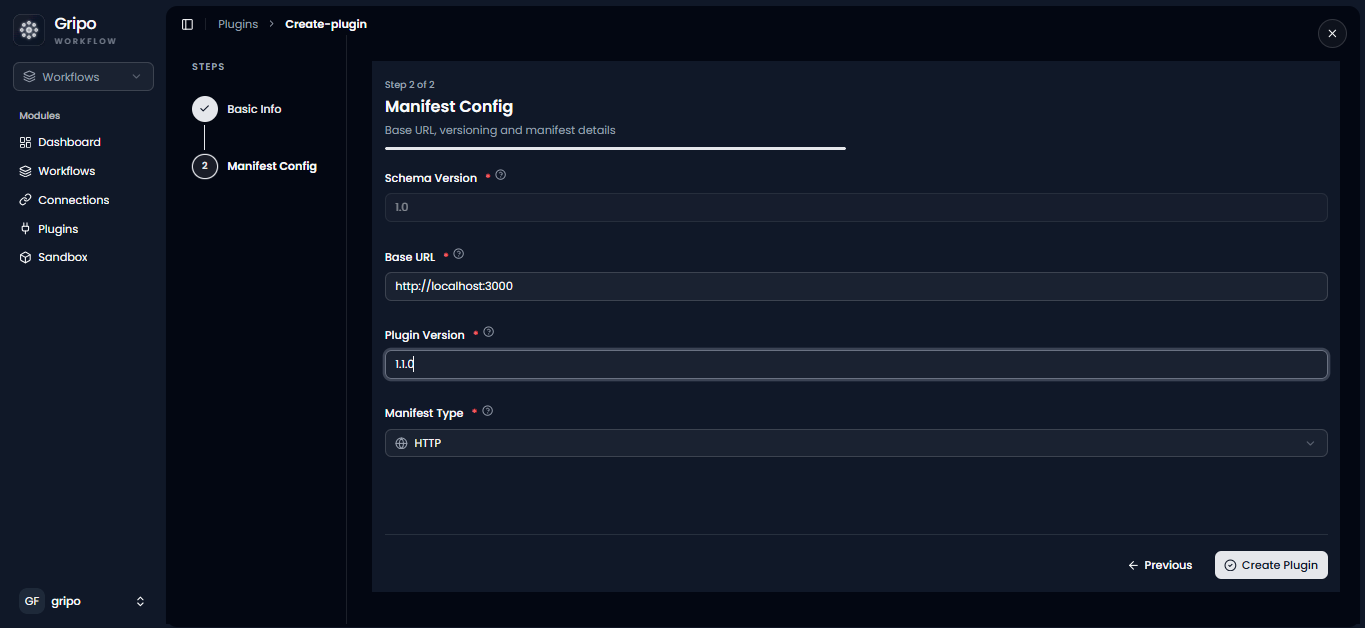
A form appears with the following fields:
- Schema Version: Define the schema version for your plugin.
- Base URL: Enter the base URL of the official website or API you are connecting with. (For example, if you are creating a plugin for Github, use Github’s official API base URL. https://docs.github.com/en/rest/repos/repos)
- Version: Specify the version of the API.
- Type: Select the type of communication. You can choose HTTP or gRPC, depending on how the API works.
- Tags: Add tags to help identify or categorize your plugin.
- Once all fields are filled, click on the Create Plugin.
- Your manifest will now be added to the plugin.
Manage Your Manifest
After adding the manifest, you can view or update it at any time.
- Open your Plugin and go to the Event page.
- You can view and update the manifest by clicking the Settings button (⚙️).
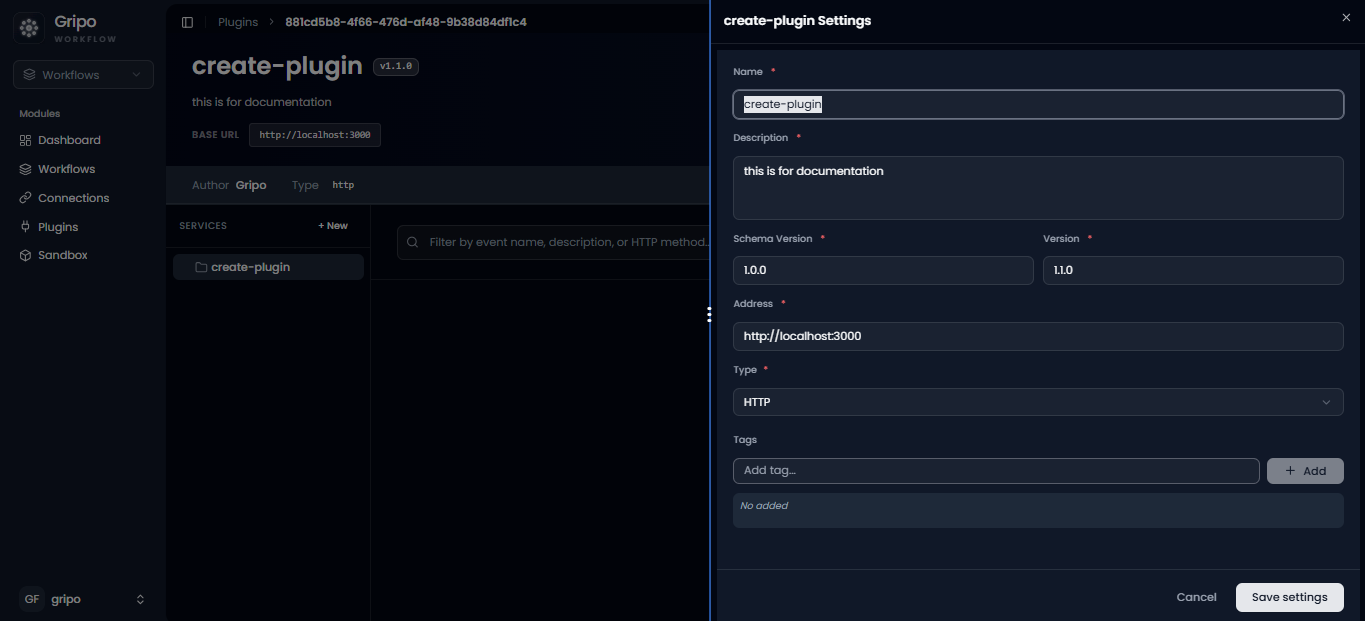
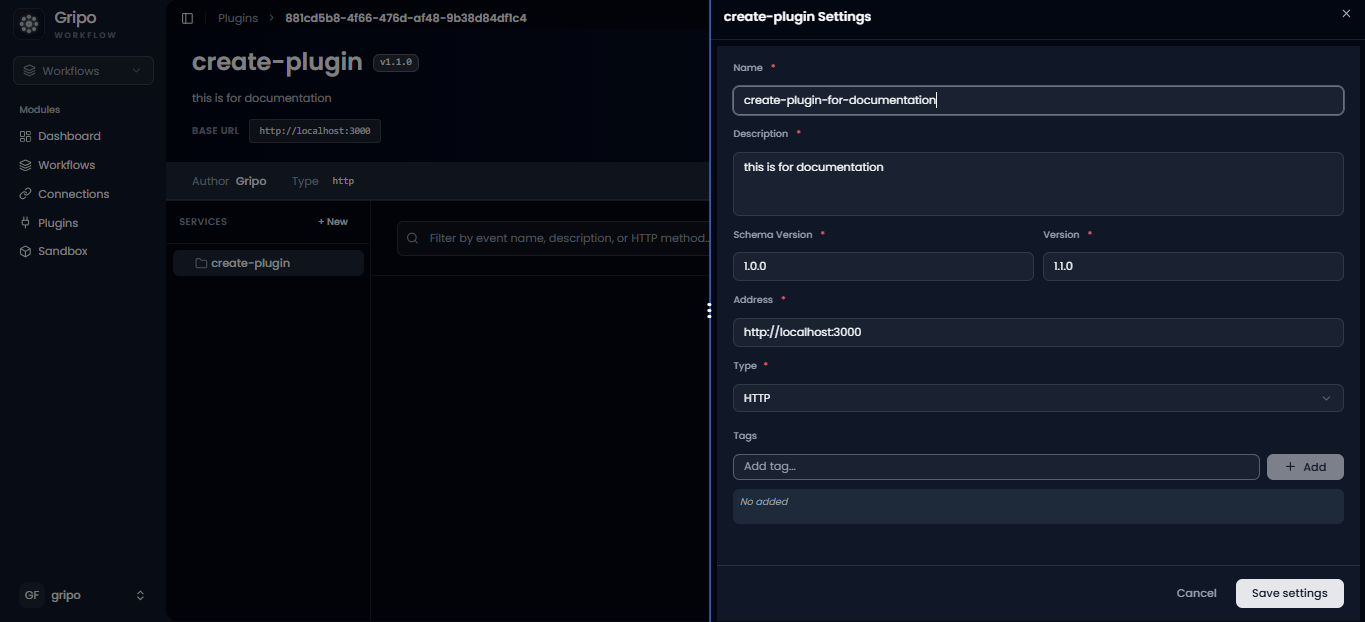
- Make your changes, then click ‘Save Changes’ to apply them.
- The manifest is shown in JSON format. and can be viewed by clicking the eye icon
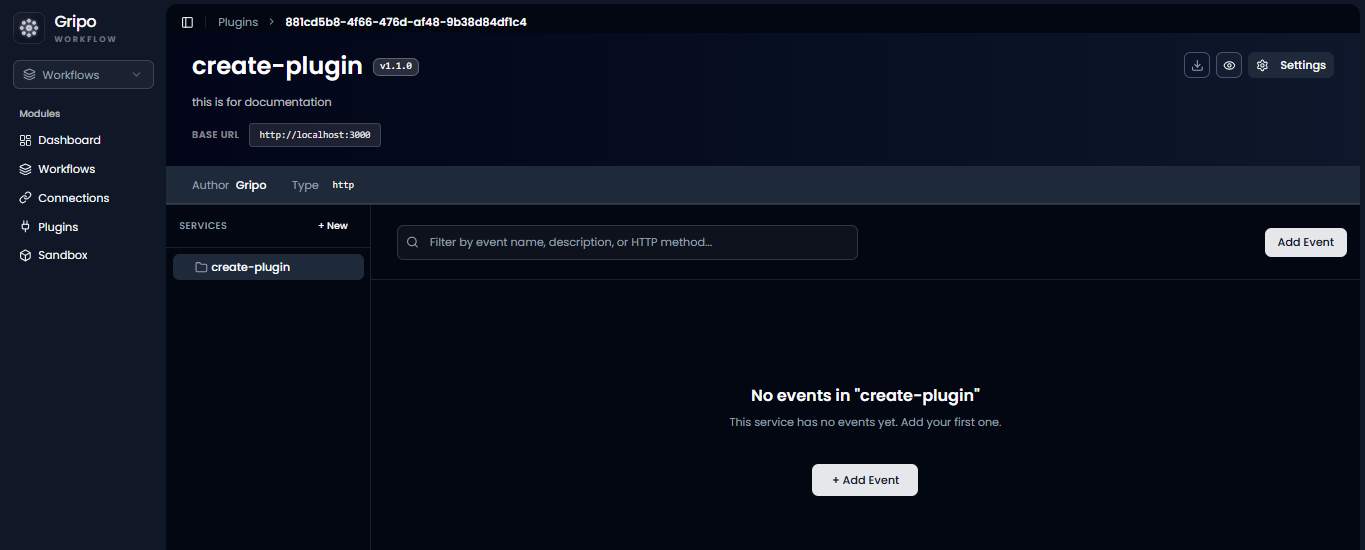
- Make your required changes and click Publish.
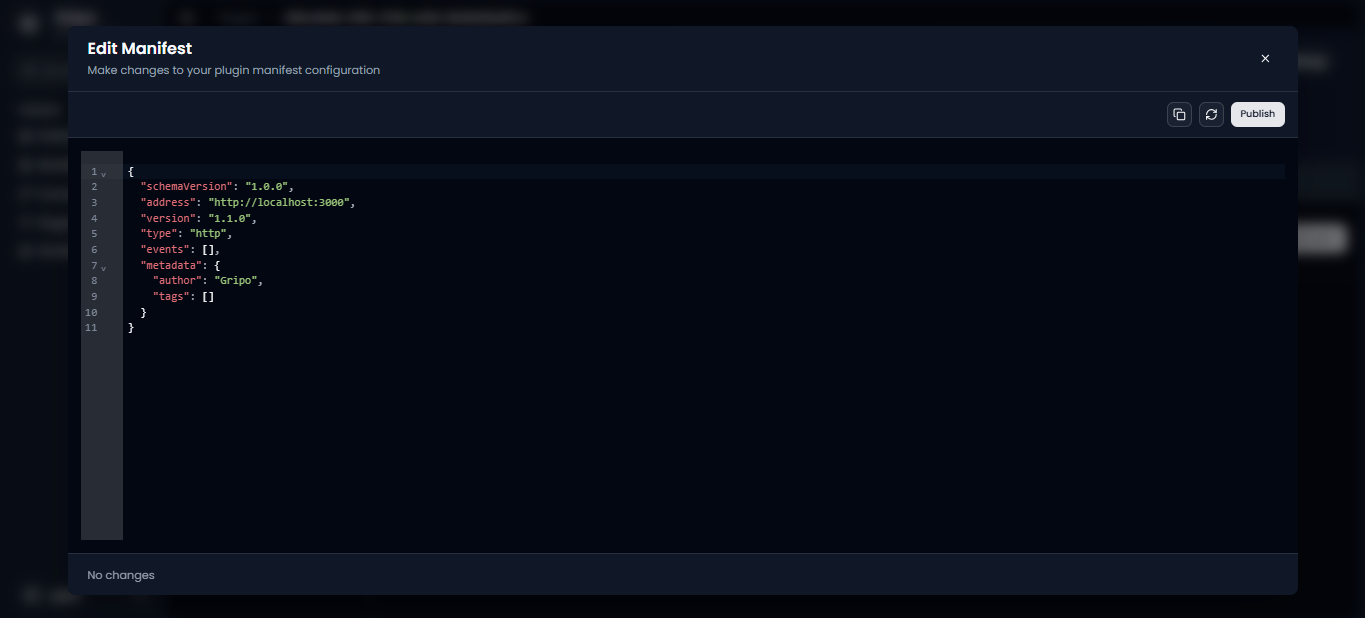
The manifest will now be updated successfully.
- Event configuration depends on the selected Type. Based on the chosen option (HTTP or gRPC), the next step is to add the corresponding HTTP event.