Steps to Create a Sandbox
- Navigate to the Sandbox tab from the main menu.
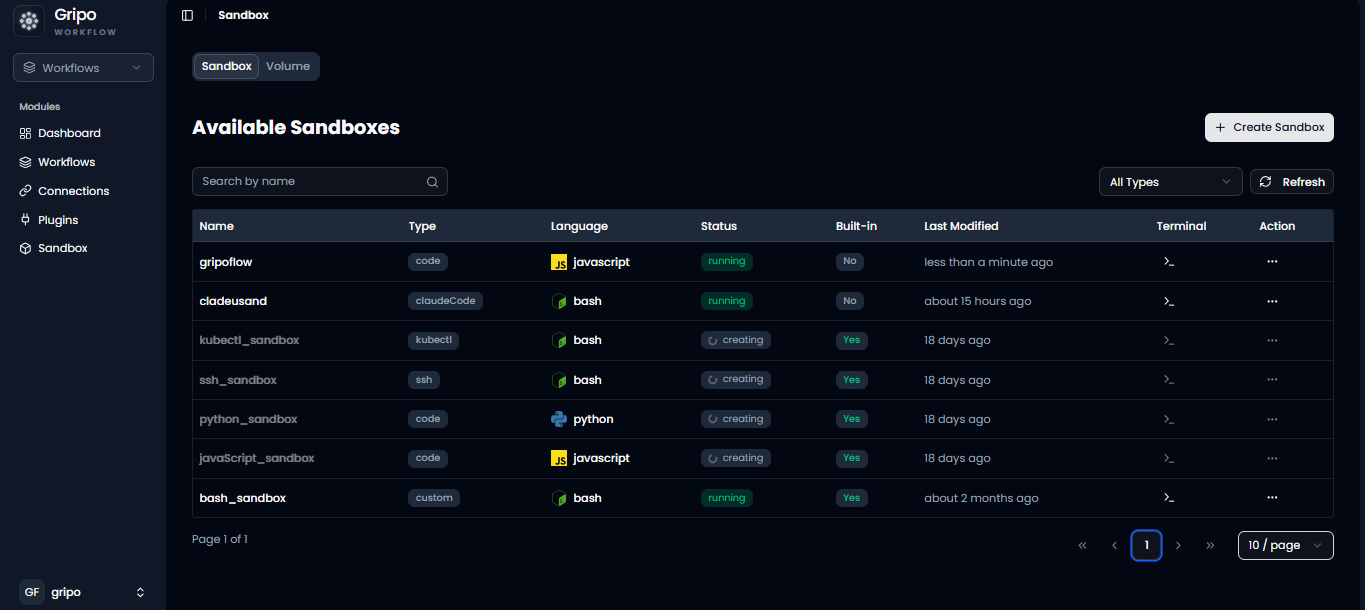
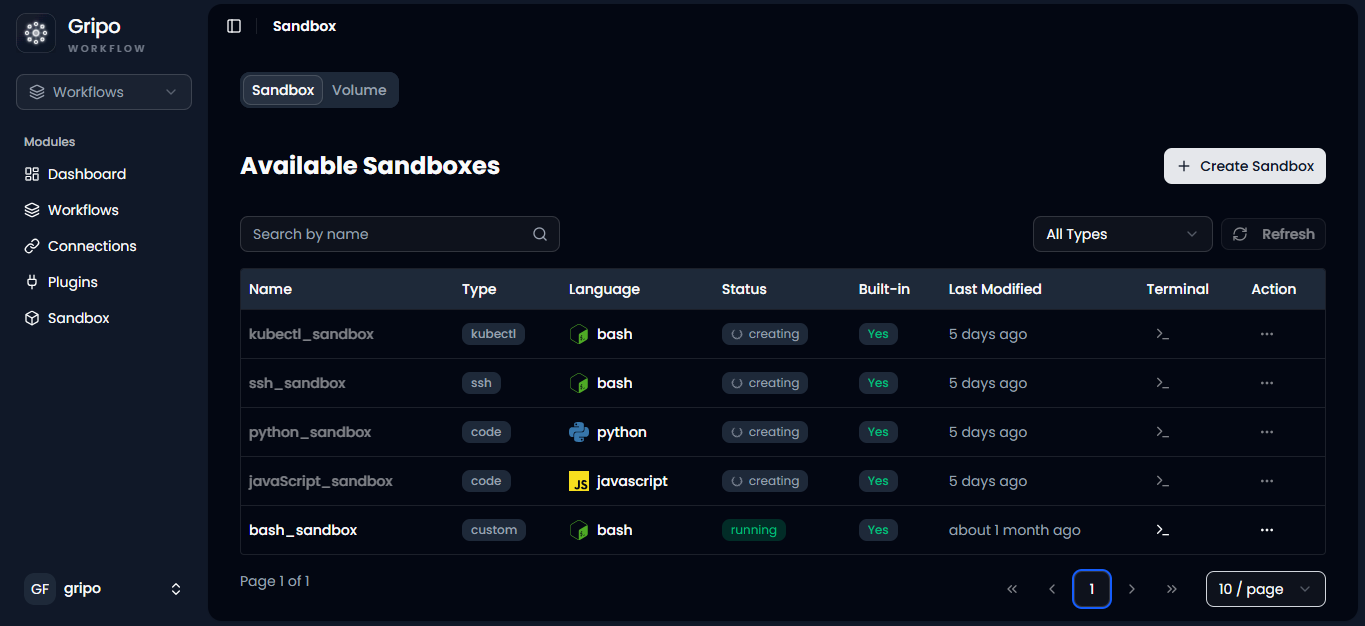
- On clicking Sandbox, a window will appear displaying a list of all existing sandbox.
- To create a new sandbox, click on the Create Sandbox button.
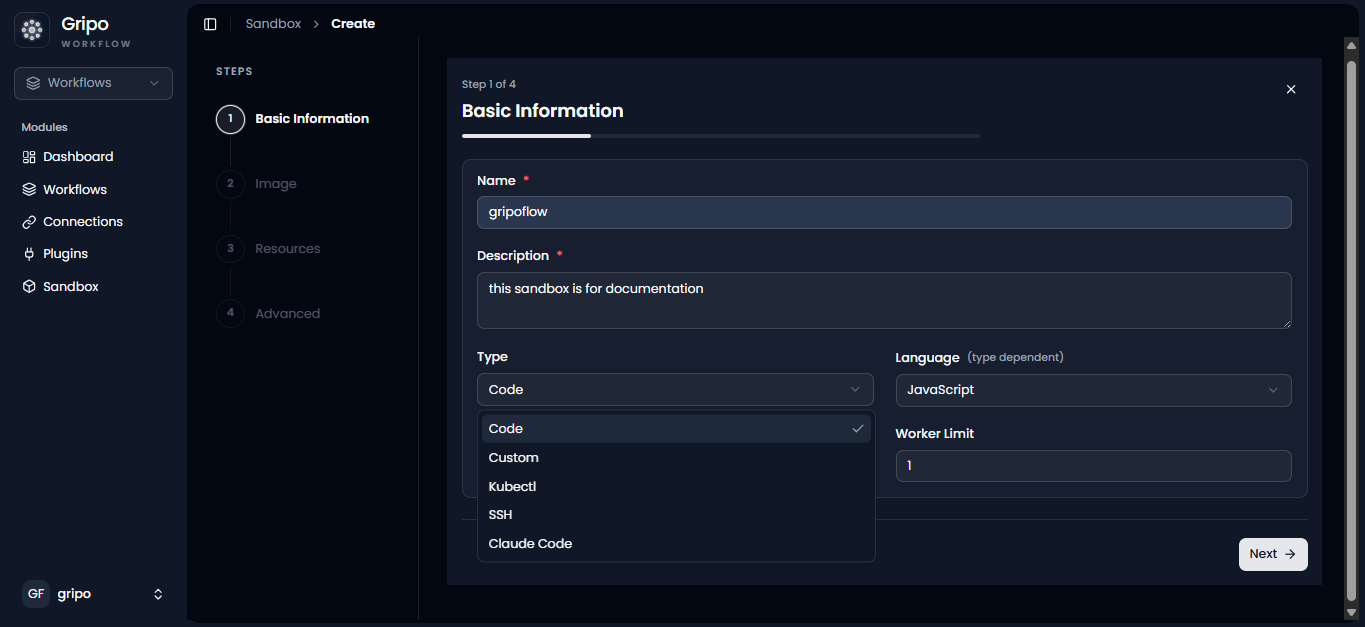
- The first step in creating a sandbox is to provide the basic information required to set up your environment.
- This includes entering a unique Name, adding a clear Description, selecting the appropriate Type, choosing the Language, and defining the Backend Worker Unit that will handle execution.
- This initial configuration helps ensure that your sandbox is properly structured, aligned with your use case, and ready to support development, testing, and workflow execution efficiently.
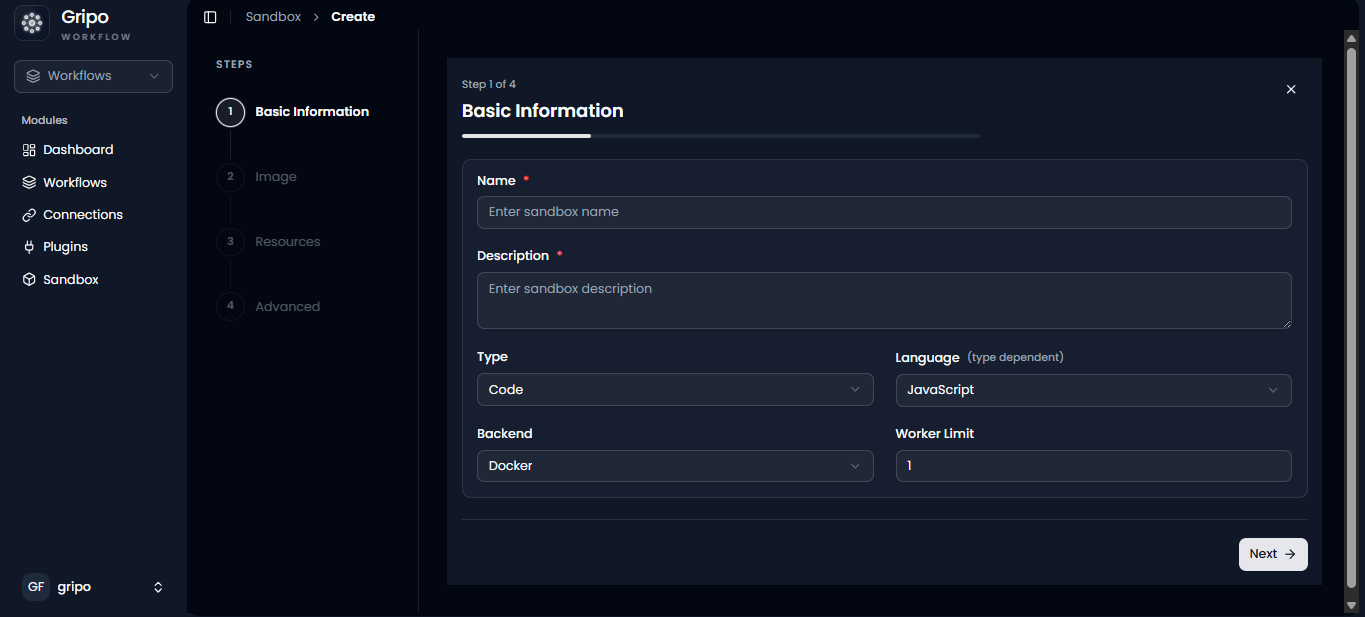
In the Type field, GRiPOFlow provides multiple options such as Custom, SSH, Code, Kubectl, and Cloud Code. This field defines how your sandbox will operate and what kind of tasks it is designed to handle.
Each type serves a specific purpose:
- Code and Custom: Ideal for building and executing application logic or tailored workflows.
- SSH: Allows secure remote access to servers for command-line operations and system management.
- Kubectl: Used for interacting with and managing Kubernetes clusters, suitable for container orchestration tasks.
- Cloud Code: Enables direct interaction with cloud services and integrations, helping automate and manage cloud-based operations efficiently. By selecting the appropriate type, you ensure that your sandbox is aligned with your workflow requirements and execution environment.
After filling in all the required details, click on the Next button to proceed to the next step of sandbox configuration.
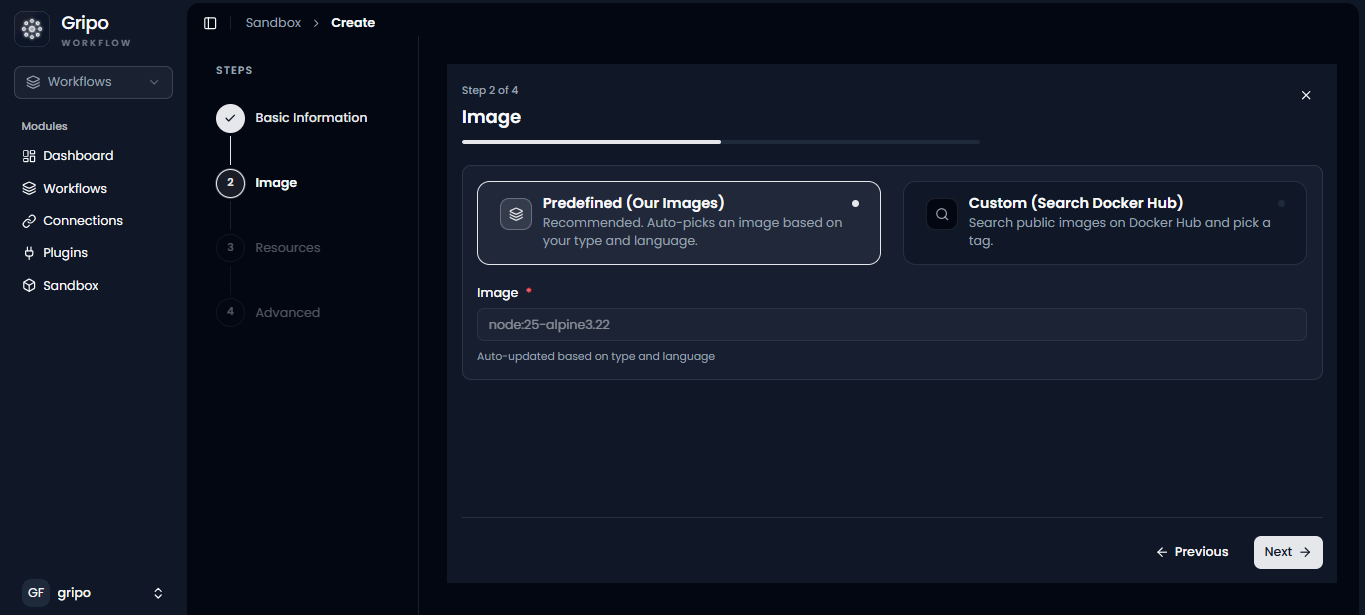
- On the second step, Image Configuration, you need to choose the environment image for your sandbox. You can either select a predefined image provided by GRiPOFlow or use a custom image from Docker Hub based on your requirements.
After selecting the image, click on the Next button to proceed to Step 3.
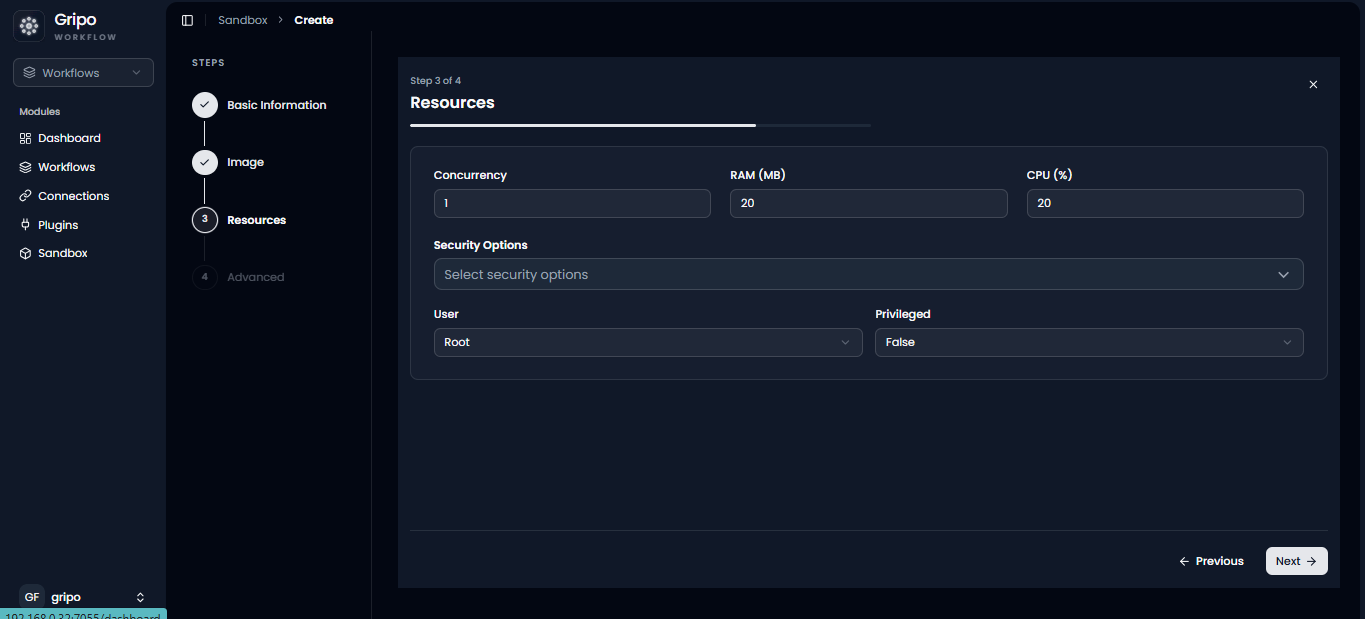
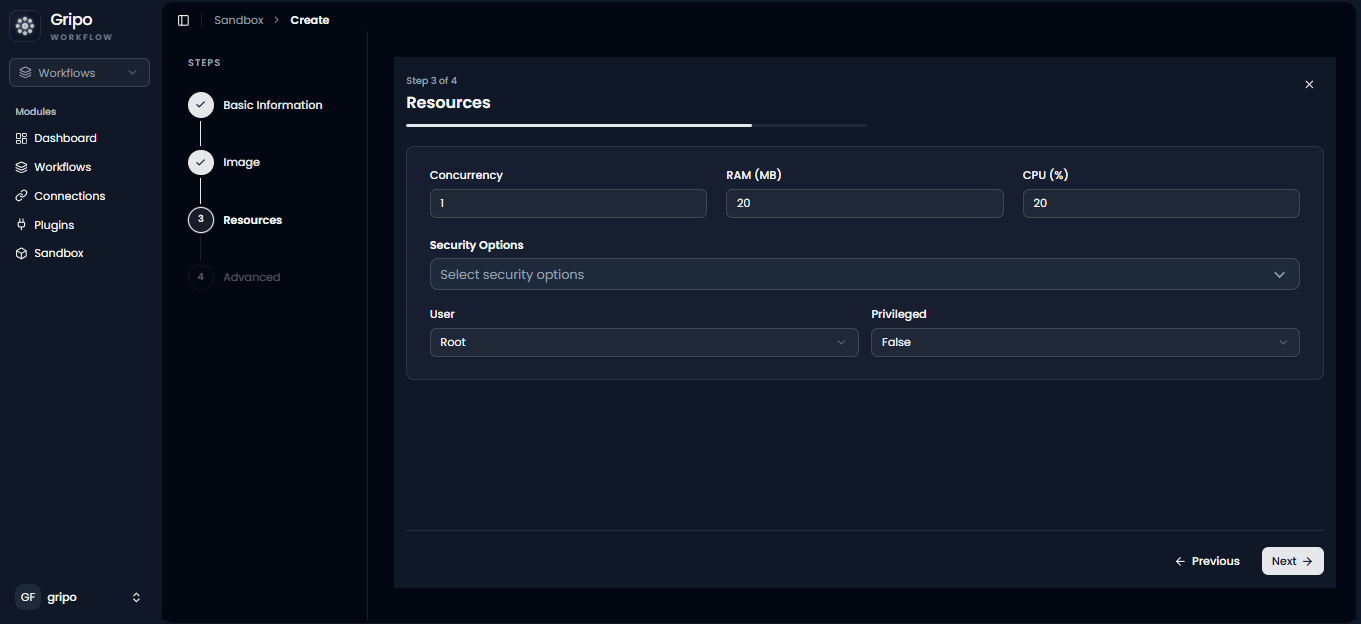
- The third step is Resources. In this step, you can configure system limits such as CPU, RAM, and concurrency based on your application needs.
- Under the Security option, you can choose Apparmor Docker Default from the dropdown menu.
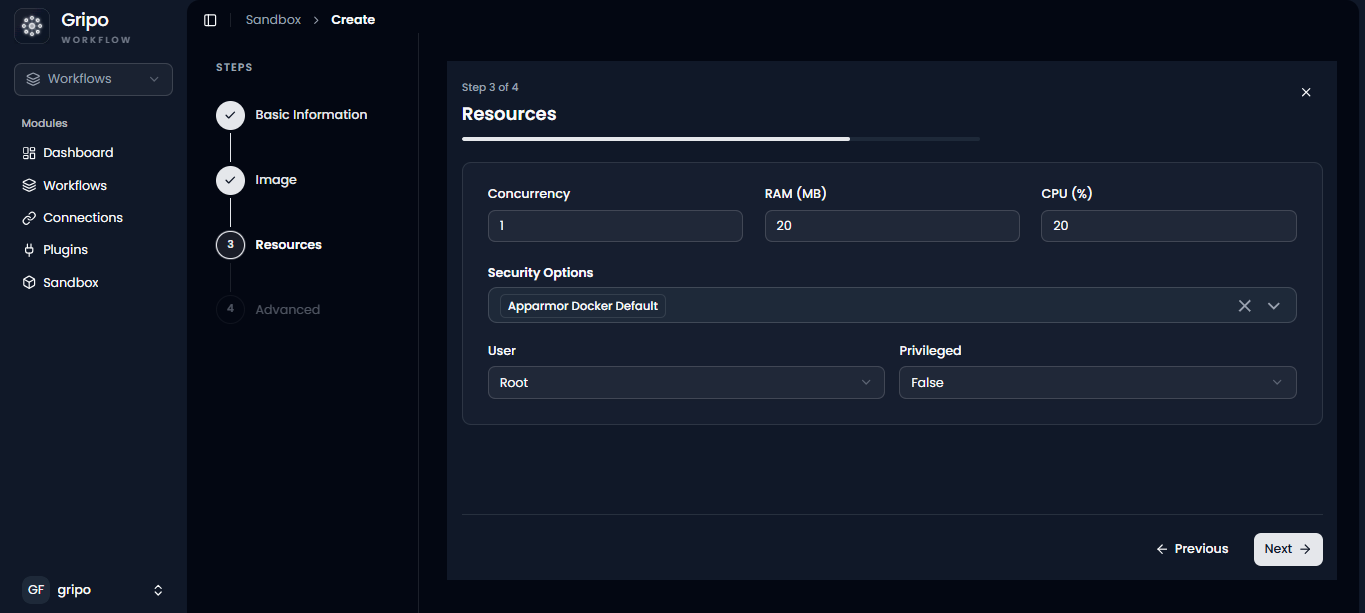
- In the User field, select either root or a standard ,user depending on the required access level.
- Root: Select this when your application needs full system access or higher permissions to run advanced operations.
- User: Select this for normal applications that don’t require special permissions, as it is more secure and limited.
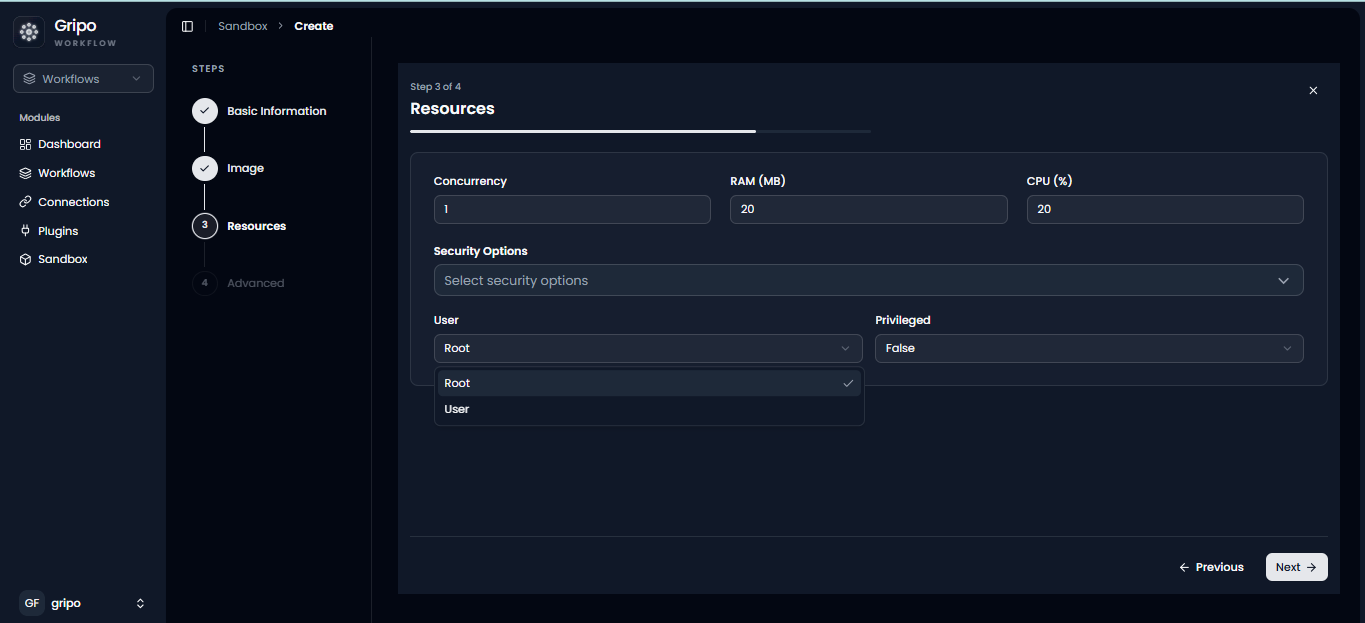
- Then, in the Privileged option, choose true or false as needed.
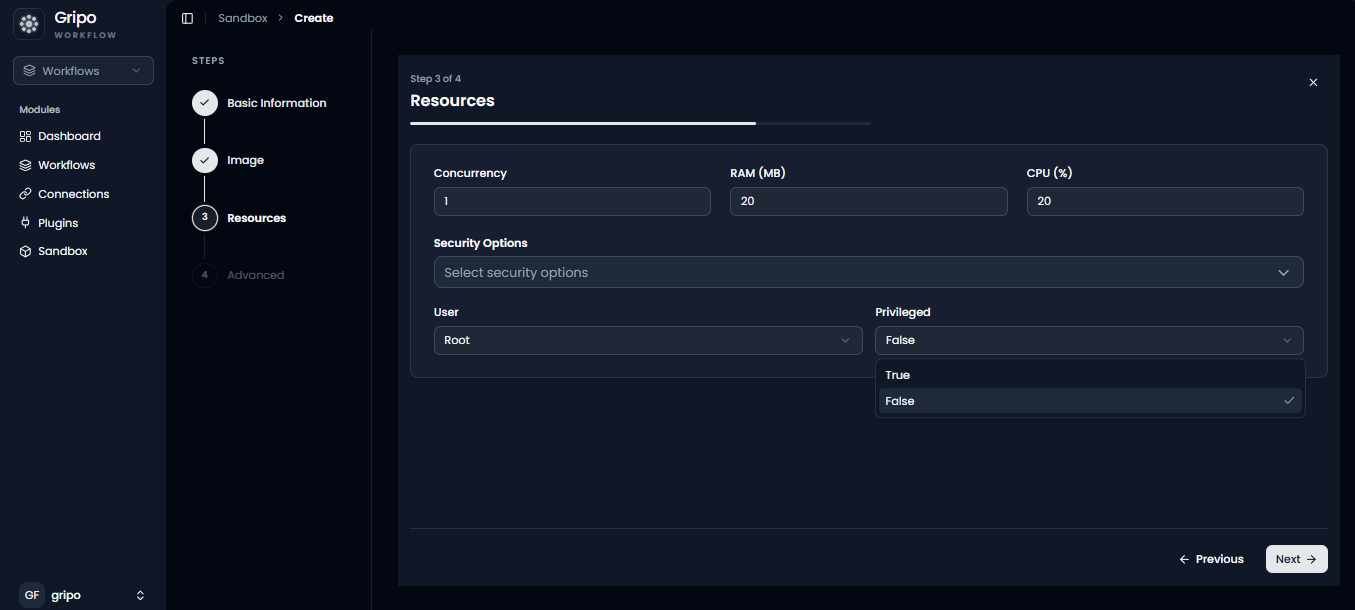
- After completing all settings, click the Next button to proceed.
- The last step is Advanced Settings, where you need to fill in fields such as SSH, Logs, GitHub connection (optional), and Volume.
- To select a volume, you must first create one.
- After completing these fields and selecting the volume, click the Create Sandbox button, and your sandbox will be successfully created.
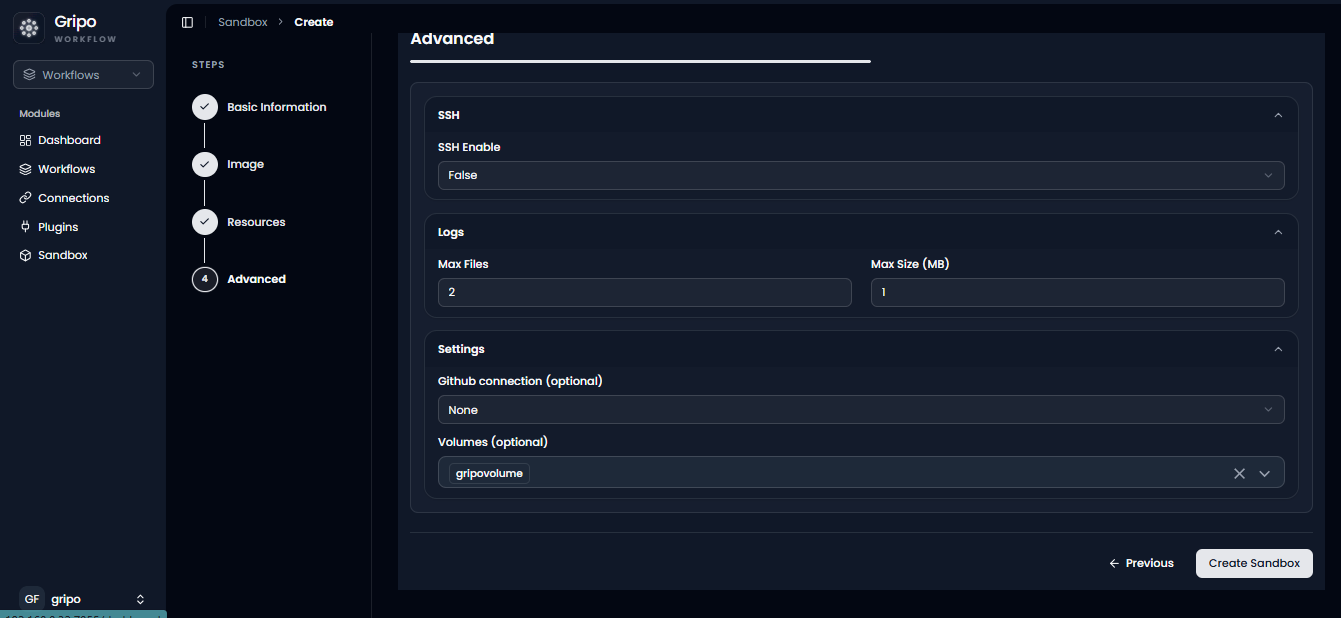
- Created sand box is visible in the list