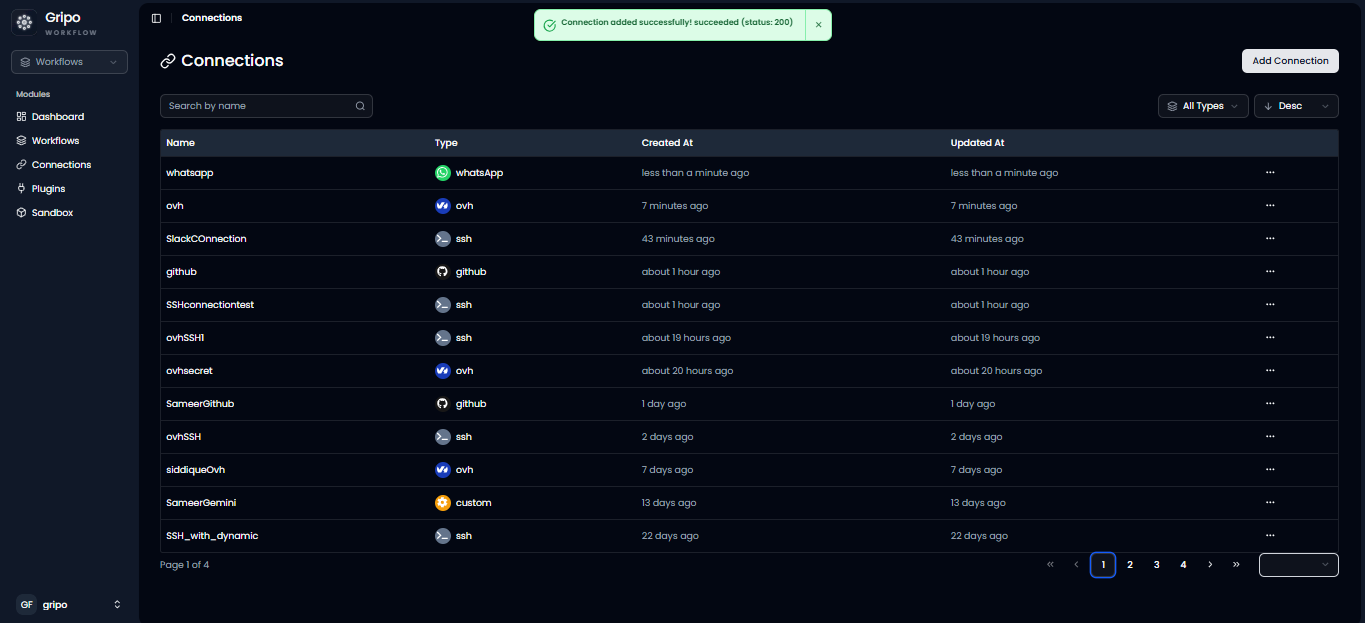
WhatsApp Connection
WhatsApp Provider Connections allow GRiPOFlow to securely authenticate with the WhatsApp Business Platform using a Phone Number ID and Access Token.
Before You Begin
To use the WhatsApp Business Platform in GRiPOFlow, you must create a WhatsApp connection and obtain a Phone Number ID and Access Token from the Meta Developer Portal.
Use the following sections to complete the setup:
Configure the WhatsApp Connection in GRiPOFlow
WhatsApp Connection Form
- Navigate to the Connection section.
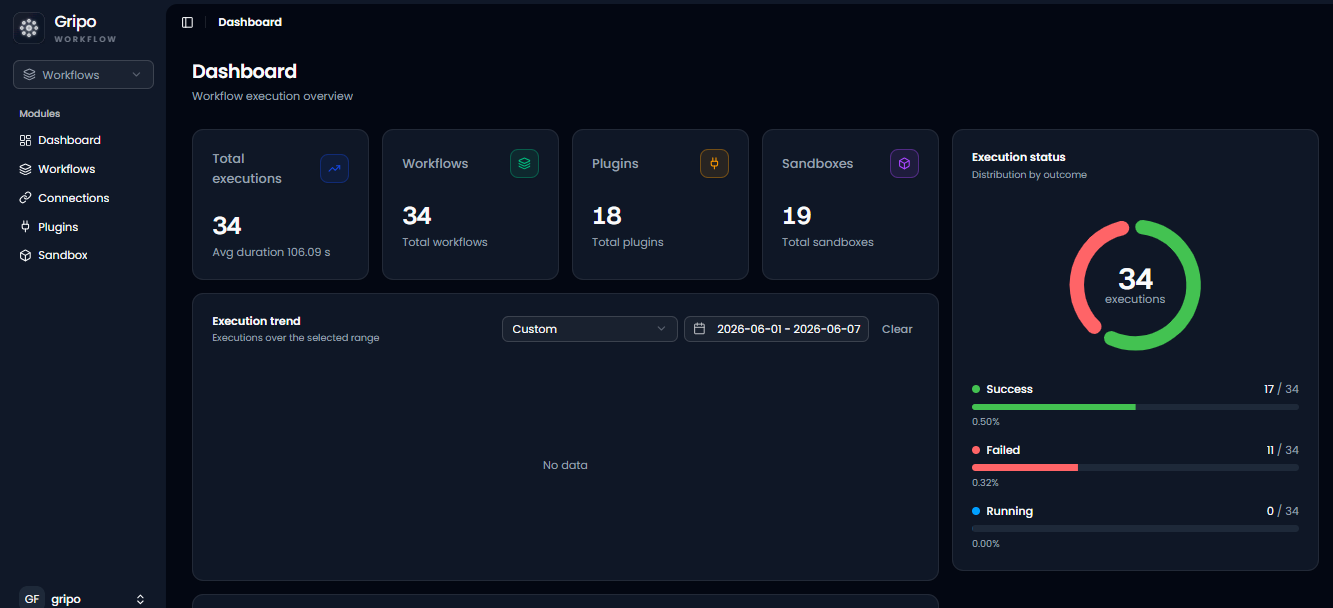
- Click Add Credentials.
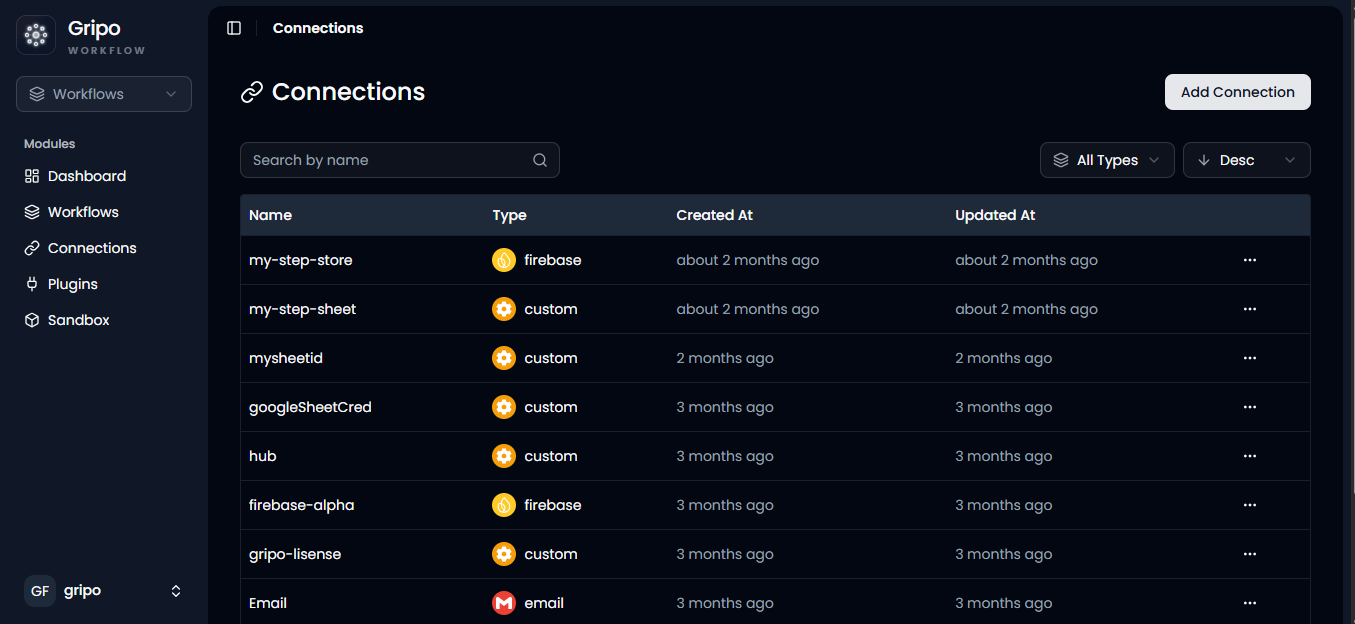
- A window will appear. From the Application dropdown, select WhatsApp.
- Click Next.
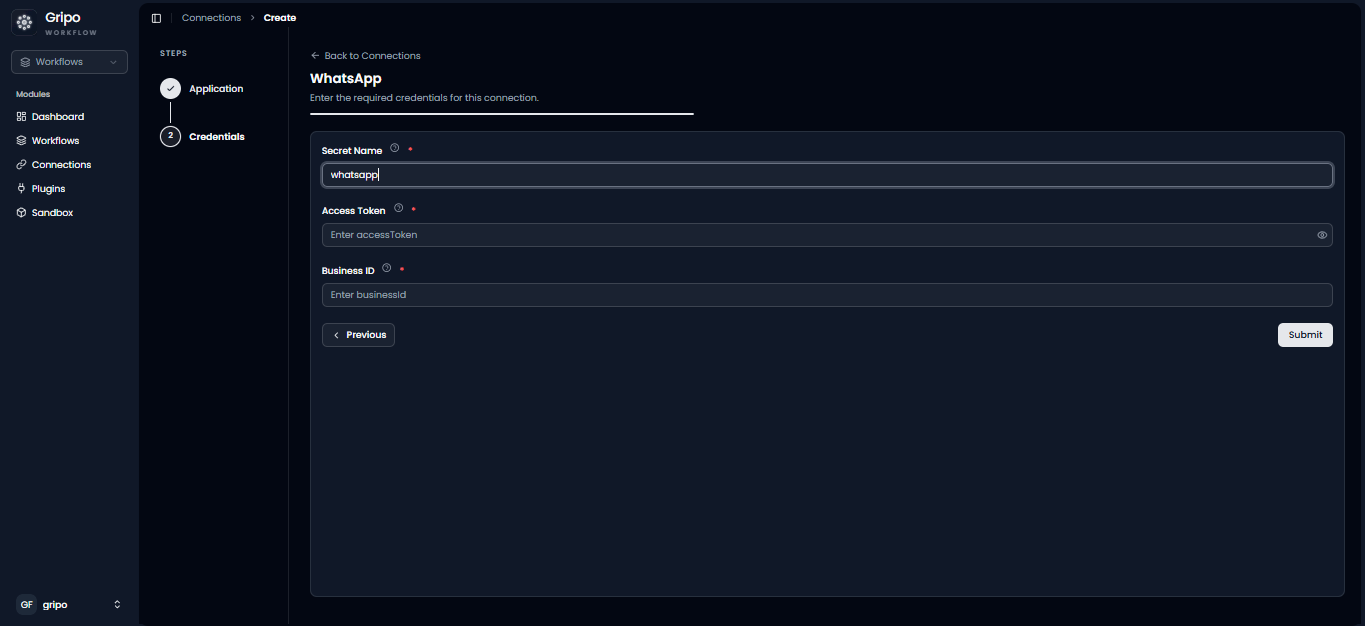
- A form will be displayed for entering your WhatsApp Business credentials.
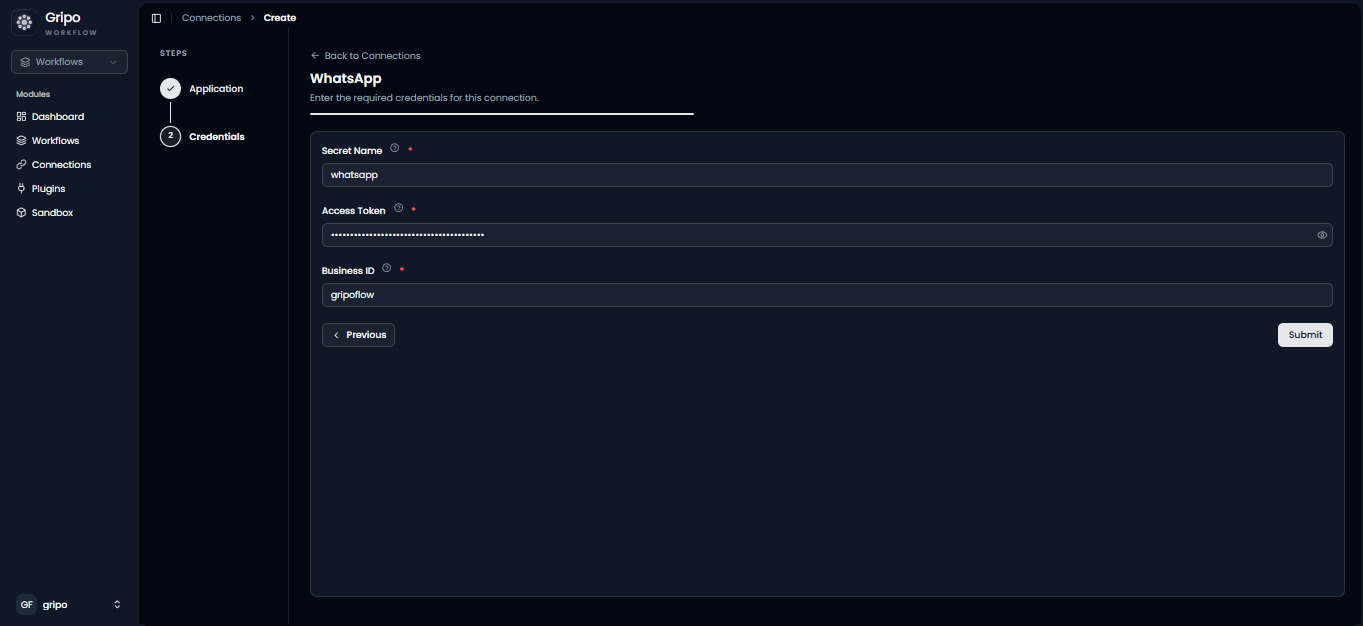
- Enter a Connection Name.
- Enter your Phone Number ID.
- Paste your Access Token into the Access Token field.
Before creating the connection, generate an Access Token from the Meta Developer Portal.
Generate a WhatsApp Access Token
-
Open your web browser and navigate to:
-
Sign in with your Meta (Facebook) account.
-
Create a new app or open an existing app.
-
Add the WhatsApp product to your application if it has not already been added.
-
From the left navigation menu, open WhatsApp → API Setup.
-
Copy the Temporary Access Token or generate a permanent access token for production use.
-
Copy the Phone Number ID associated with your WhatsApp Business account.
-
Return to GripoFlow.
-
Paste the copied Access Token into the Access Token field.
-
Click Submit to create the connection.
- Newly created whatsapp connection is now in the list.