Claude Code Connection
Claude Code Provider Connections allow GRiPOFlow to securely authenticate with Anthropic services using an API key.
Before You Begin
To use Claude Code in GRiPOFlow, you must create an Anthropic API key and configure a Claude Code connection.
Use the following sections to complete the setup:
Configure the Claude Code Connection in GRiPOFlow
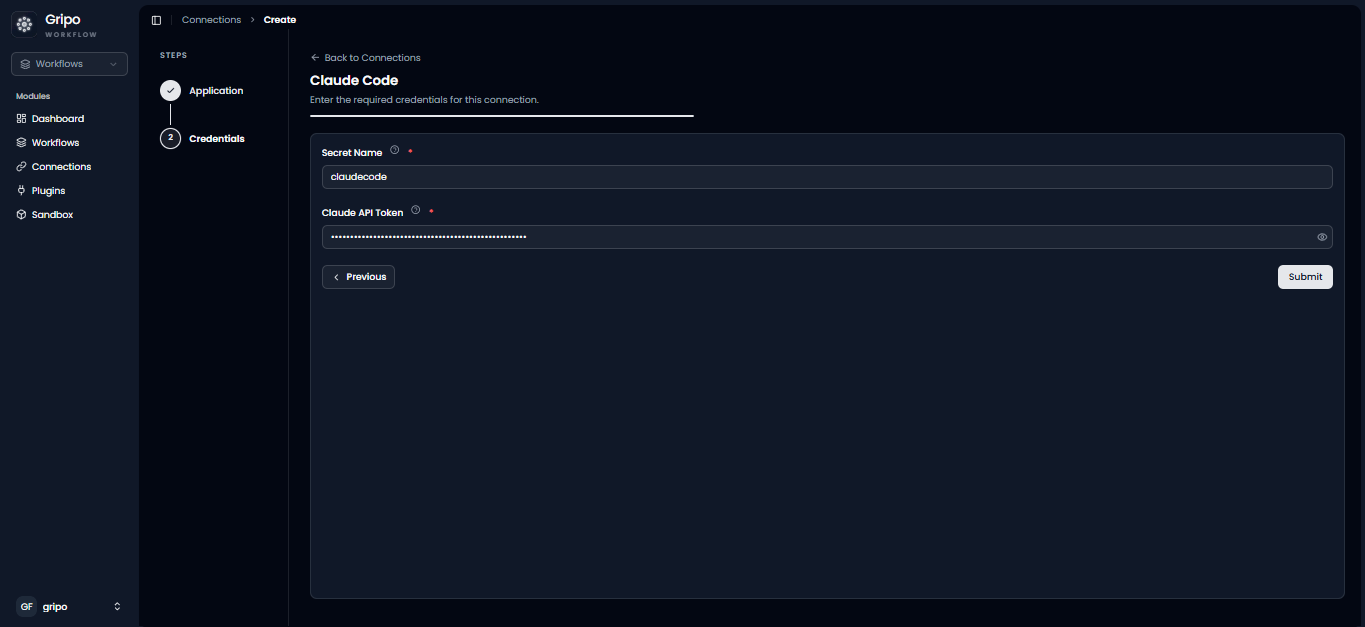
Claude Code Connection Form
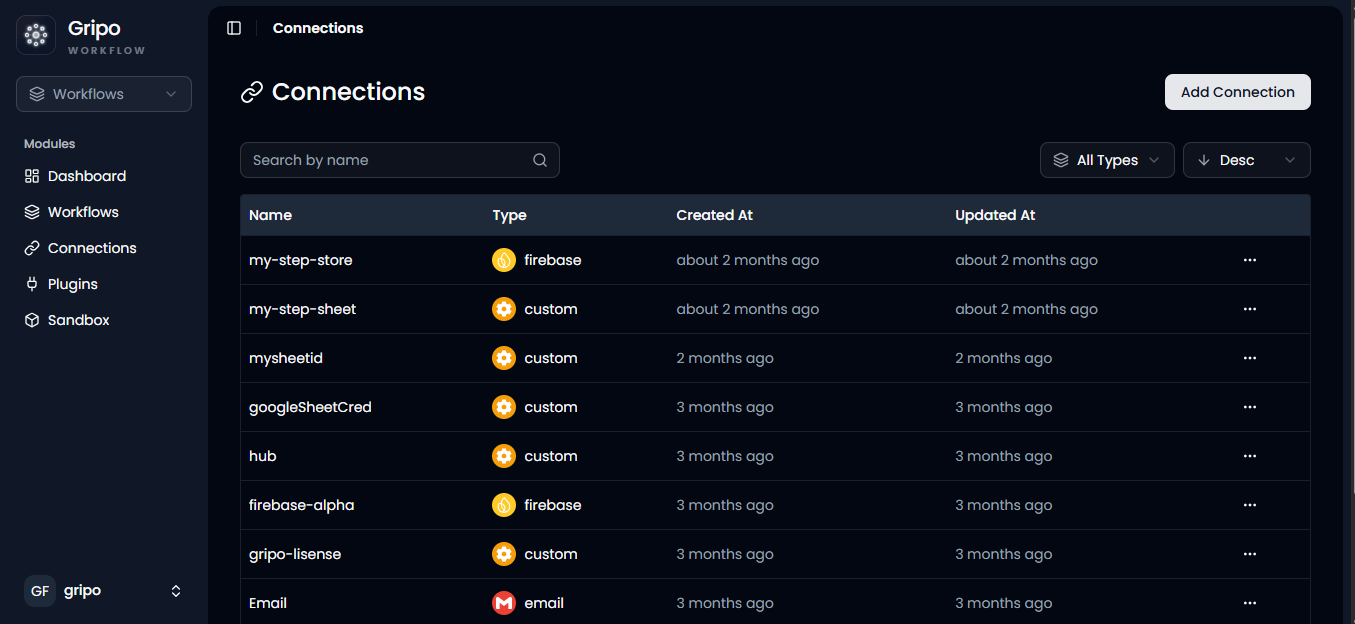
- Navigate to the Connection section.
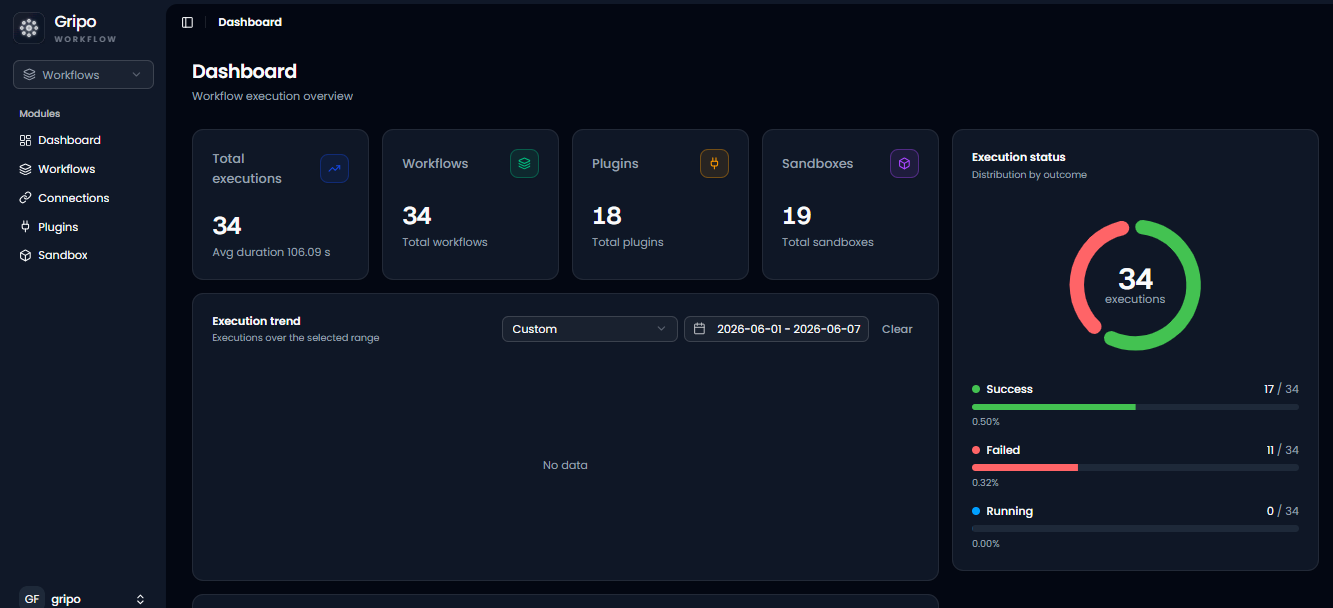
- Click Add Credentials.
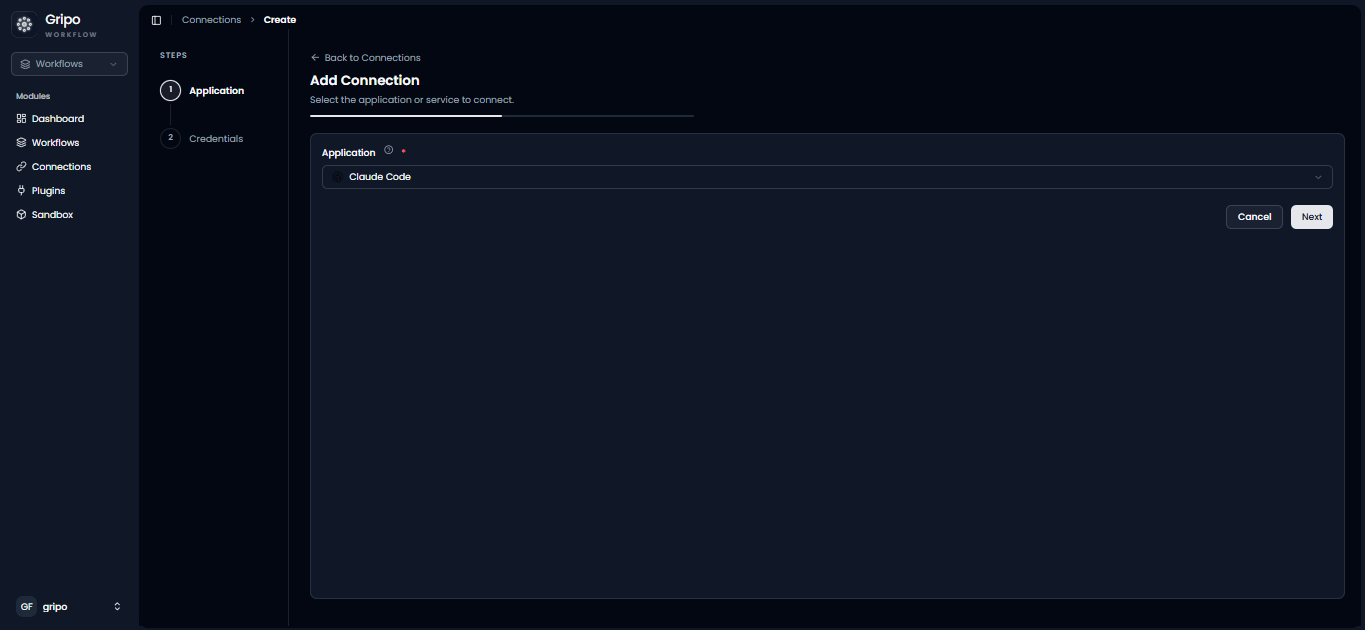
- A window will appear. From the Application dropdown, select Claude Code.
- Click Next.
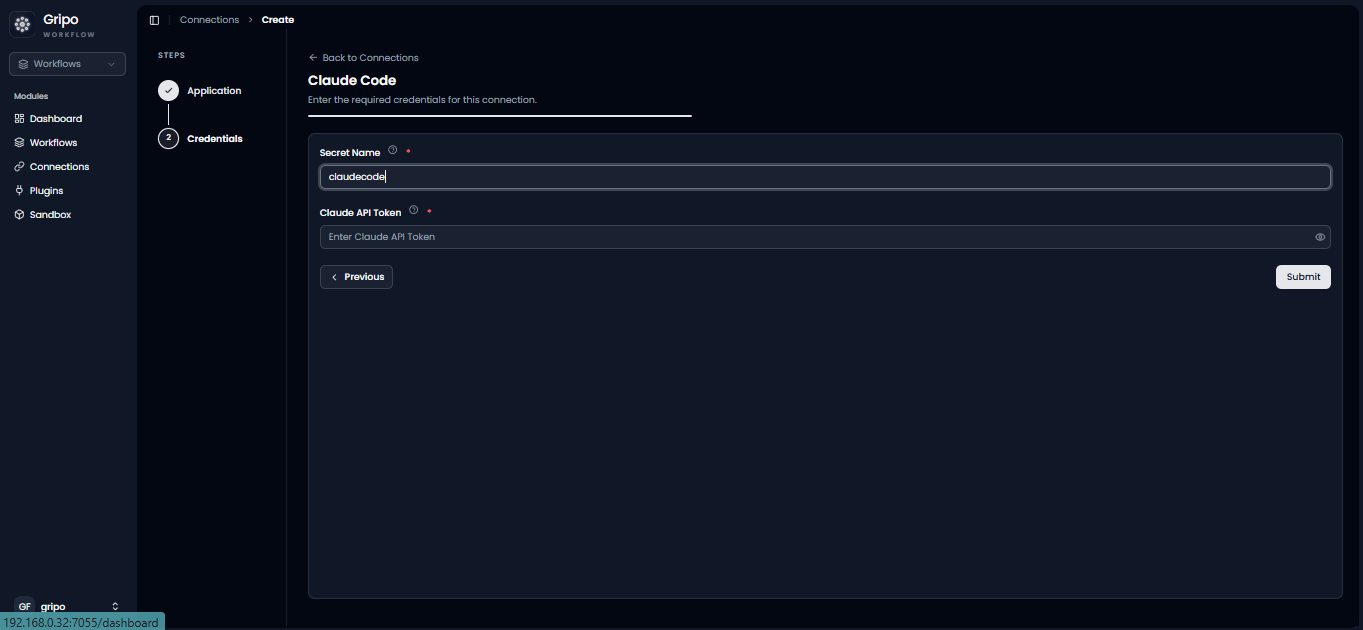
- A form will be displayed for entering your Claude Code credentials.
- Enter a Connection Name.
- Paste your Anthropic API Key into the API Key field.
Before creating the connection, generate an API key from your Anthropic account.
Generate an Anthropic API Key
-
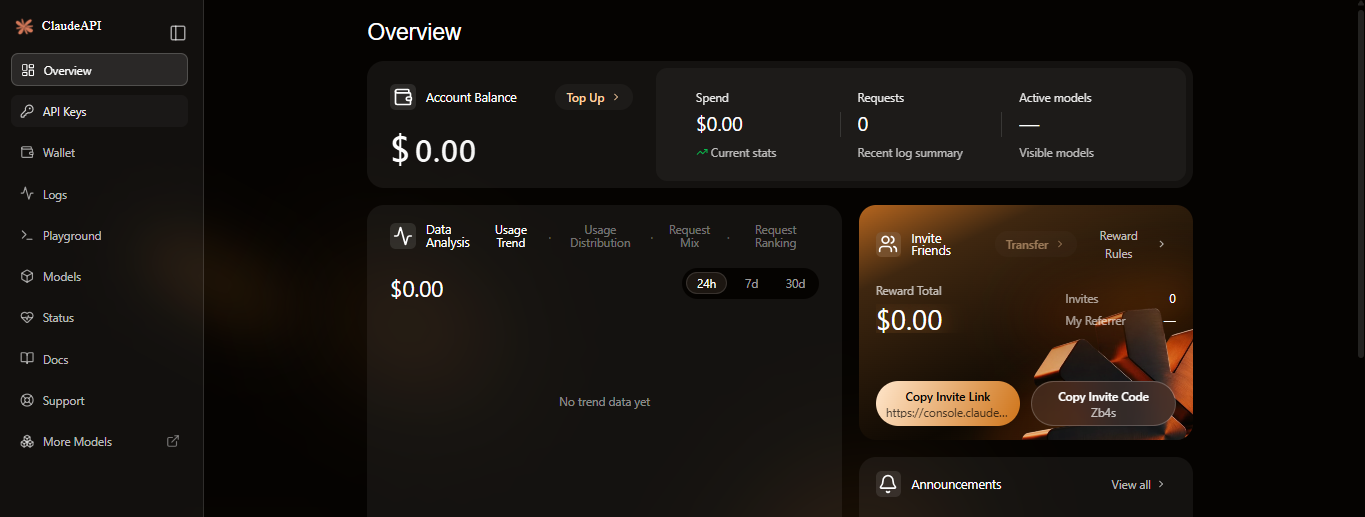
Open your web browser and navigate to: https://console.claudeapi.com/
-
Sign in to your ClaudeAPI account.
!
-
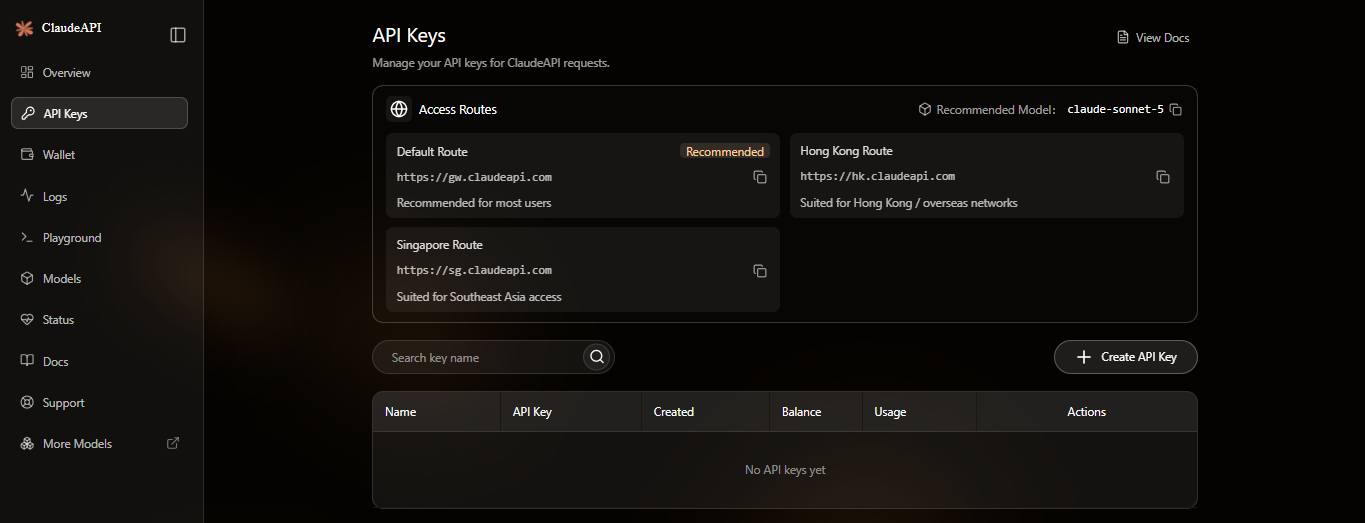
From the dashboard, open the API Keys section.
-
Click Create Key.
!
-
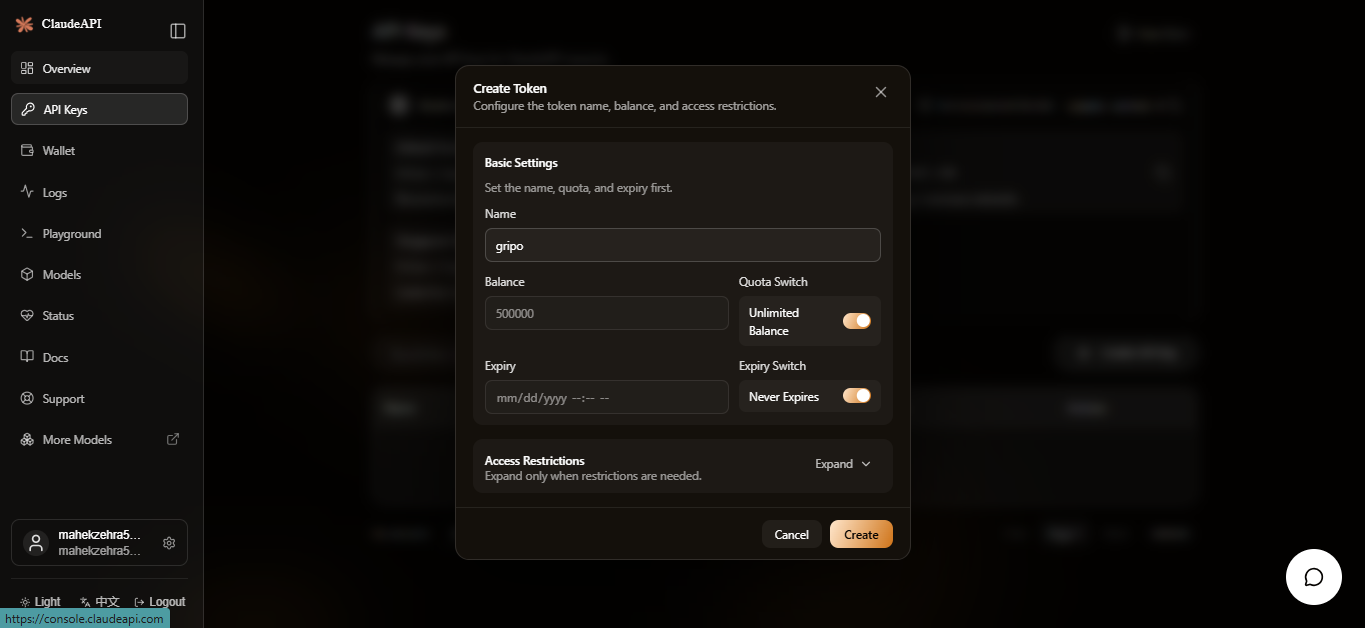
Enter a name for the API key to help identify it.
-
Click Create Key.
!
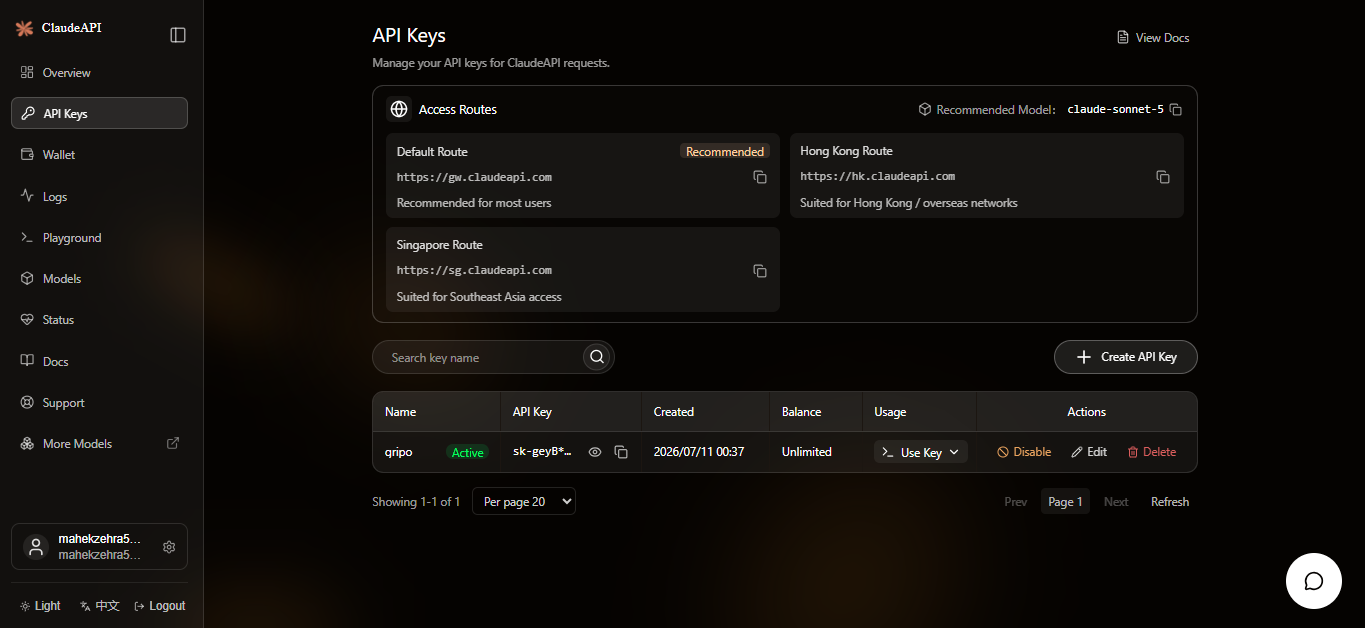
- Copy the generated ClaudeAPI key.
!
Complete the Claude Code Connection
Add the API Key to GRiPOFlow
-
Return to GripoFlow.
-
Paste the copied API Key into the API Key field.
-
Click Submit to create the connection.
- The created connection will be seen in the list