Linode Connection
Linode Provider Connections allow GRiPOFlow to securely authenticate with your Linode account using a Personal Access Token.
Before You Begin
To use Linode services such as Linode Kubernetes Engine (LKE) in GRiPOFlow, you must create a Linode connection and generate a Personal Access Token from the Linode Cloud Manager.
Use the following sections to complete the setup:
Configure the Linode Connection in GRiPOFlow
Linode Connection Form
- To create a connection, navigate to the Connection section
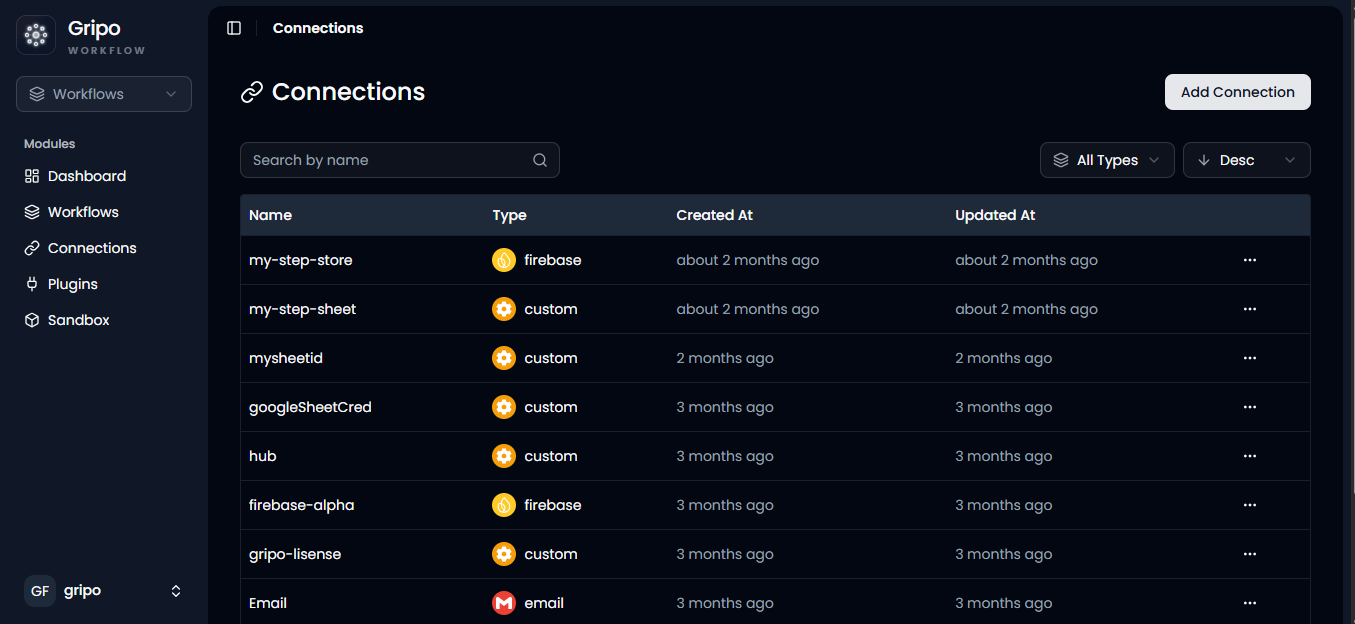
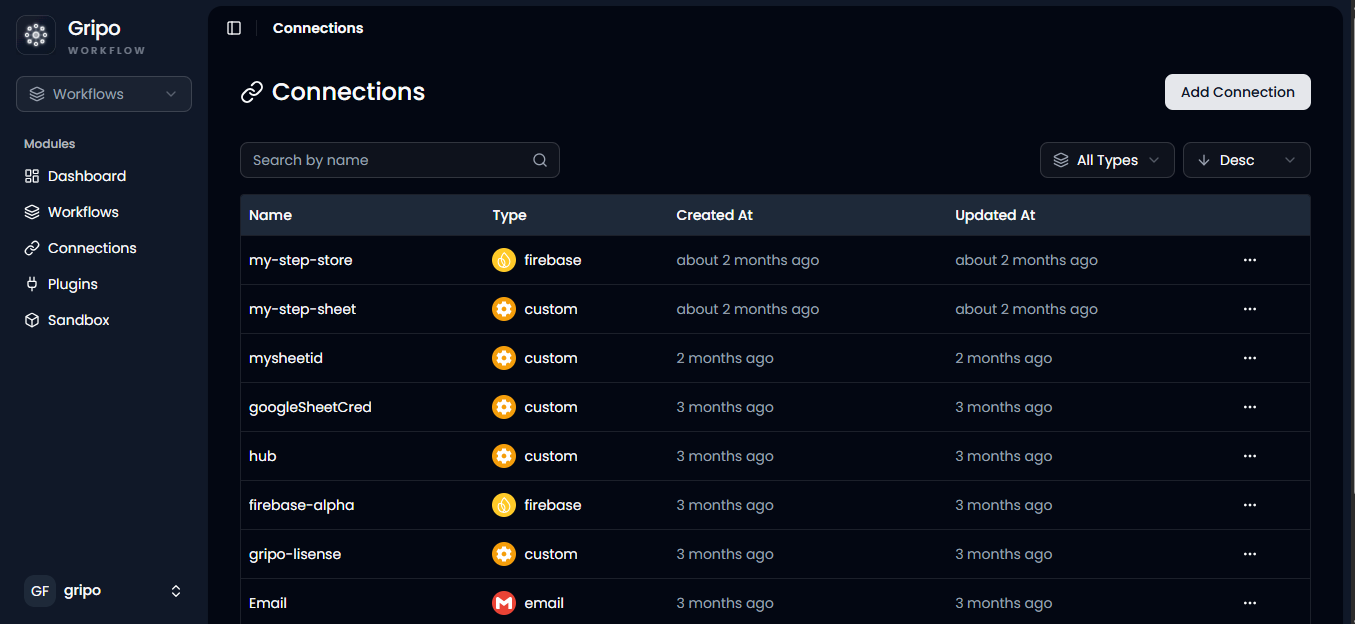
- Click on Add Credentials
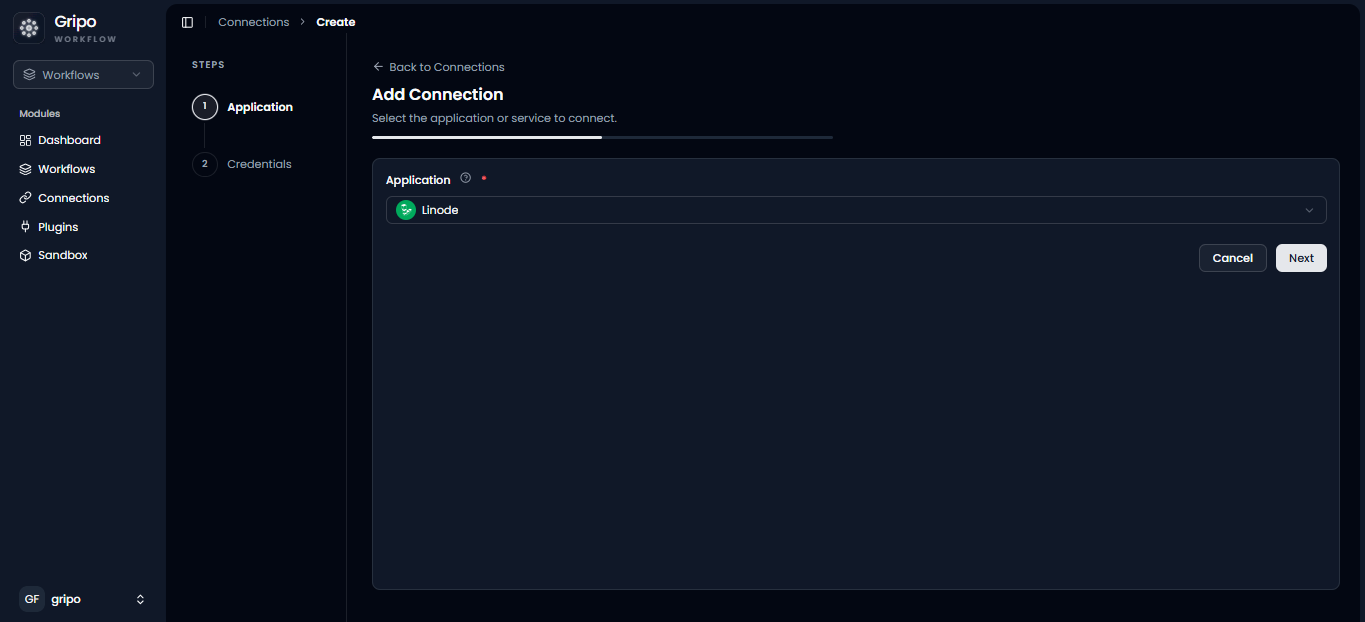
- A window appears. From the Application dropdown, choose Linode.
- Click on Next button.
- Enter a Access Token for your account.
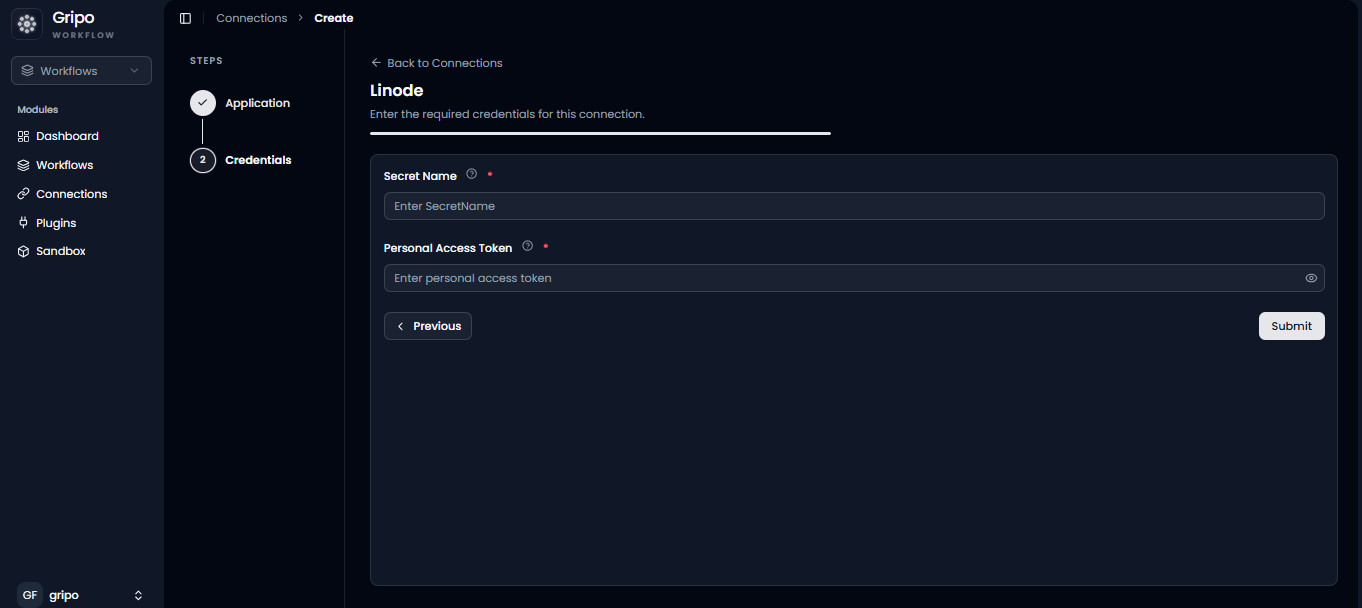
- To fill in the required fields, Personal Access Token must first be created in the Linode Portal.
Generate a Linode Personal Access Token
Create a Personal Access Token from the Linode Portal
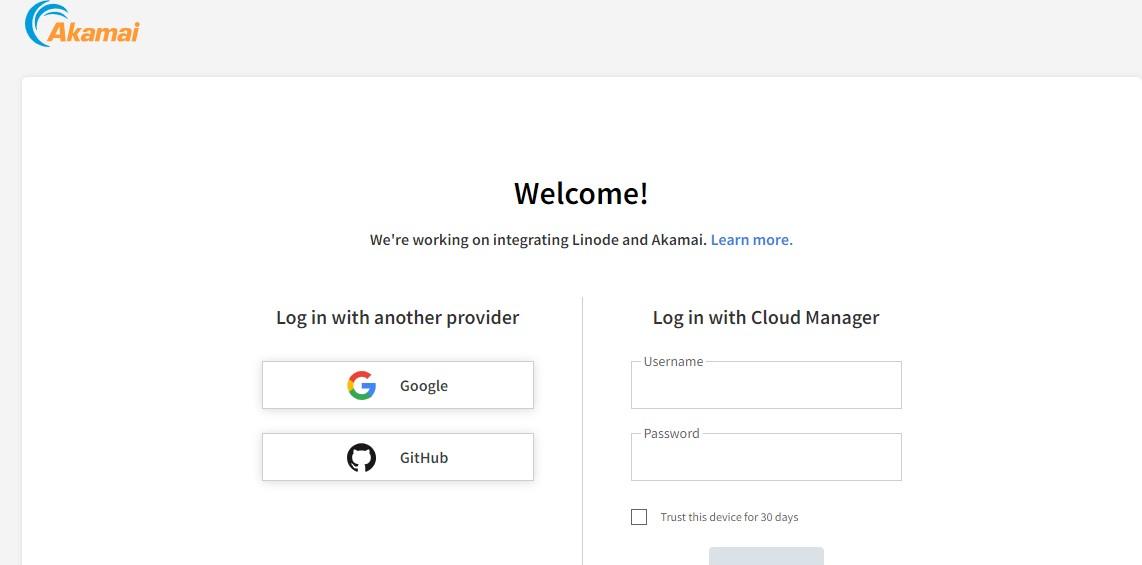
- Visit https://login.linode.com/.
- Click “Sign In” after providing username and password.
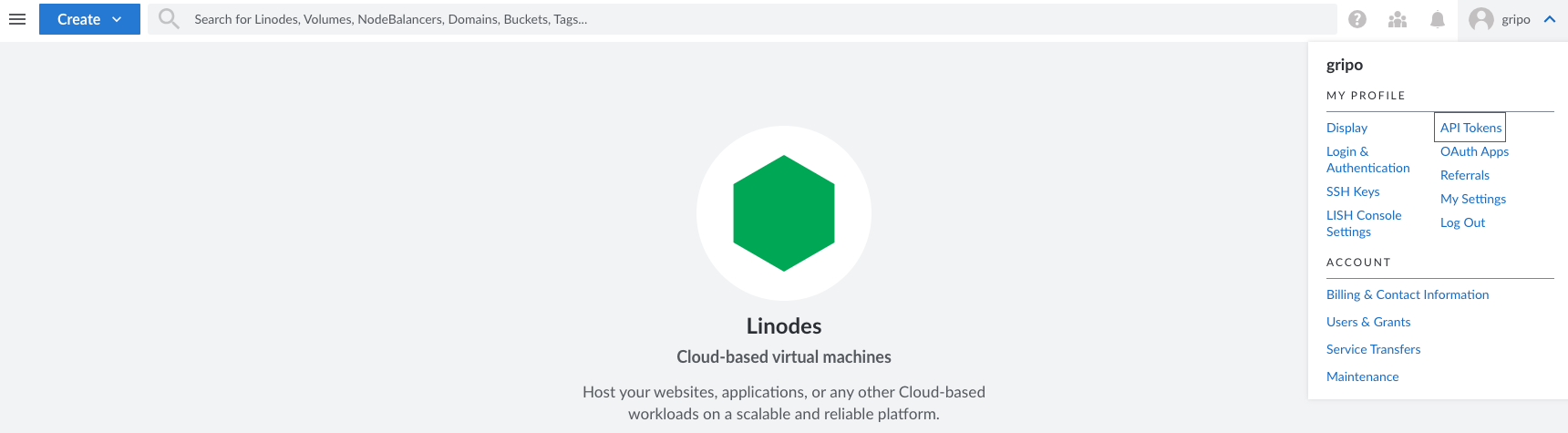
- Upon successfully signing in to the Linode interface, proceed to access the API Token functionality by clicking on API Tokens
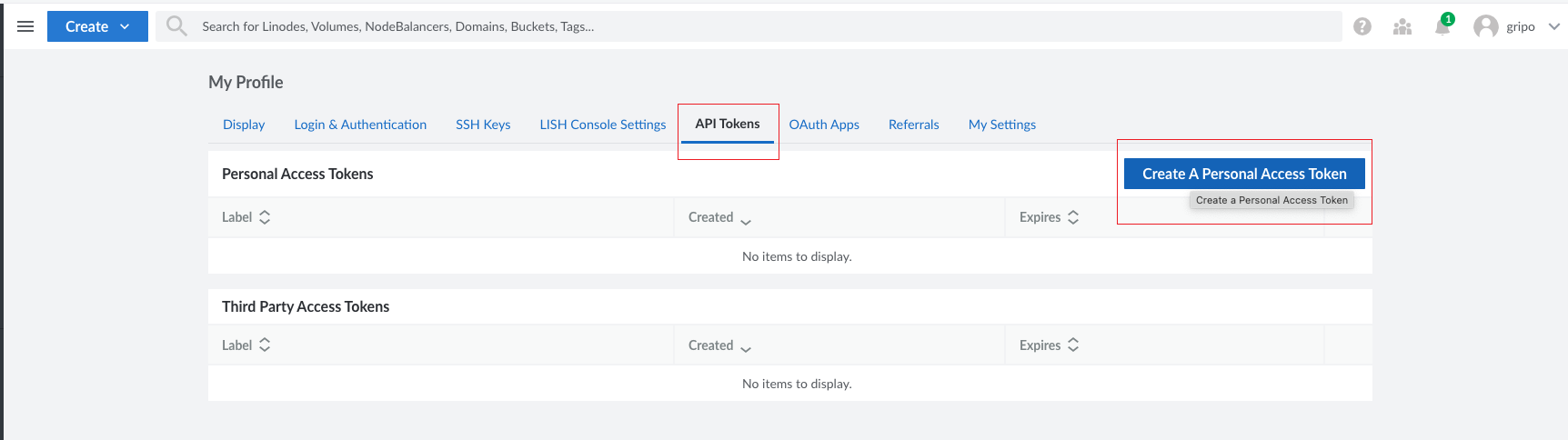
- Within the API Tokens section, locate and select “Create a Personal Access Token” to initiate the token creation process.
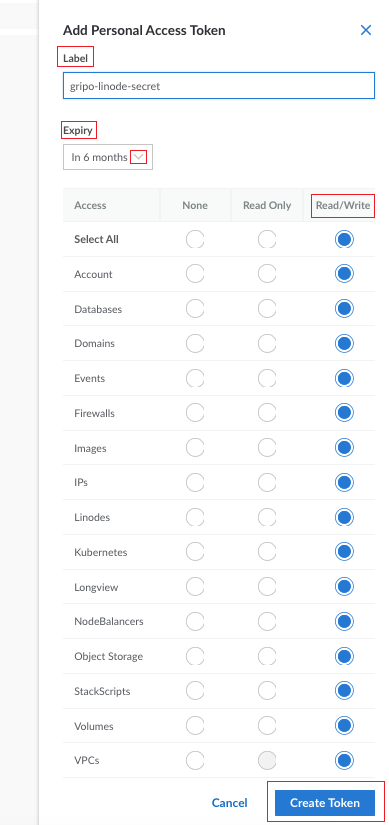
Complete the form by providing the necessary information:
- Label: Assign a label to the token for identification purposes.
- Expiry Duration: Set the expiration duration for the token.
- Ensure that you select “Read and Write” permissions for all relevant options.
- Click “Create Token” to generate the access token
- A pop-up window will appear, displaying the generated personal access token.
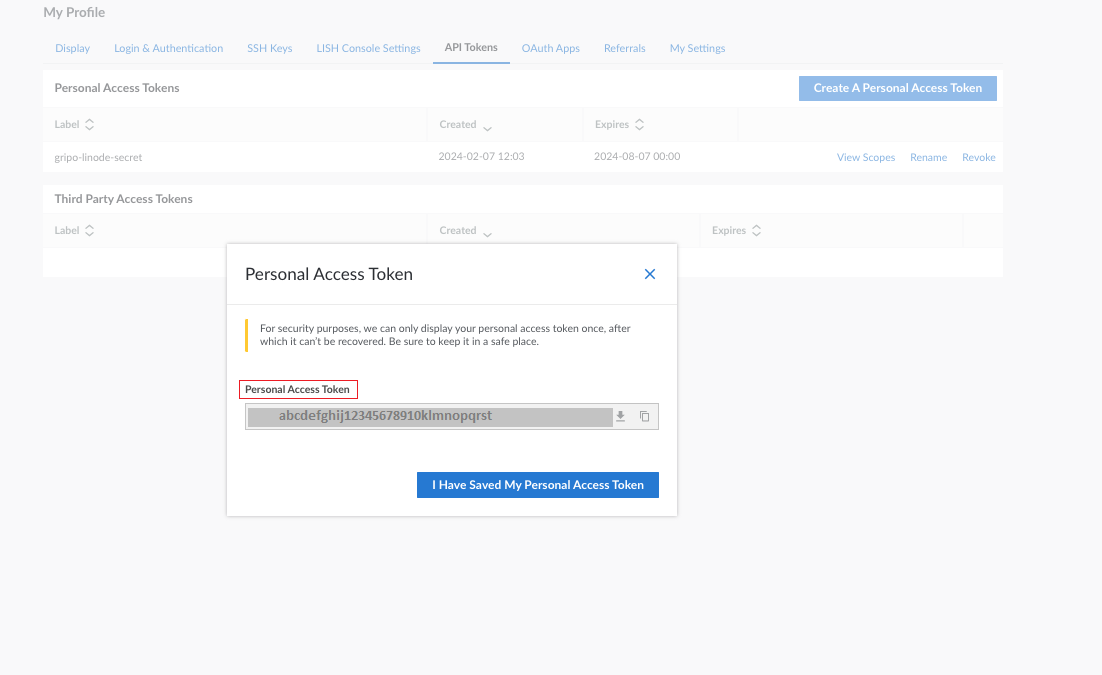
Complete the Linode Connection
Add the Personal Access Token to GRiPOFlow
- Paste the copied Token from the Linode portal into the Secret field.
- Select the “Submit” button to confirm and complete the process.
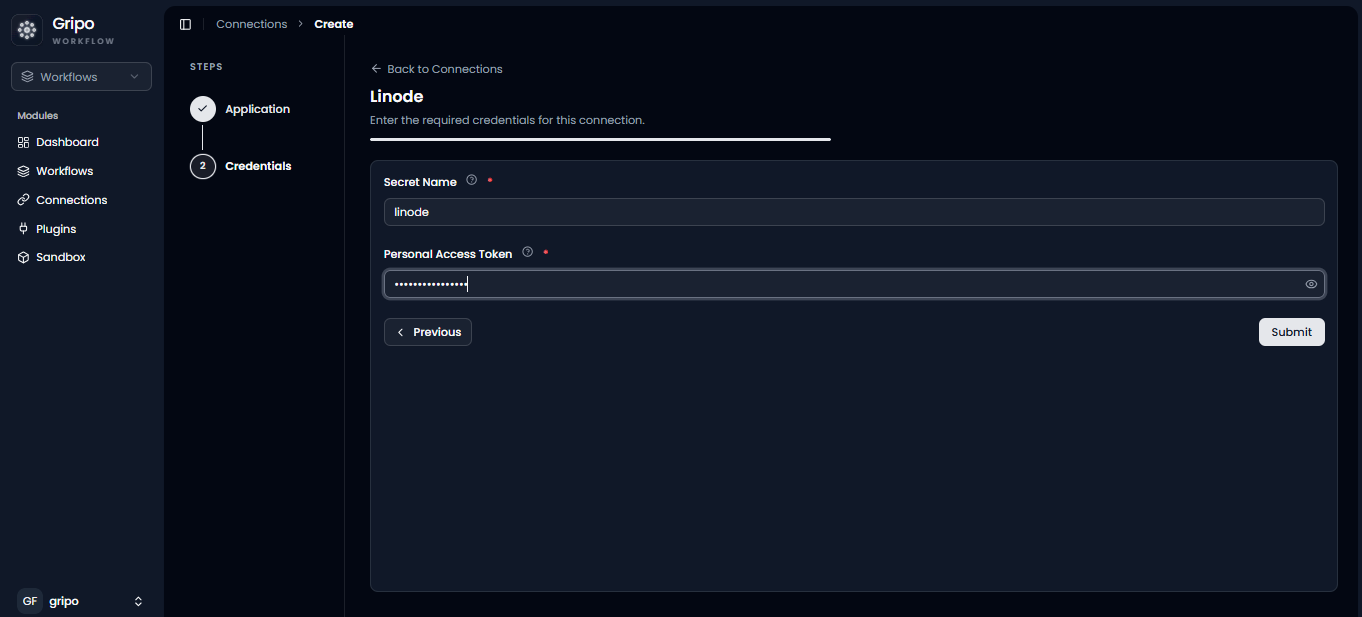
- Your recently created connection is now visible in the list of secrets for your reference.