Automate Azure Cluster Start & Stop to Save Costs
Watch the complete implementation of this workflow to learn how GRiPOFlow uses Parallel Path and Cron schedules to automatically start and stop Azure Kubernetes clusters, helping reduce cloud costs without manual intervention.
Running Azure Kubernetes clusters 24/7 can be costly — especially when they’re idle outside working hours. Automating cluster start and stop helps optimize resource usage and significantly reduce cloud costs without manual intervention.
⚙️ How Parallel Path Helps
Parallel Path in Gripo allows you to perform multiple tasks simultaneously — for example, starting and stopping clusters in separate paths or running multiple actions at once.
In this scenario, we’ll use Parallel Path to create two independent branches:
one for starting the cluster at 9 AM, and another for stopping it at 5 PM.
📅 Scenario: Start at 9 AM and Stop at 5 PM Automatically
Let’s imagine a company that only uses its Azure cluster during office hours — from 9 AM to 5 PM.
We’ll create a Gripo workflow that automatically starts the cluster each morning and stops it in the evening using a Cron schedule.
🧭 Steps to Create the Workflow
1. Navigate to the Workflow Page
-
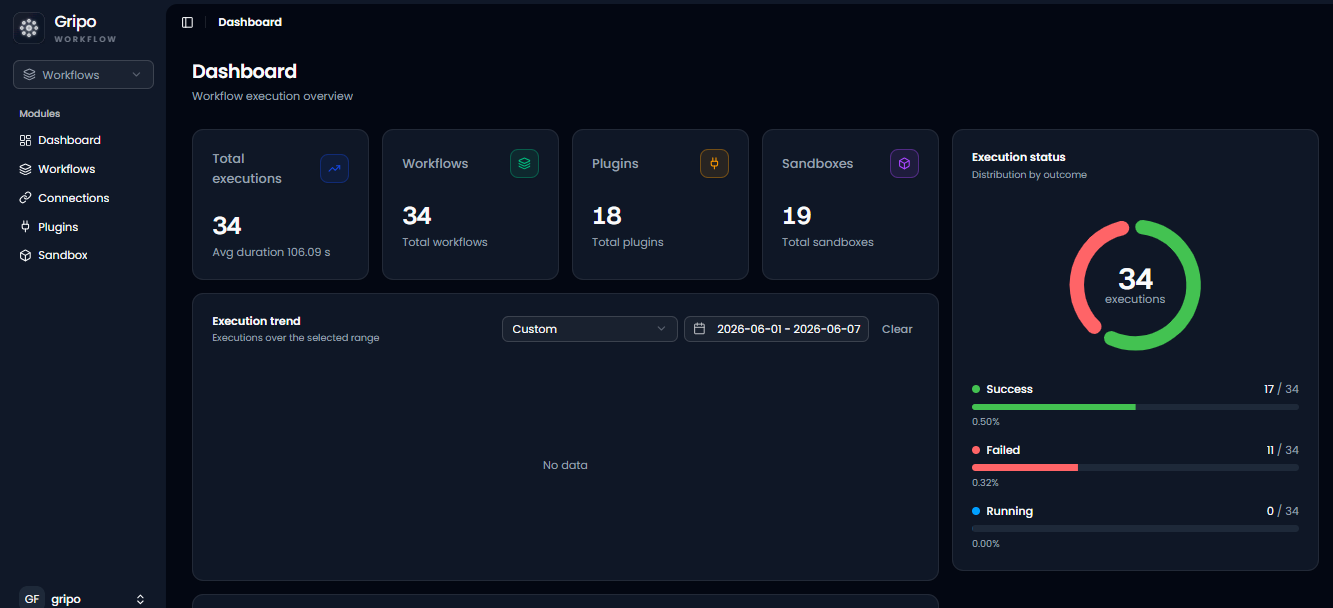
From the main menu, go to the Workflow tab.
-
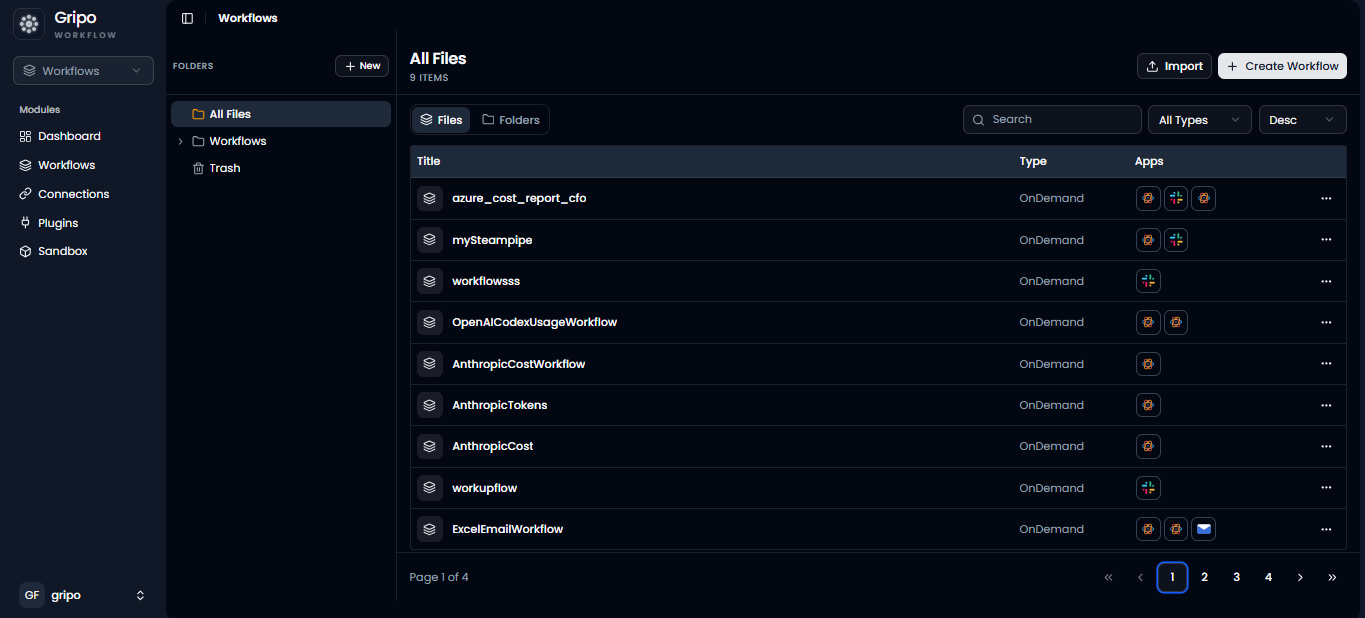
Click Create Workflow to begin.
2. Fill Out Workflow Details
-
Name:
Azure Cluster Auto Start-Stop -
Description:
Automatically start and stop Azure clusters to save cost. -
Type: Choose On Schedule.
-
Retry: Set retries (e.g., 3) for reliability.
-
Tags: Add tags like
Azure,Automation,Cost Saving.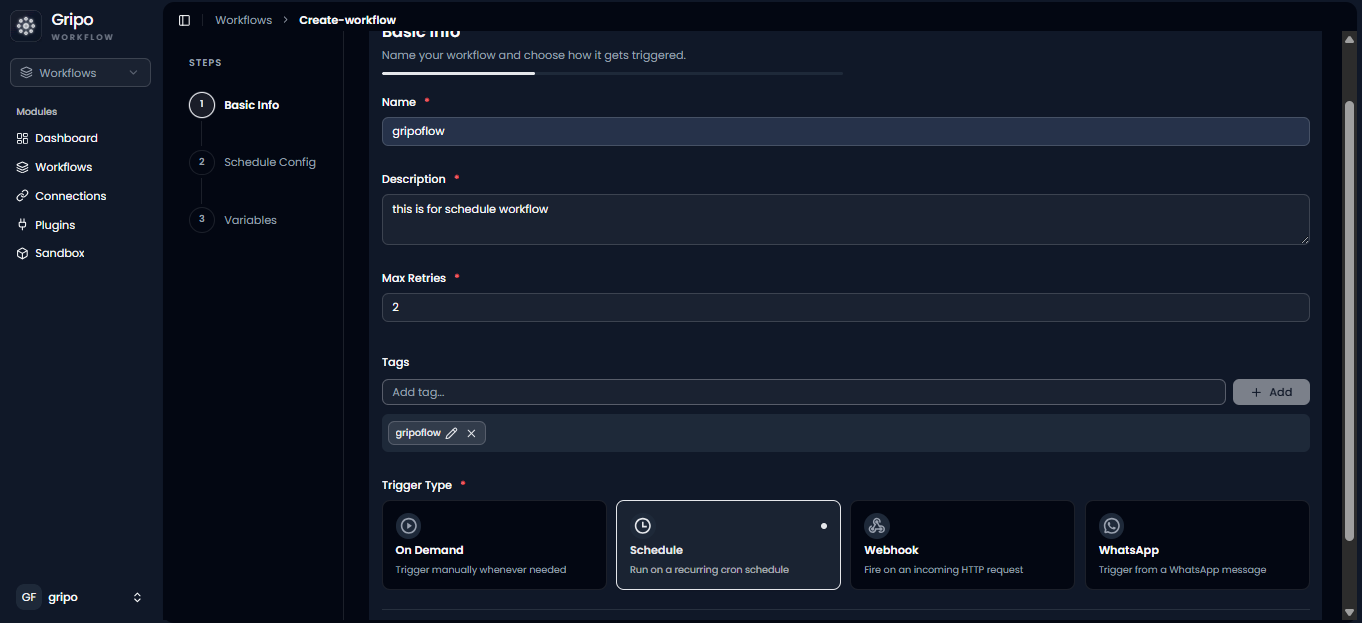
Click Next → define optional variables if needed → then Save and Continue.
🔀 Add a Parallel Path
-
After creating the workflow, click the “+” button to add a new activity.
-
Go to Core → select Parallel Path.
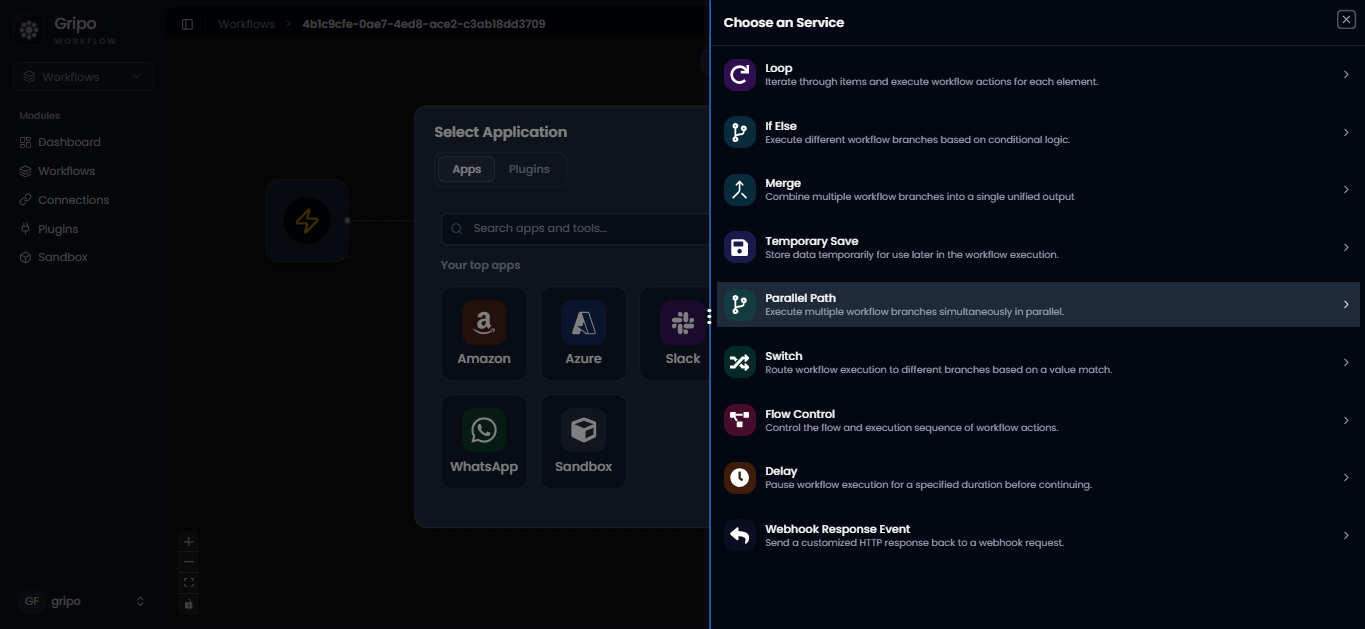
Parallel Path lets you divide your workflow into multiple branches.
We’ll create one branch for Parallel Path1 and another for Parallel Path2.
🕘 Branch 1: Start Azure Cluster at 9 AM
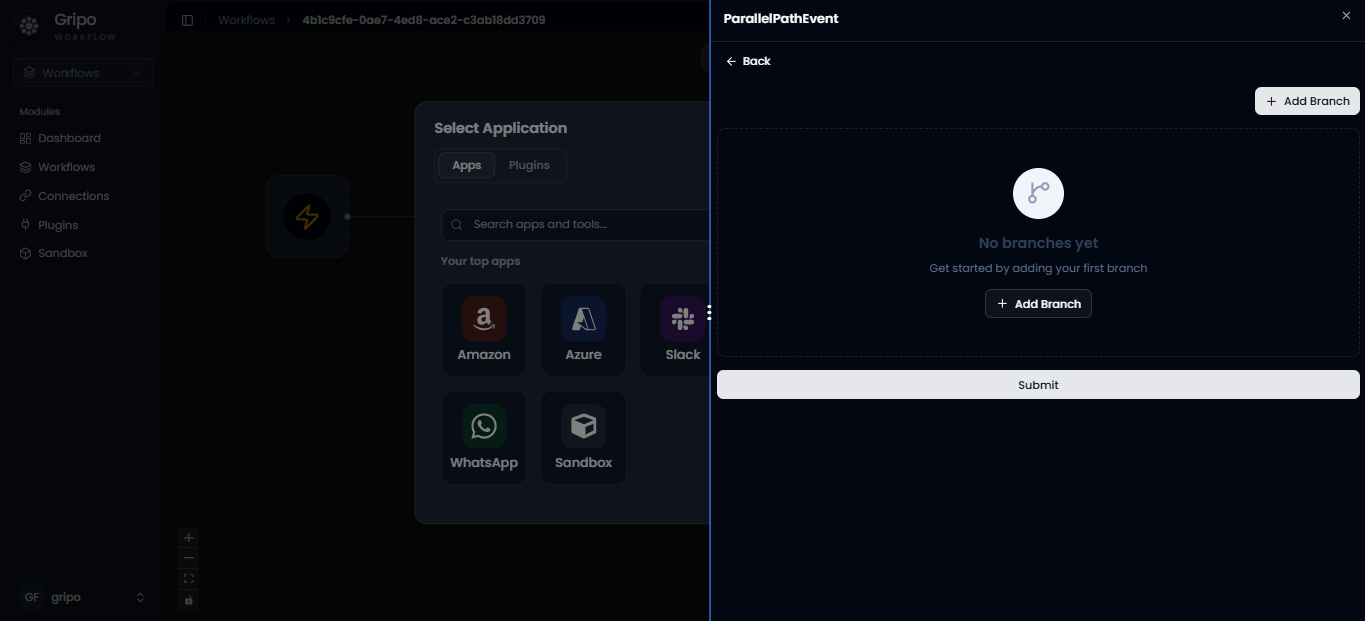
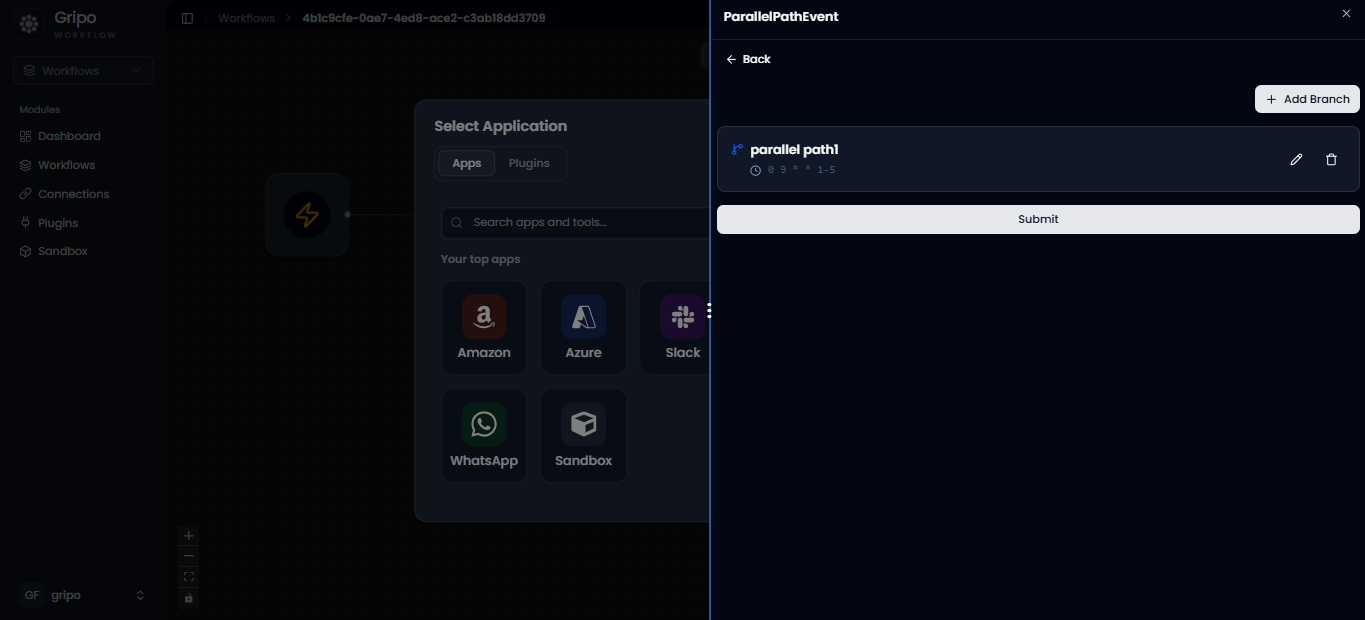
- Click on Add Branch button .
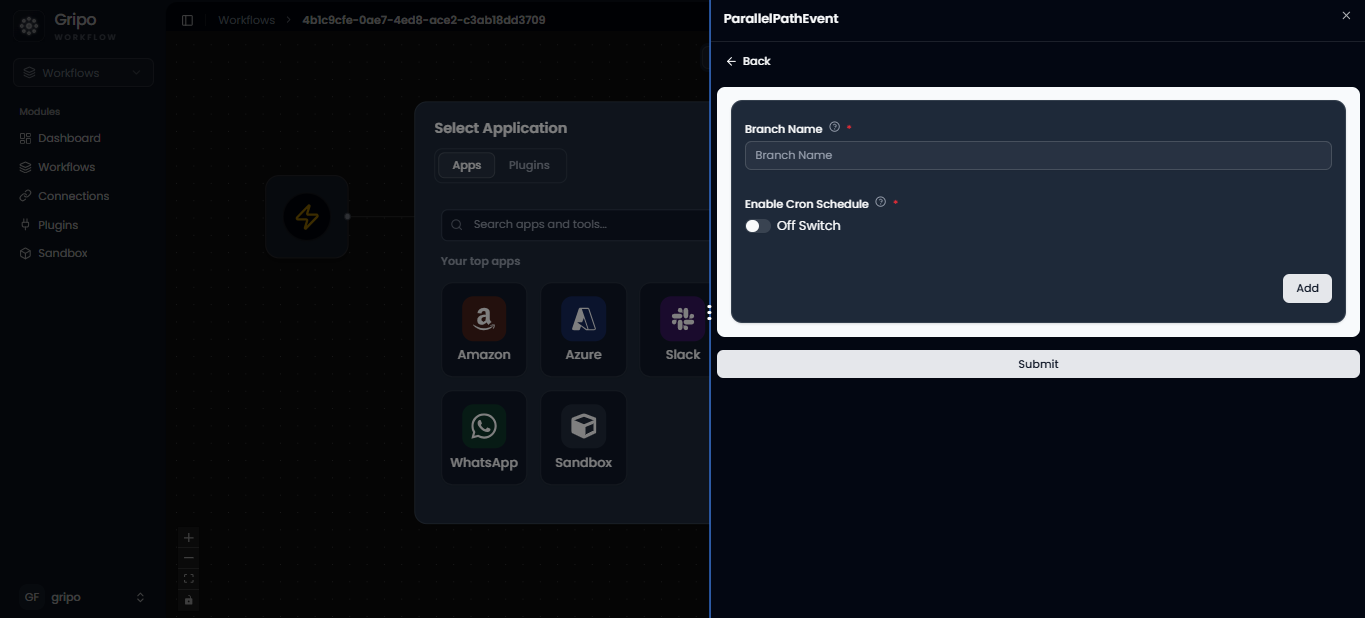
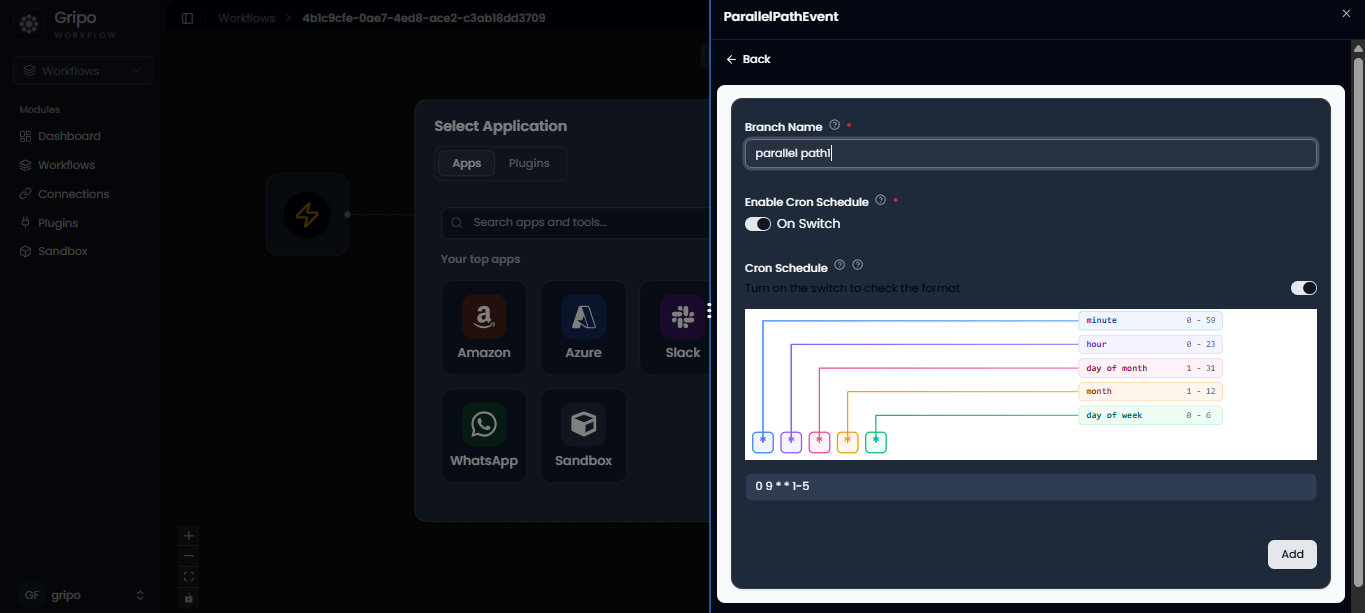
- Add a branch name, e.g., Parallel Path1.
- Enable Cron Schedule and set it to trigger at 9 AM every weekday.
⏱️ About Cron Schedule
A Cron schedule is a time-based job trigger.
It allows your workflow to run automatically at a specific time or interval
- In this branch, click “+” and select Azure Managed Kubernetes → Start Cluster.
- Fill in:
- Branch Name
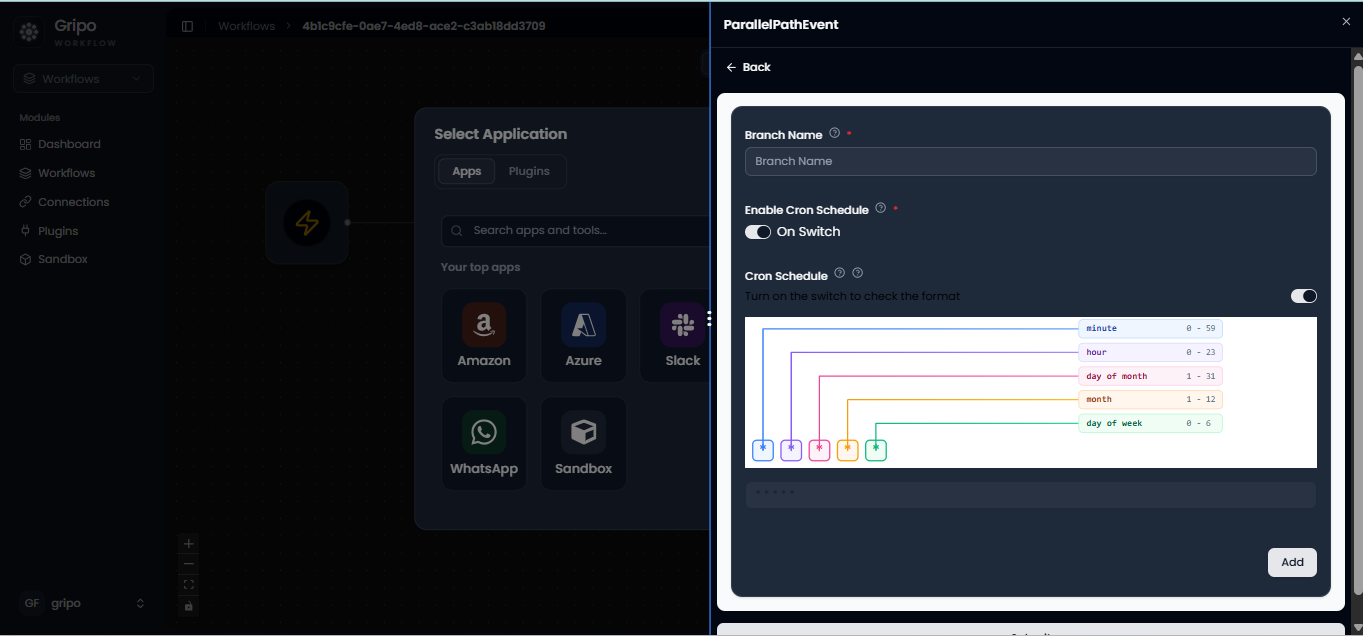
- Enable Cron Schedule and set it to trigger at 9 AM every weekday.
Understanding the Cron Schedule Configuration
Cron Schedule Breakdown
The workflow uses the standard 5-field cron syntax 0 9 * * * to manage automated execution times.
| Field | Value | Type | Description |
|---|---|---|---|
| Minute | 0 | Specific | Triggers exactly at the start of the hour. |
| Hour | 9 | Specific | Executes at 09:00 (9:00 AM). |
| Day of Month | * | Wildcard | Runs every day of the month. |
| Month | * | Wildcard | Runs during every month of the year. |
| Day of Week | * | Wildcard | Applies to all days of the week (Sunday through Saturday). |
🎯 Final Execution Rule
Result: This Cron configuration ensures that the workflow automatically executes every day at 9:00 AM without manual intervention.
-
Click Add to add the action.
🕔 Branch 2: Stop Azure Cluster at 5 PM
-
Add another branch named Parallel path 2 by clicking on Add Branch button .
-
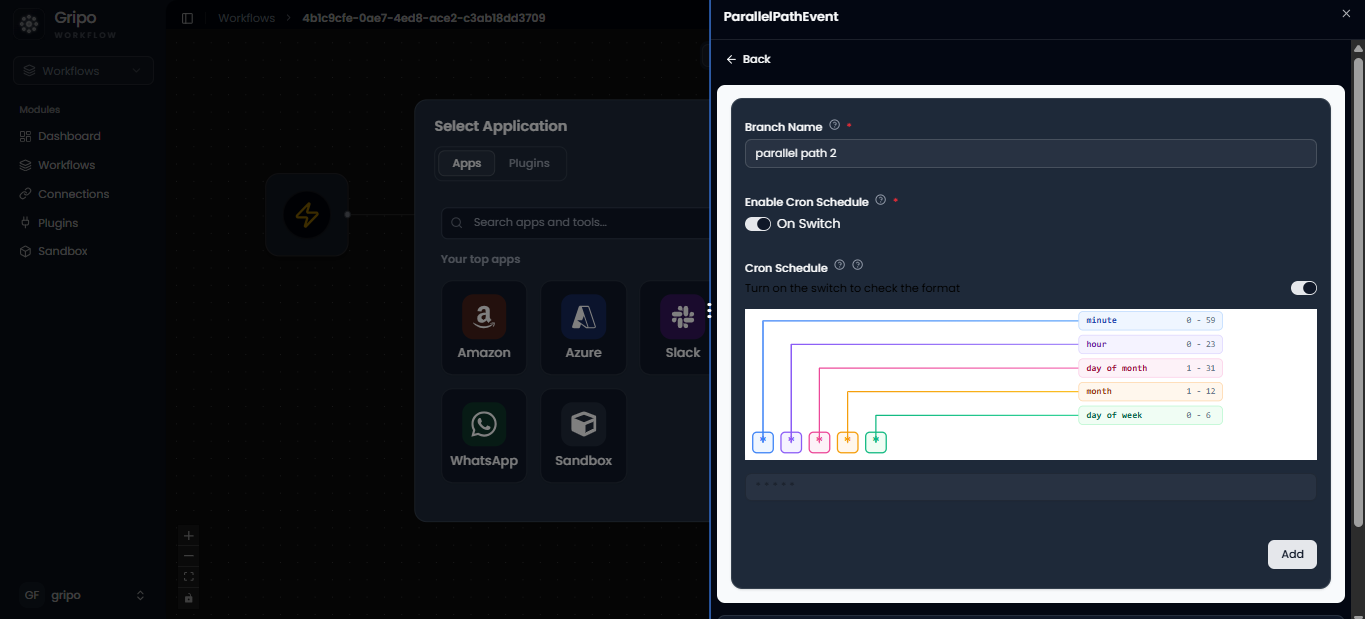
Provide the Branch name.
-
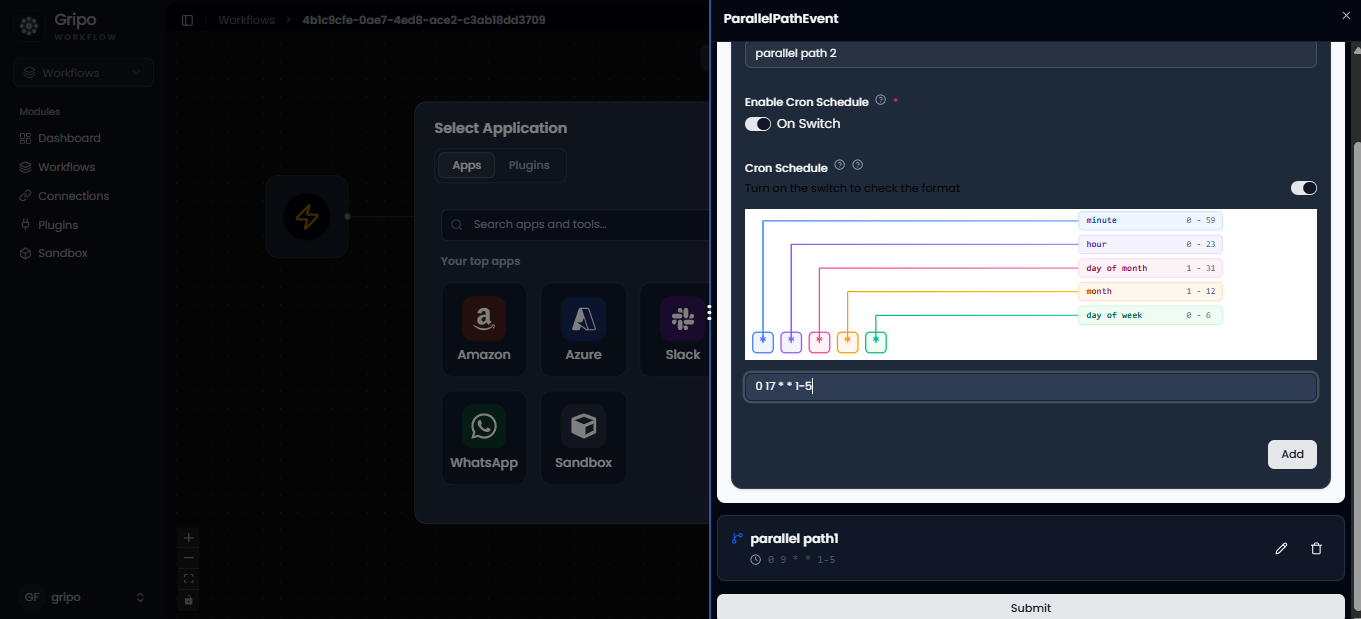
Enable Cron Schedule again and set it to trigger at 5 PM every weekday.
Understanding the Stop Cluster Cron Schedule
Cron Schedule Breakdown
The workflow uses the standard 5-field cron syntax 0 17 * * 1-5 to manage automated execution times.
| Field | Value | Type | Description |
|---|---|---|---|
| Minute | 0 | Specific | Triggers exactly at the start of the hour. |
| Hour | 17 | Specific | Executes at 17:00 (5:00 PM in 24-hour time). |
| Day of Month | * | Wildcard | Runs regardless of the calendar date. |
| Month | * | Wildcard | Runs during every month of the year. |
| Day of Week | 1-5 | Range | Restricts execution to Monday through Friday only. |
🎯 Final Execution Rule
Result: This Cron configuration ensures that the workflow automatically executes every weekday (Monday to Friday) at 5:00 PM, allowing resources to safely shut down before the weekend to optimize cost efficiency.
- Click Add.
🔔 Add Notifications (Optional)
You can add a Slack or Email notification after each action to confirm the status.
This keeps your team updated automatically when clusters start or stop.

✅ Save & Verify
Once both branches are configured:
-
Click Save Workflow.
-
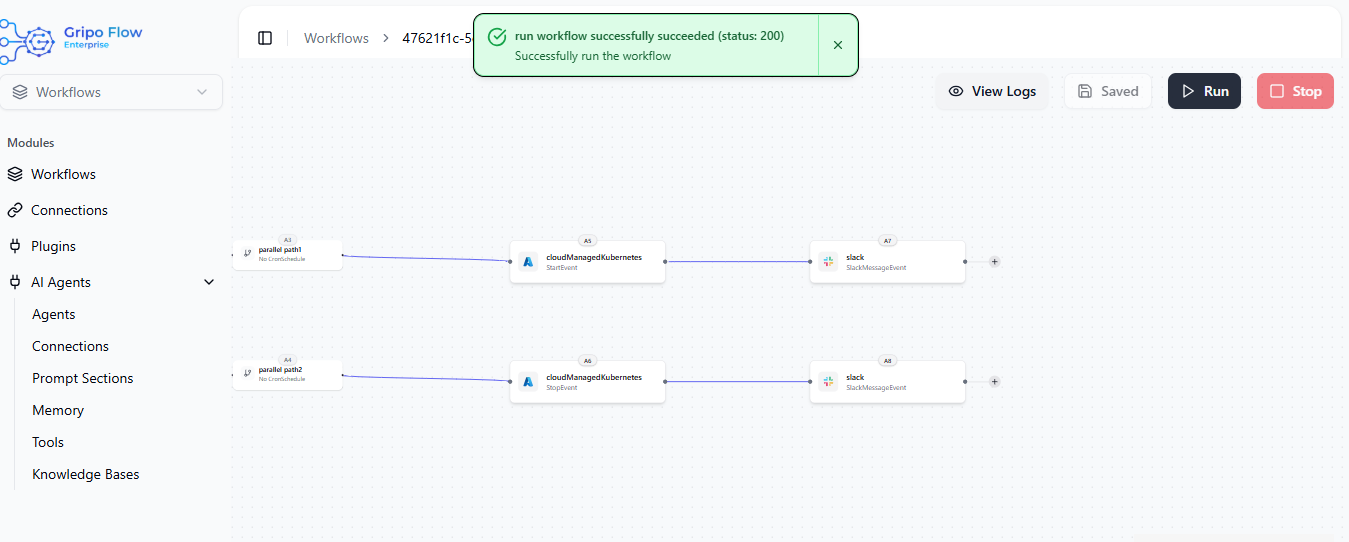
The workflow will now automatically start the cluster at 9 AM and stop it at 5 PM daily.
-
You can monitor execution results from the workflow dashboard.
🎯 Outcome
With this workflow:
- Azure clusters start automatically during business hours and shut down after to save money.
- Parallel Path ensures both start and stop operations are independently scheduled.
- Cron jobs remove manual effort, ensuring cost optimization with full control.
Result:
A smart, automated Azure cluster management system that saves time, cuts costs, and runs exactly when you need it — powered by Gripo’s visual workflows.