Google Cloud Connection
Google Cloud Provider Connections allow GRiPOFlow to securely authenticate with your Google Cloud account using a Service Account JSON key.
Before You Begin
To use Google Cloud services in GRiPOFlow, you must create a Google Cloud connection and obtain a Service Account JSON key along with the required OAuth scopes.
Use the following sections to complete the setup:
Configure the Google Cloud Connection in GRiPOFlow
Google Cloud Connection Form
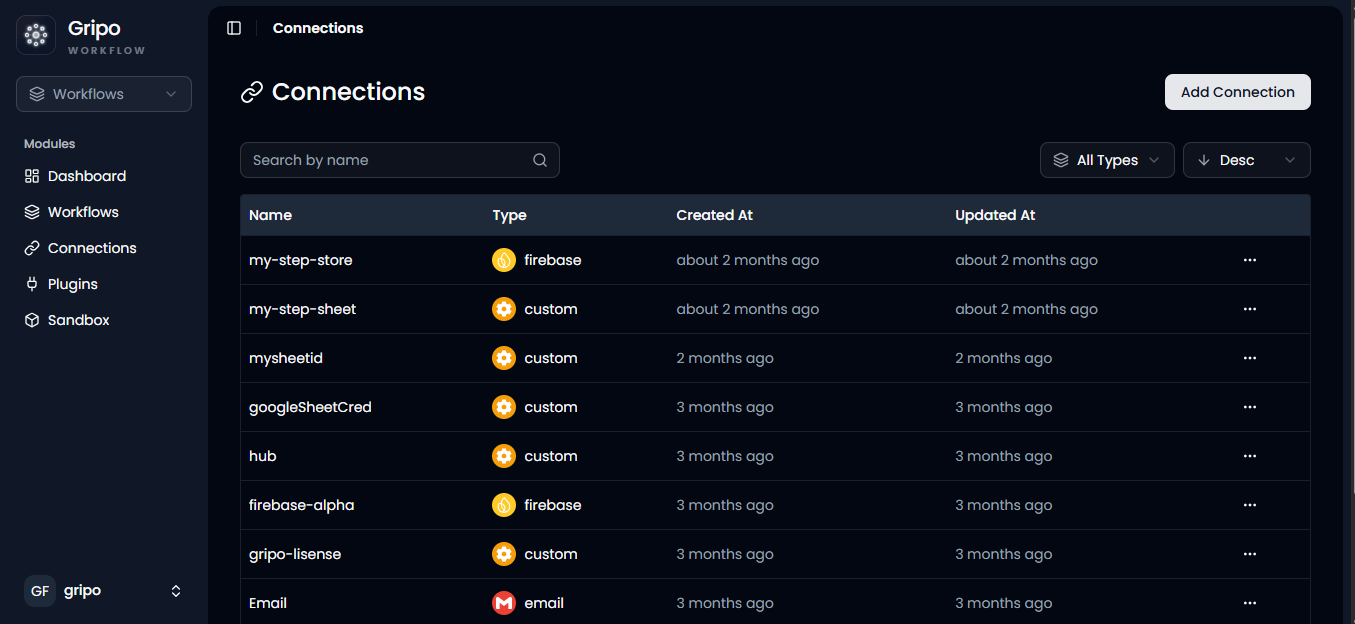
- To create a connection, navigate to the Connection section
- Click on Add Credentials
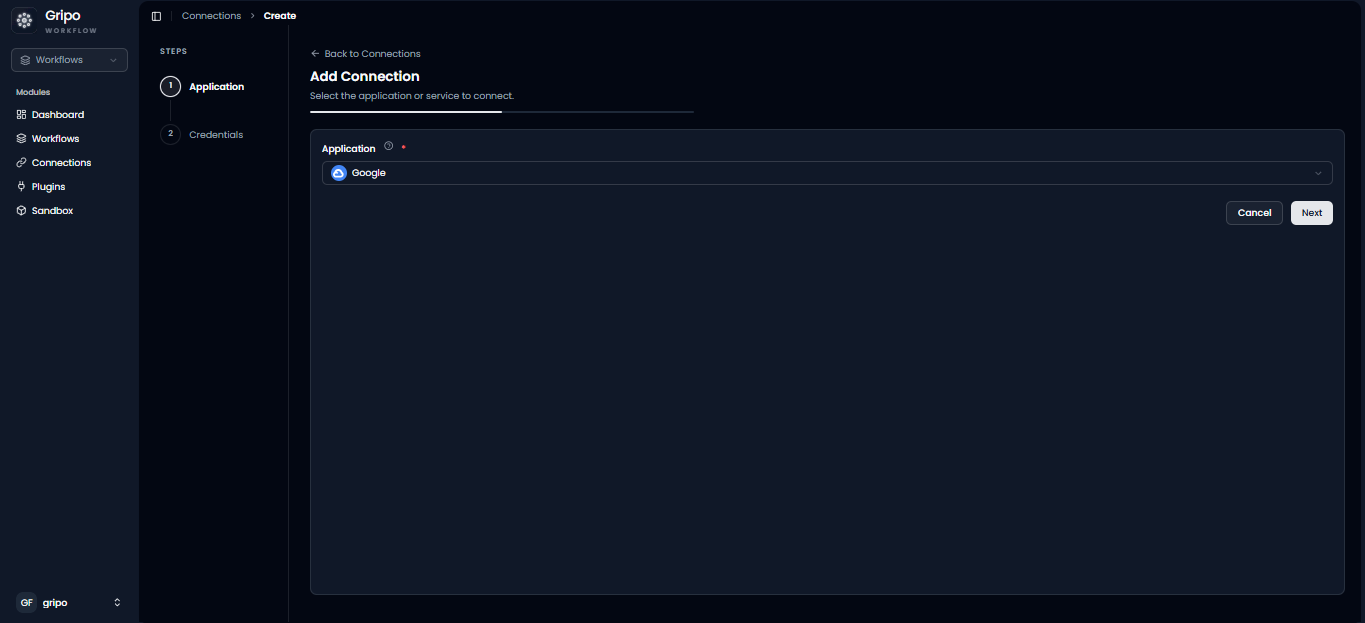
- A window appears. From the Application dropdown, choose Google.
- Click on Next button
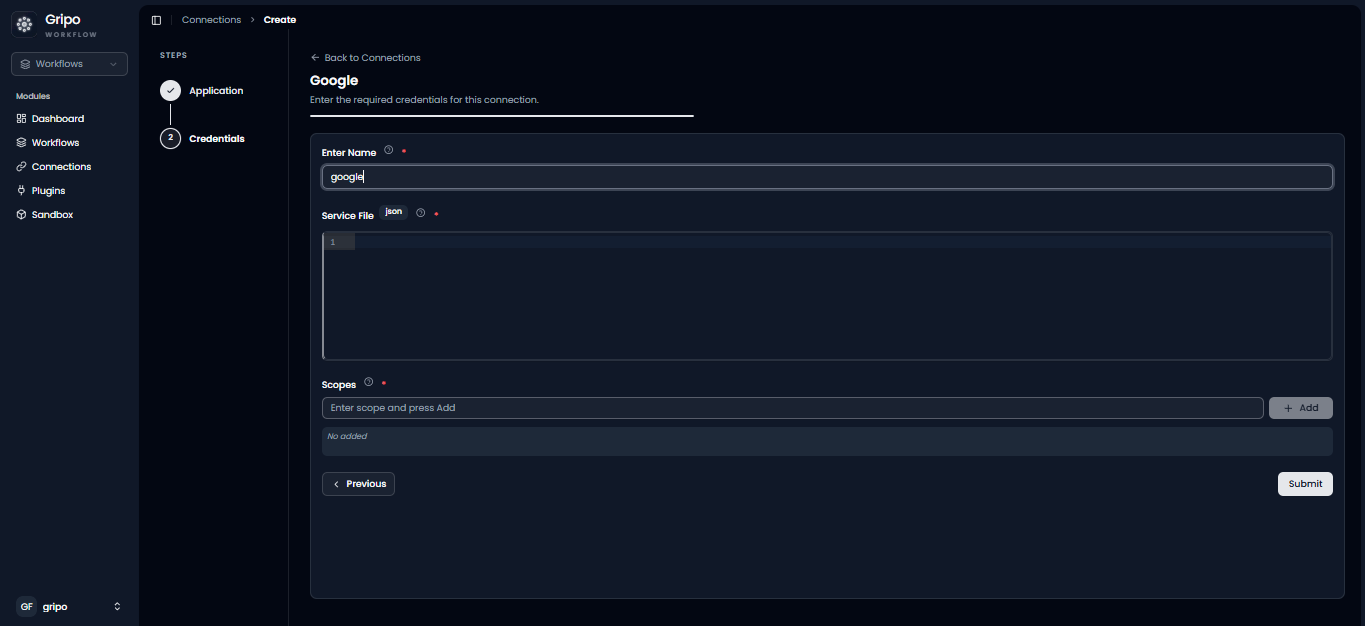
- A form will be presented for you to enter the required details.
- Enter a designated name for your credential.
- Provide the Json Services file
- Provide Scope
Before creating the connection, obtain your Google Service Account JSON key file and the required OAuth scopes from the Google Cloud Console
Generate a Google Service Account JSON Key
Create a Google Service Account JSON Key
-
Please access your web browser and navigate to the Google portal by entering the following URL: https://console.cloud.google.com/
-
Locate and select the “Sign In” button, typically situated at the upper right-hand corner of the page
-
Create or select your Google Cloud project.
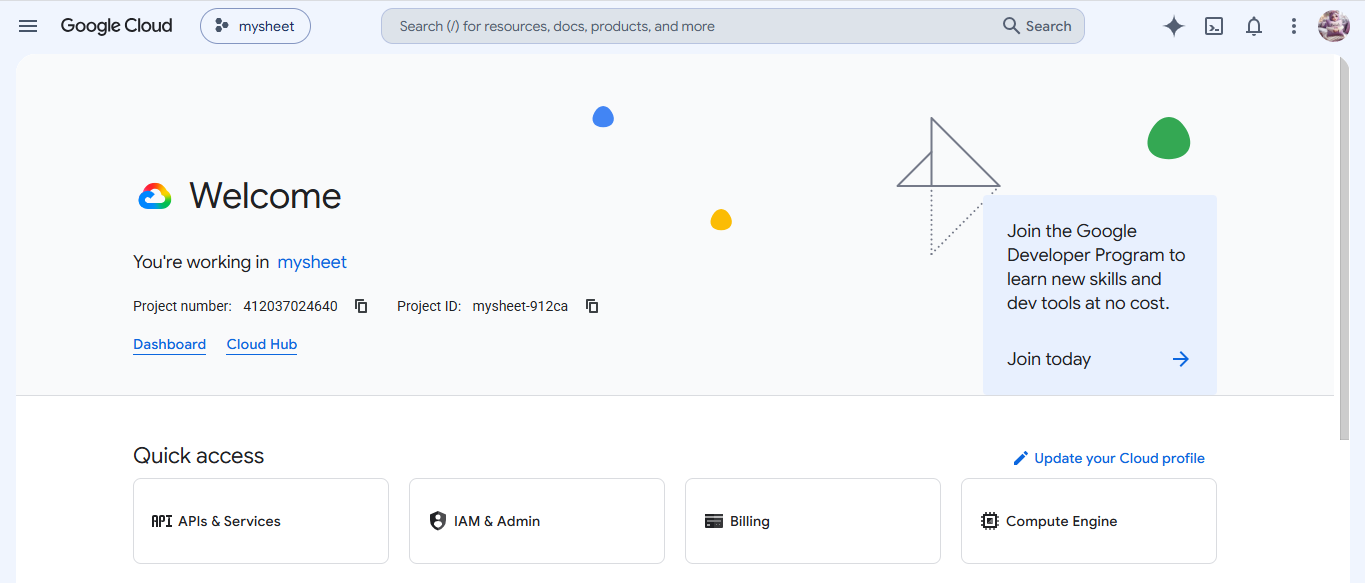
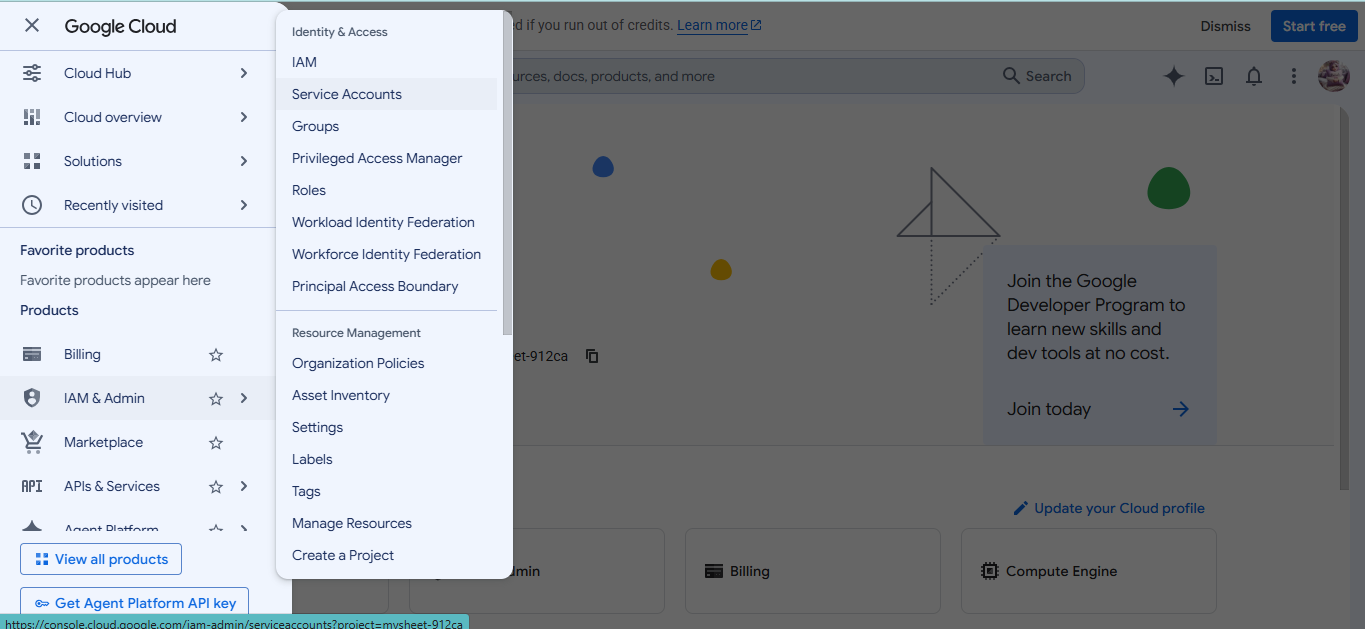
- Go to IAM & Admin → Service Accounts.
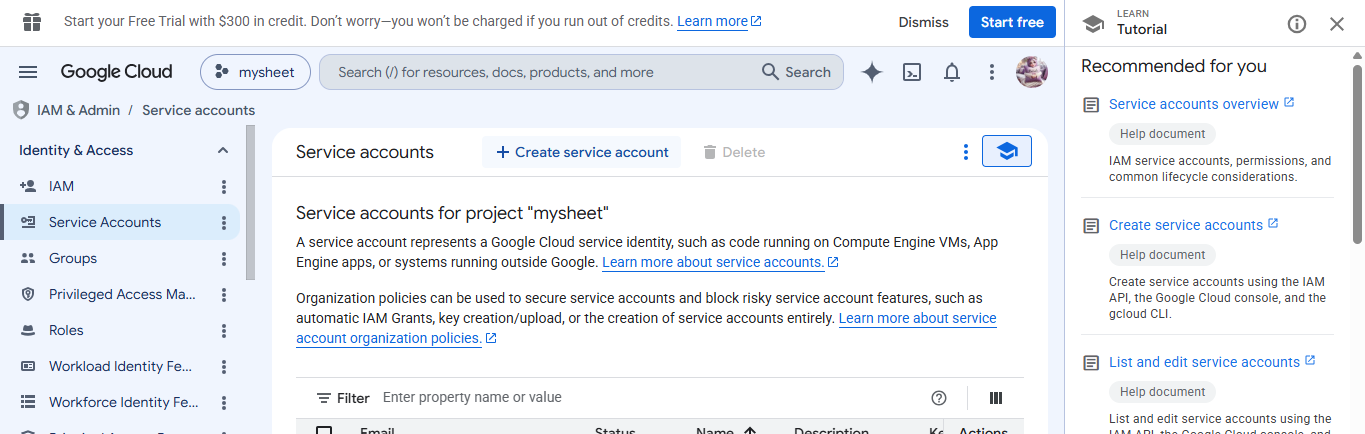
- Click Create Service Account.
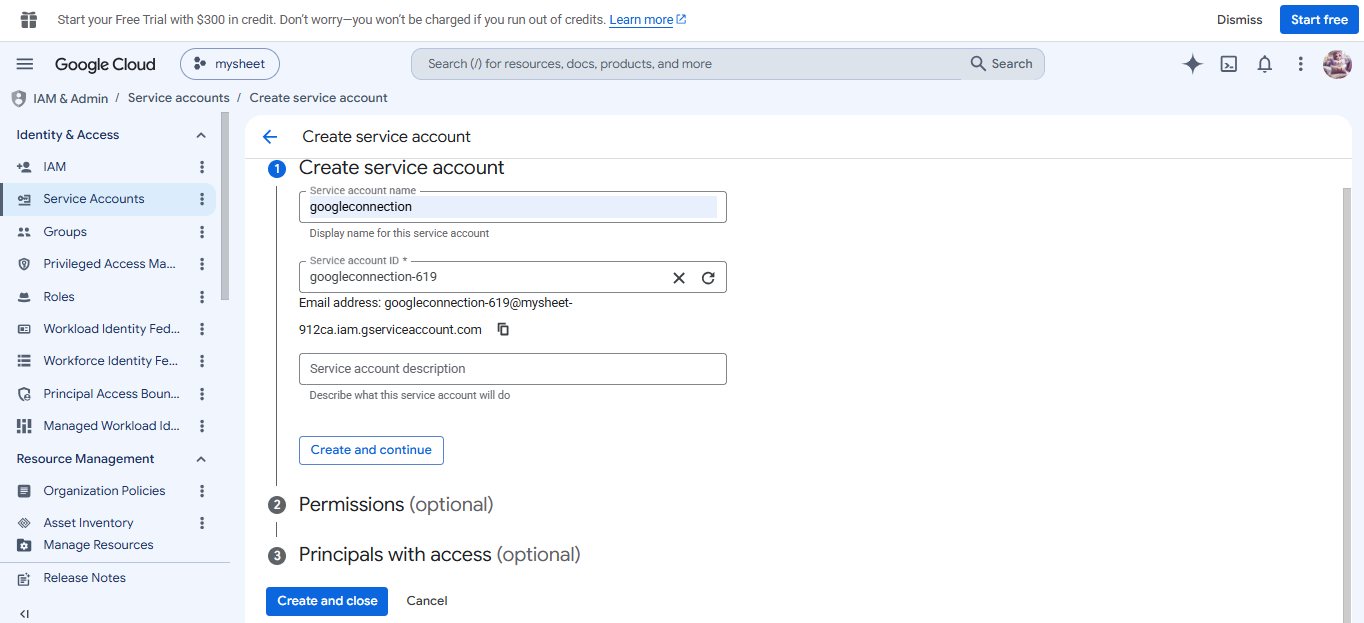
- Give the service account a name and click Create and Continue.
- Grant the required IAM roles (depending on the Google APIs you will use), then click Done.
- Open the newly created service account.
- Navigate to the Keys tab.
- Click Add Key → Create New Key.
- Select JSON and click Create.
- The JSON service account key file will be downloaded to your computer.
Configure OAuth Scopes
Specify the Required OAuth Scopes
-
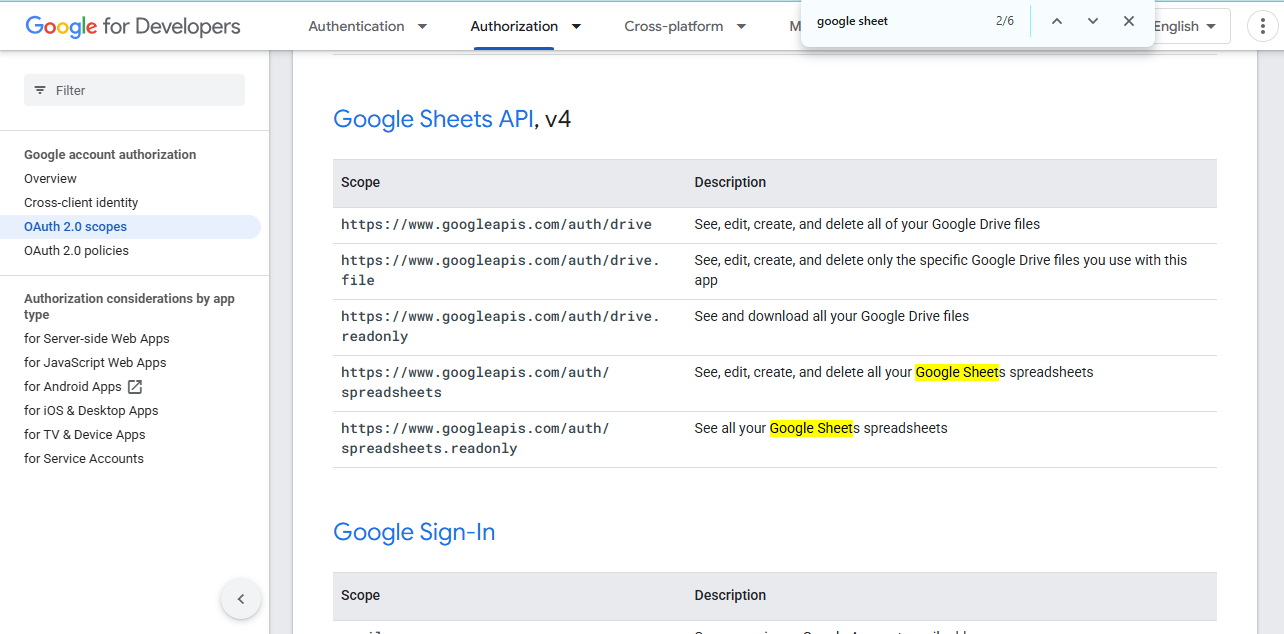
The Scope field specifies the permissions that GripoFlow requests when accessing your Google account. These permissions determine which Google services and resources your workflow can access.
-
Enter the required Google OAuth scope(s) based on the services your workflow needs. If multiple scopes are required, separate them with a space.
Note: Only request the permissions that are necessary for your workflow to follow Google’s recommended security practices.
For a complete list of available Google OAuth scopes, refer to the official Google documentation:
https://developers.google.com/identity/protocols/oauth2/scopes
Complete the Google Cloud Connection
Add the Service Account JSON and OAuth Scopes to GRiPOFlowi
- Paste that Json in the GripoFlow services field .
- Provide scope
- Click on Submit button