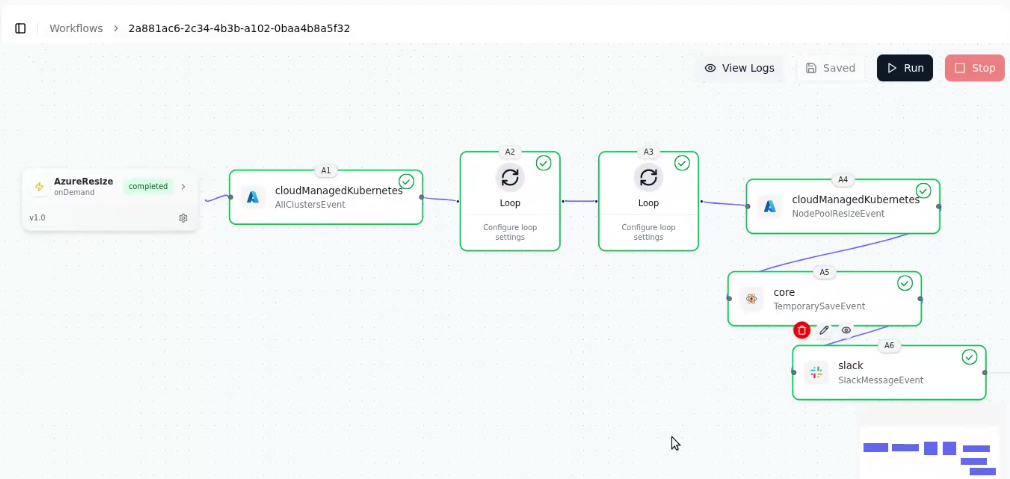
Temporary Saved Activity
The Temporary Saved Activity feature in GRiPO allows you to save your ongoing activity setup without executing or finalizing it. This is useful when you’re in the middle of creating or configuring an activity but need more time to review details, confirm settings, or make changes later.
It ensures that your progress isn’t lost and gives you flexibility to continue building workflows at your own pace.
When to use it: Use the Temporary Saved Activity option when you:
- Need to pause configuration before completing all fields.
- Want to review or verify input values before final submission.
- Are building a large workflow and prefer saving step-by-step to avoid losing work.
- While setting up an Azure Managed Kubernetes action, you’ve filled in the connection details but haven’t decided on the node pool action yet — you can temporarily save the activity and complete it later.
Use Case: Resize Azure Node Pool in GRiPO Workflow
This use case demonstrates how you can automate the resizing of Azure Kubernetes node pools using GRiPO Workflows. By combining multiple activities like loops, Azure Managed Kubernetes, and temporary saved actions, you can streamline the process of iterating through clusters and resizing them automatically.
- Click on the “+” button to add your first activity.
- After selecting Azure Managed Kubernetes, a list of available Azure cluster actions will appear.
- From this list, choose “All Clusters” to fetch details of all clusters in your Azure environment.
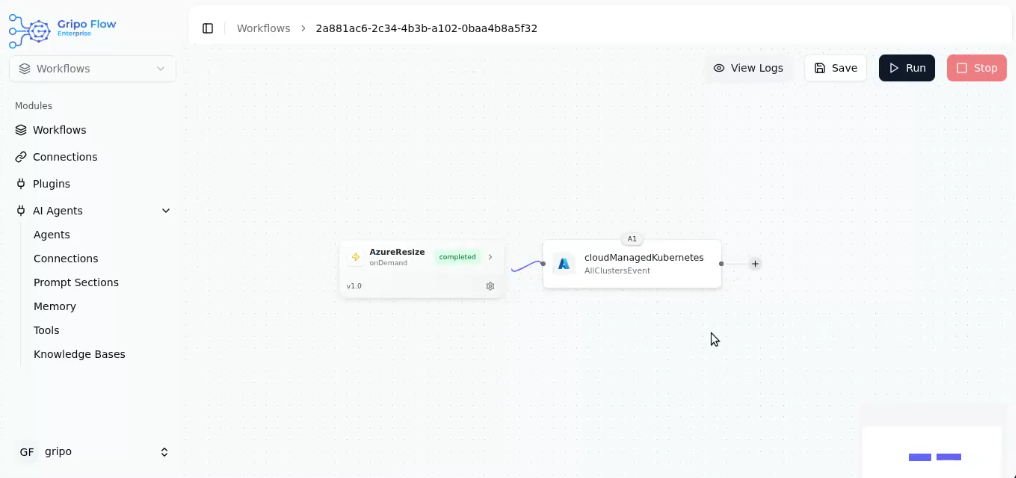
Add Loop Activity : Iterate Over Cluster List - Click on ”+” button to add a new activity
- Select Core
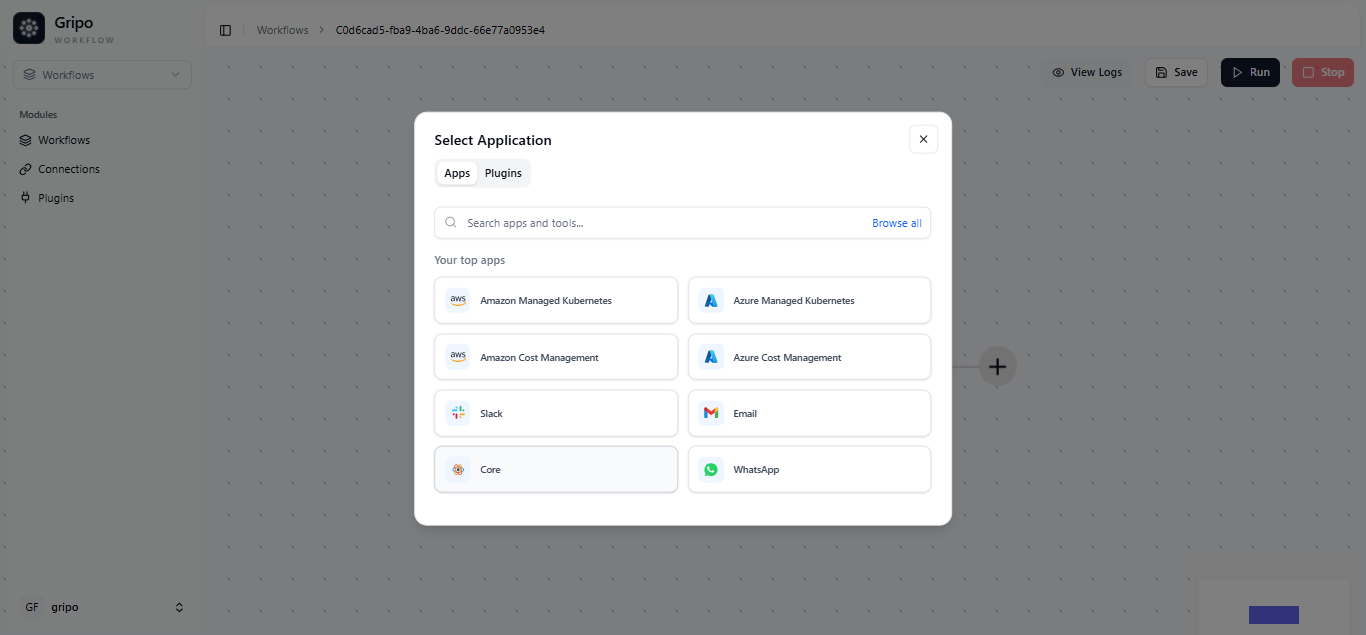
- Select a Loop activity.
- The loop will now process cluster.
- This will return important details like Cluster Name, Region, etc.
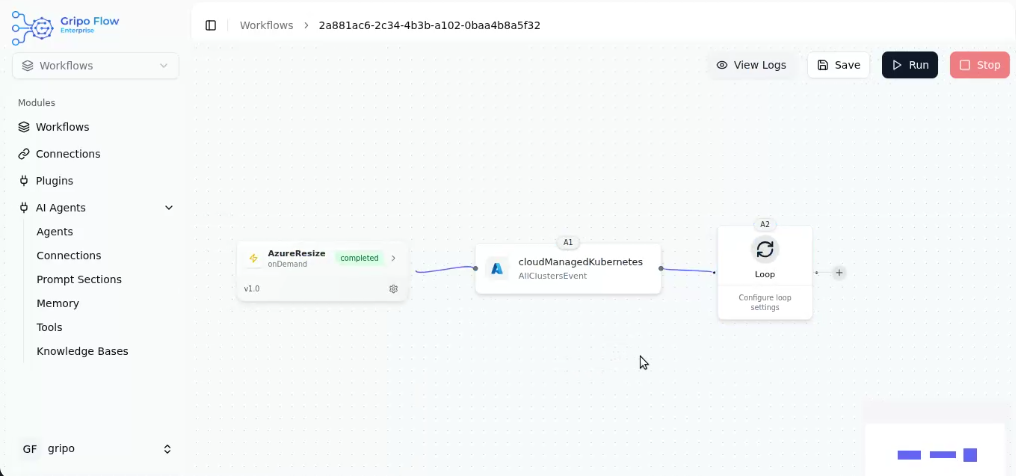
- From the cluster data received in the previous step, add another Loop activity to go through each node pools.
- Select a Loop activity.
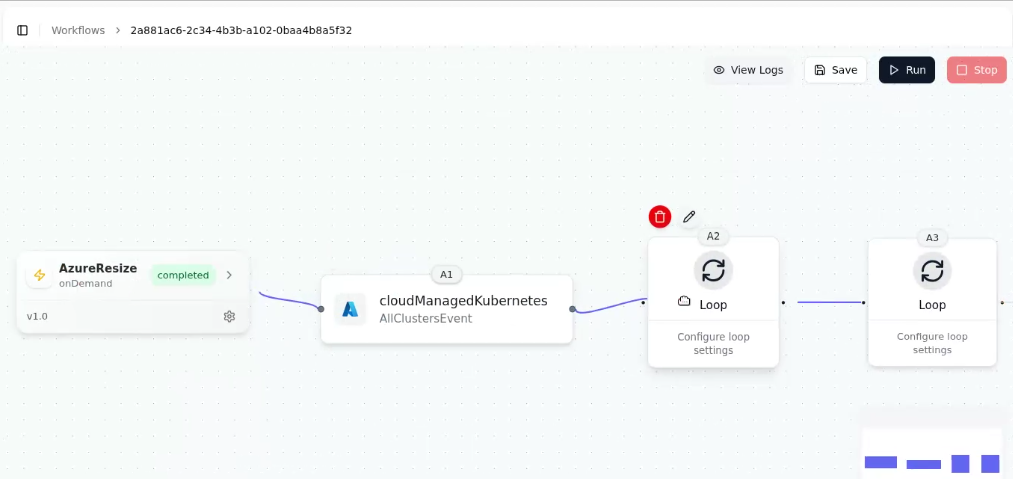
- Add Azure Managed Kubernetes Activity
- Choose the “Resize Node Pool” action from the available list.
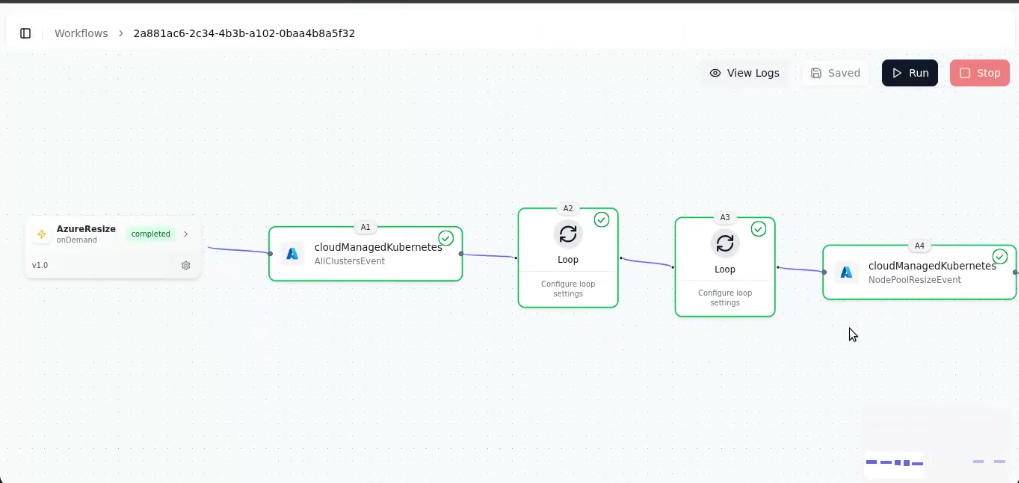
- If you are not ready to select the action yet (for example, you plan to decide the node pool resizing later), you can temporarily save the activity.
- Click On ”+”
- Select Core
- From the list , select “Temporary save”
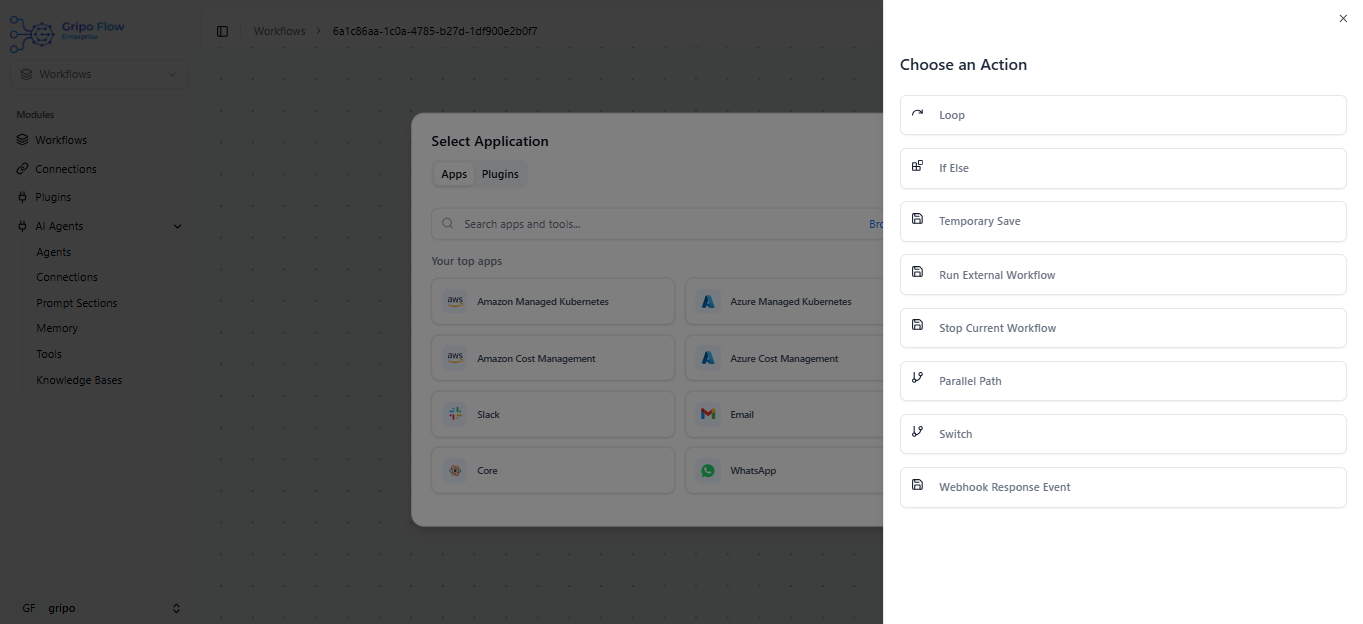
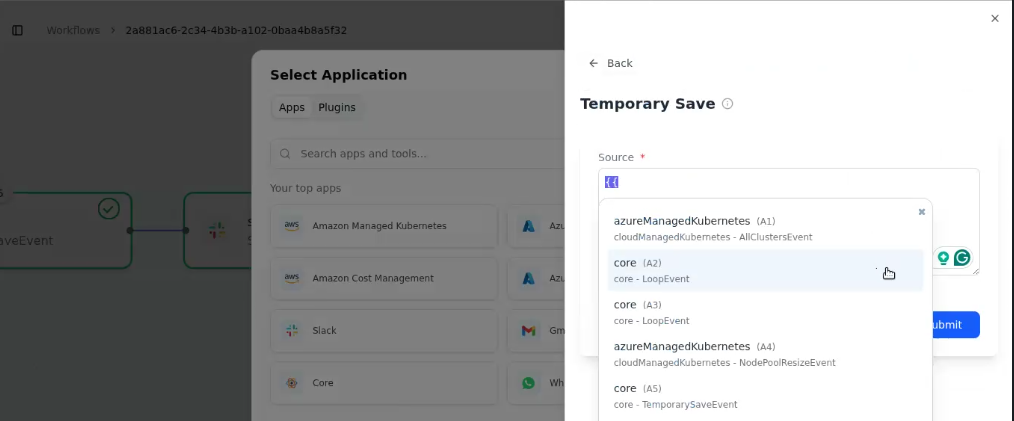
- In the Source type {{
- Select activity
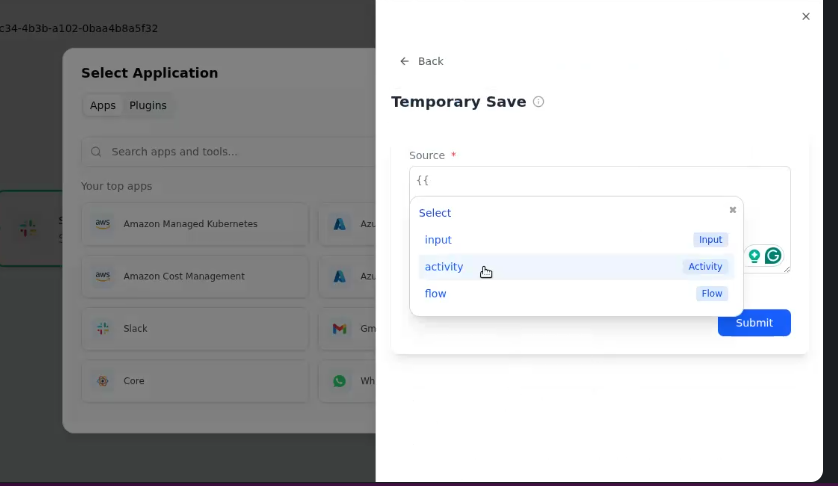
- Select Core A2( whick is first loop event)
- Then select item from the drop down
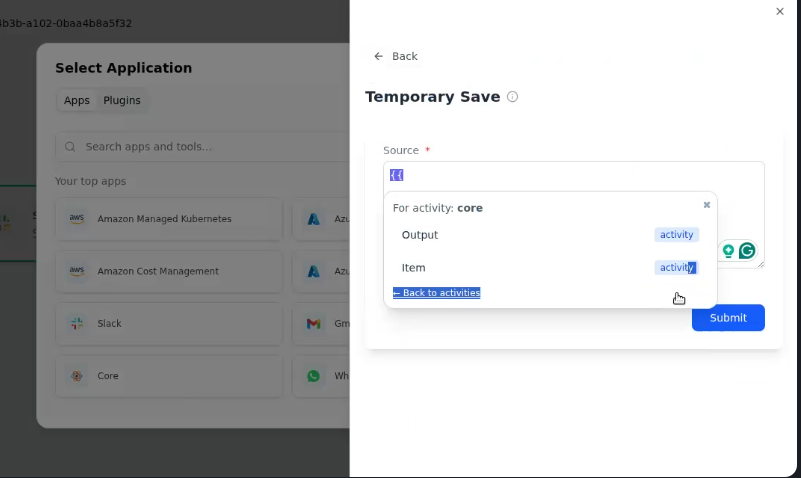
- Click on Submit button
- In the source field is {{activity.A2.item.name
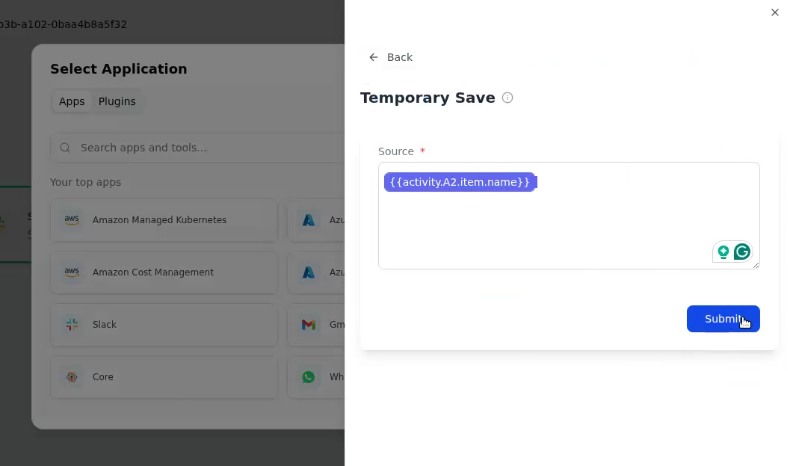
✅ Tip: Temporary saving helps when you need to set up dependent actions first or fetch details (like cluster or node pool names) before applying changes.
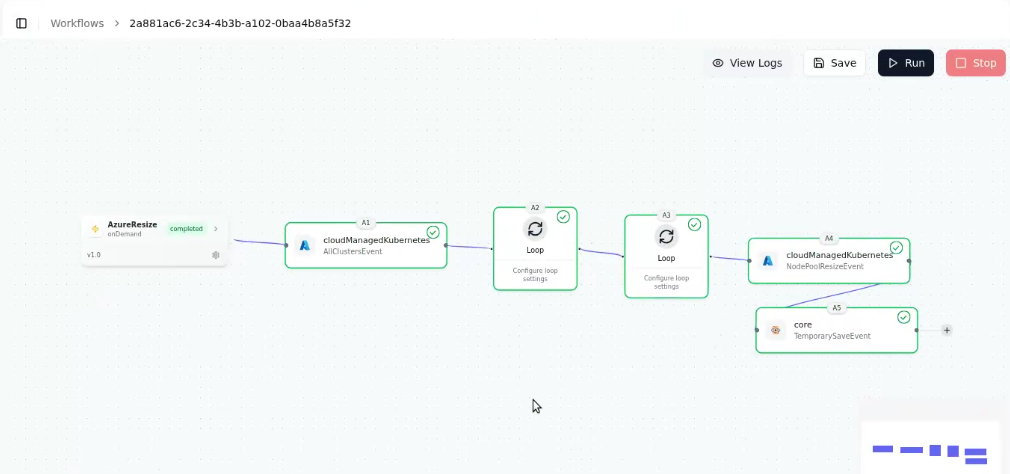
Step 6: Run and Monitor the Workflow
- Add a Slack activity (or email) after each Azure action to receive status updates:
- After all configurations are complete, click on the “Save” button to save the workflow.
- Then click “Run” to execute it.