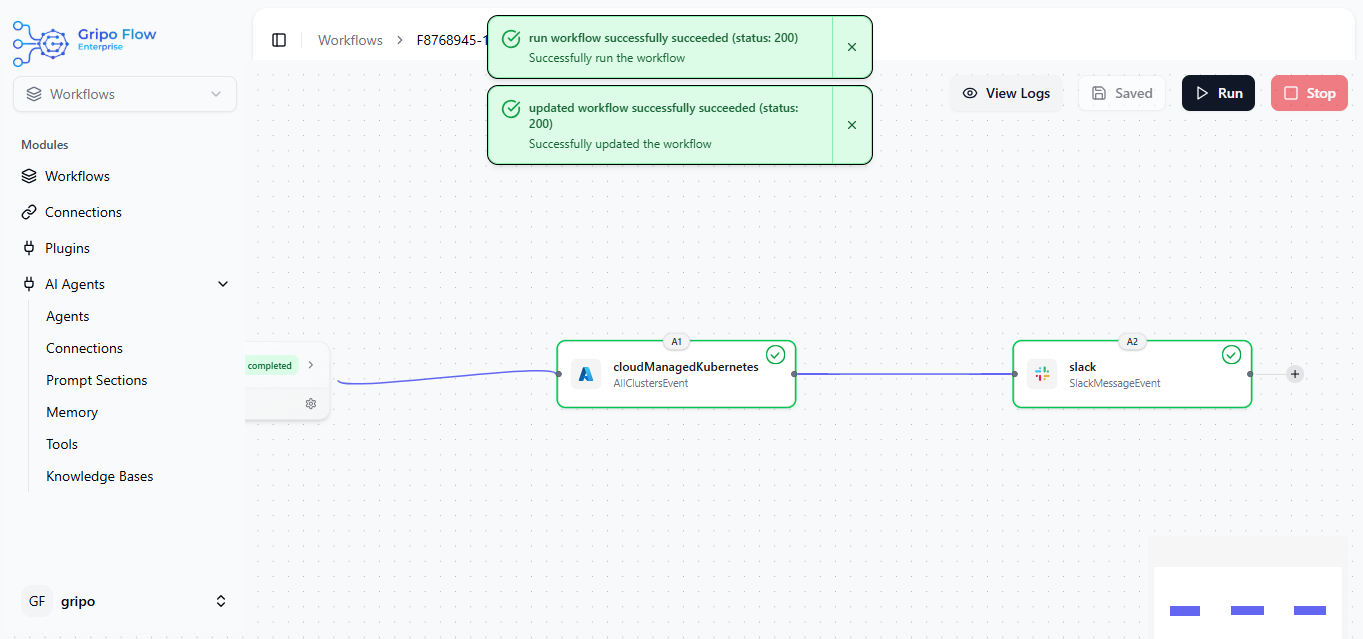
Overveiw:
The Slack activity enables your workflows to send real-time messages, alerts, or updates directly to your Slack channels. It helps teams stay informed about workflow events, automation results, or system notifications without leaving their communication platform.
By integrating Slack into your workflow, you can automate collaboration and ensure critical information reaches the right people instantly.
Examples:
- Send a notification to a specific Slack channel when a workflow completes successfully.
- Alert the DevOps team when a Kubernetes cluster stops or a node fails.
- Send a response after completing a workflow action.Share cost management or performance insights automatically in Slack
- Notify your team when an AI Agent completes a specific action or analysis
Add Activity : Slack
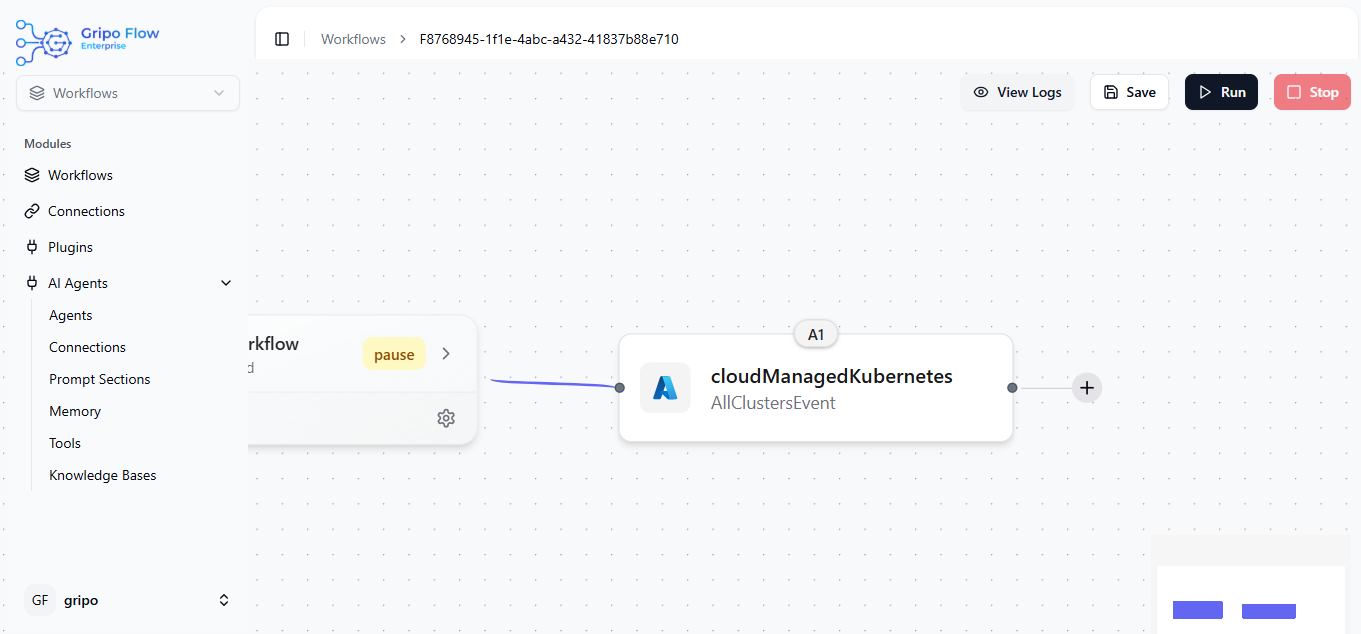
- Click on ”+” button to add a new activity
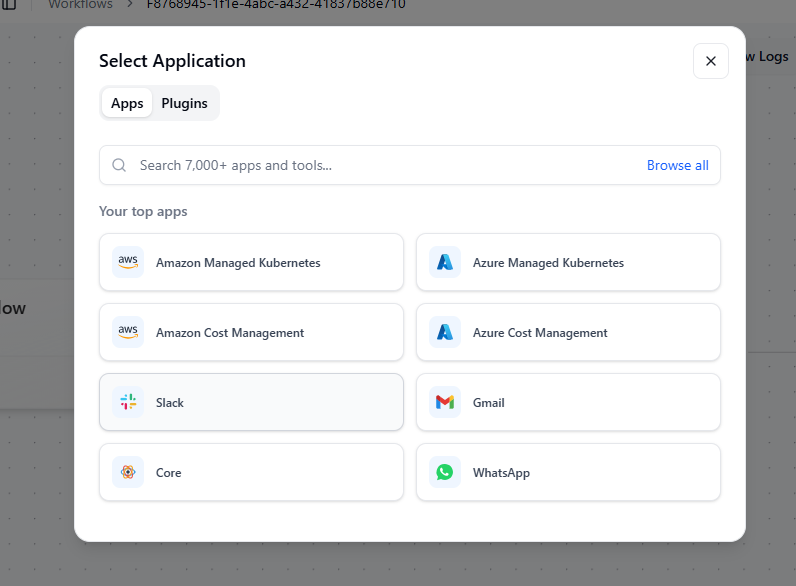
- Select Slack.
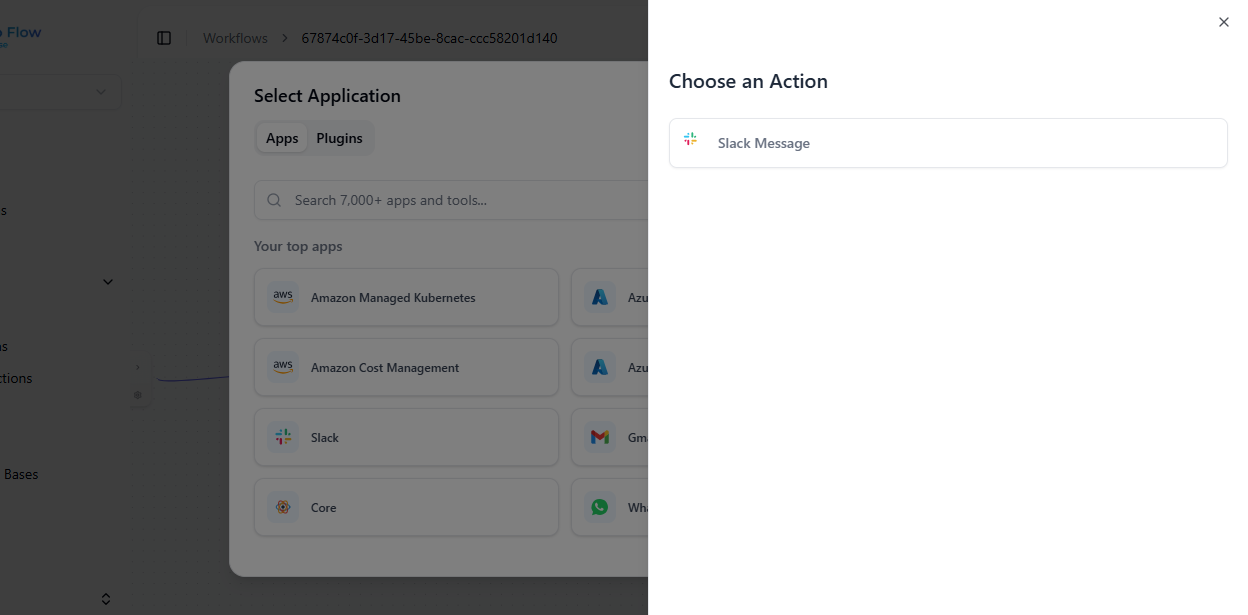
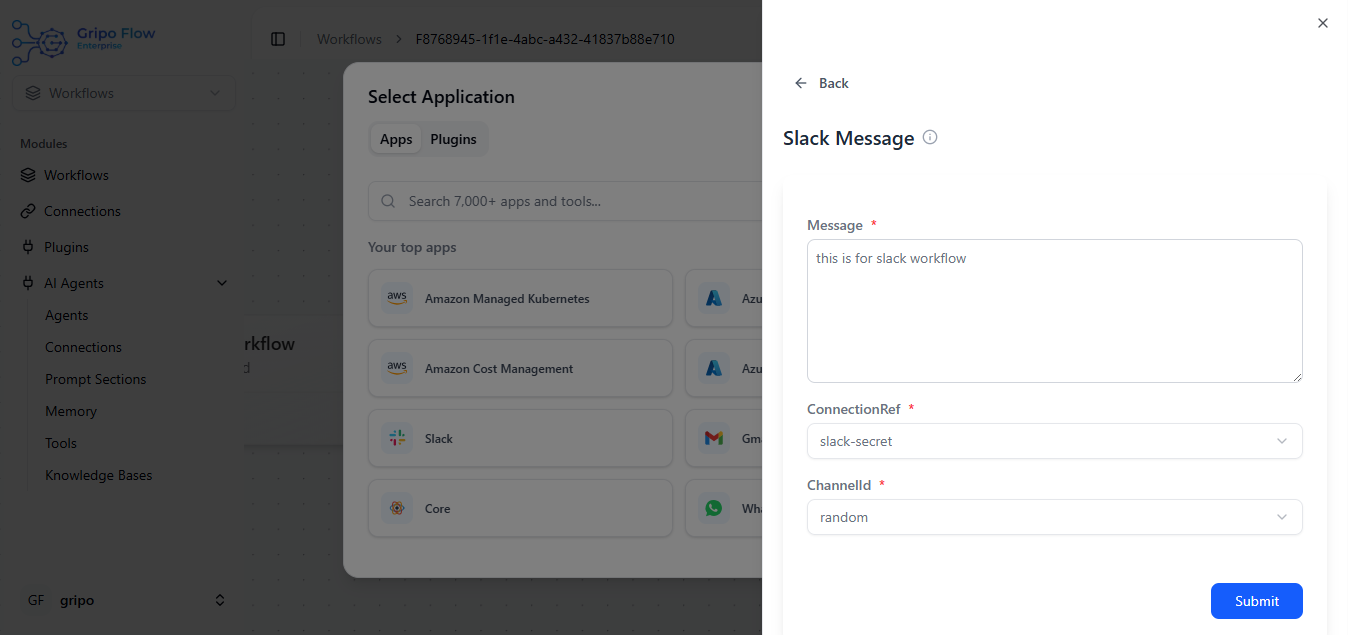
- Select “Slack Message” as action.
- You can type the message you want to send to the Slack channel
- You can use double {{ to access dynamic values from previous activities
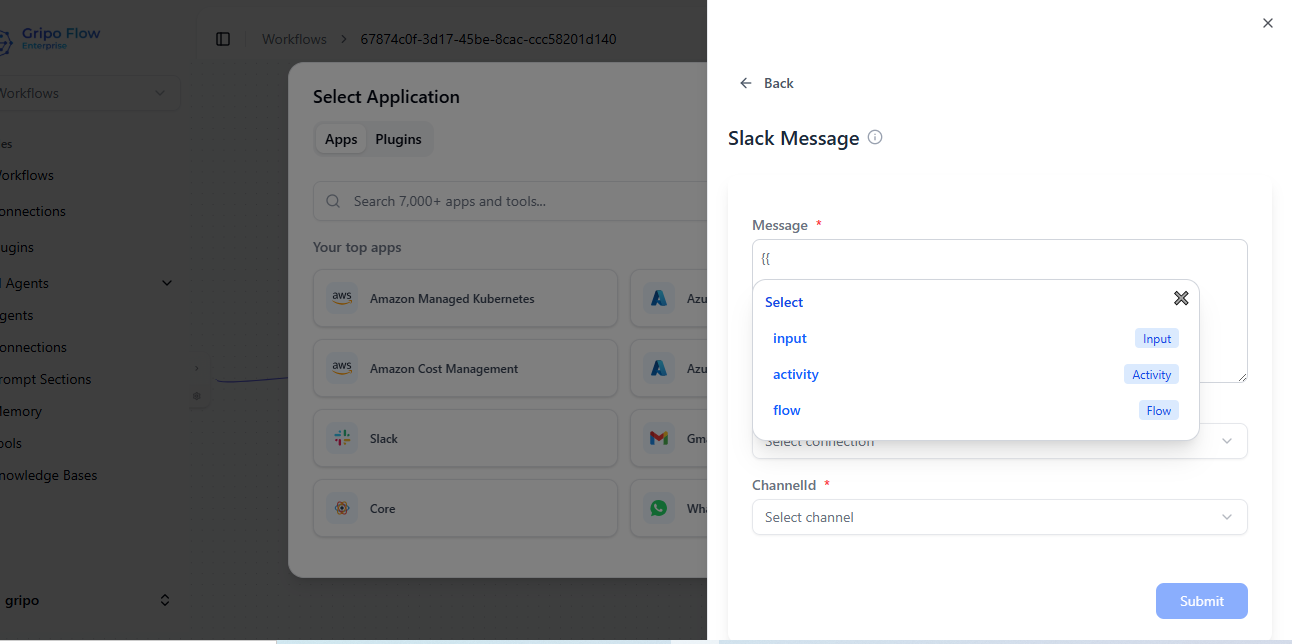
- Select the Connection Reference (Slack Secret).
- Select the Slack Channel in which you want to send the message.
- Slack is added in the WorkFlow.
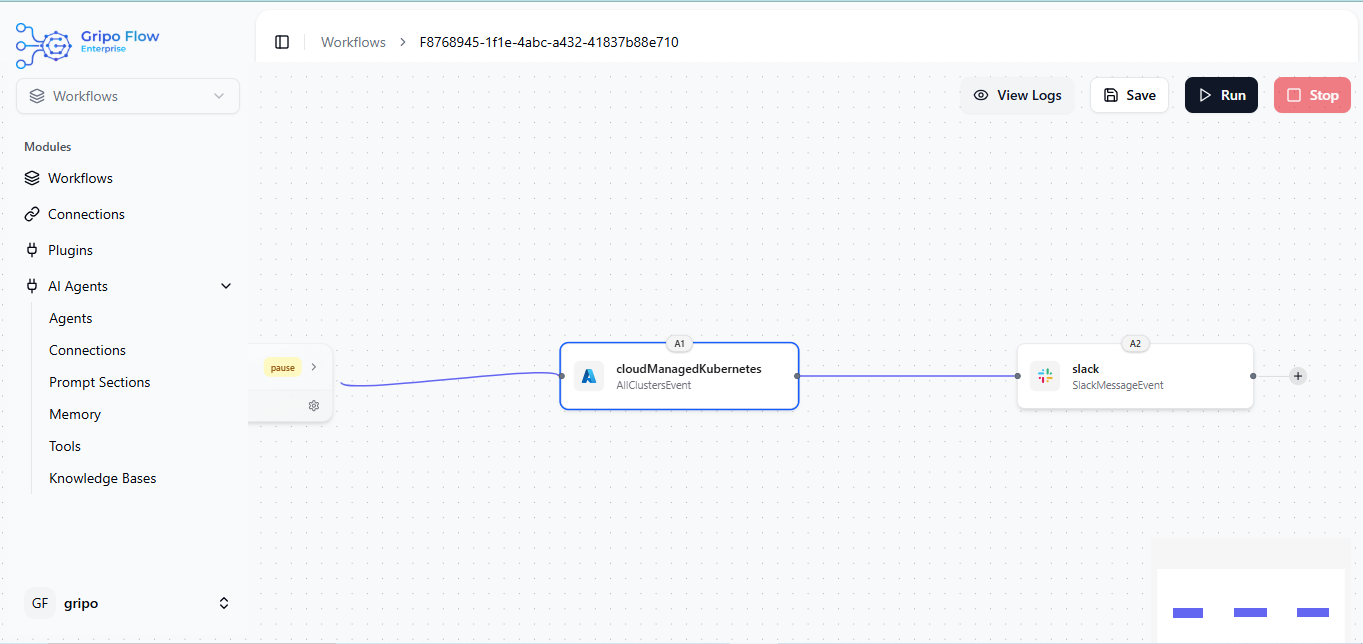
- Click on the Save button to store your workflow.
- Then click on the Runbutton.
- Once executed, you will see a green ticks indicating that the workflow ran successfully.