Switch Activity
The Switch Activity in GRiPO’s Workflow helps you create conditional logic inside your workflow. It allows you to run different actions based on specific values — just like an “if-else” statement. This makes your automation more flexible and intelligent by letting workflows take different paths depending on data or events.
When to use it:
Use the Switch Activity when you need your workflow to make decisions automatically based on incoming data or results from previous activities.
Examples:
- When checking the cluster status, if the status is “Running,” proceed to the next task; if “Stopped,” trigger a restart action.
- When analyzing cost data, if the cost exceeds a limit, send a Slack alert; otherwise, continue to the next step.
- When processing API responses, perform different actions depending on the response type (e.g., success or error).
Manage Multiple Kubernetes Actions Through Switch Activity
- After creating a Webhook workflow, you can add a Switch activity to control which action to perform based on the webhook payload.
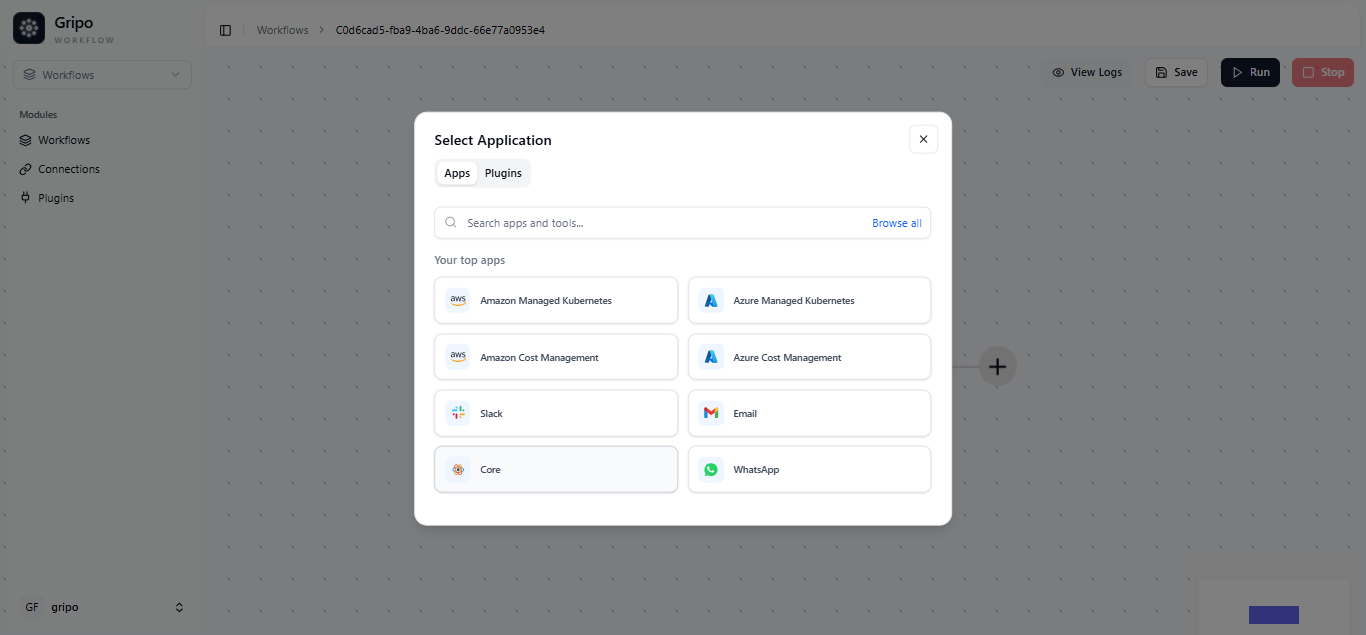
- Click on the “+” button in your workflow.
- Click on Core
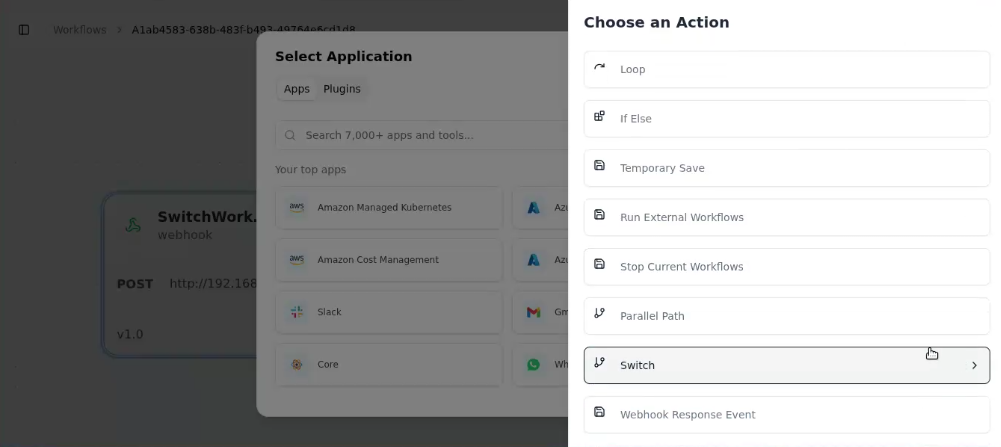
From the list, select Switch
- A form will appear.
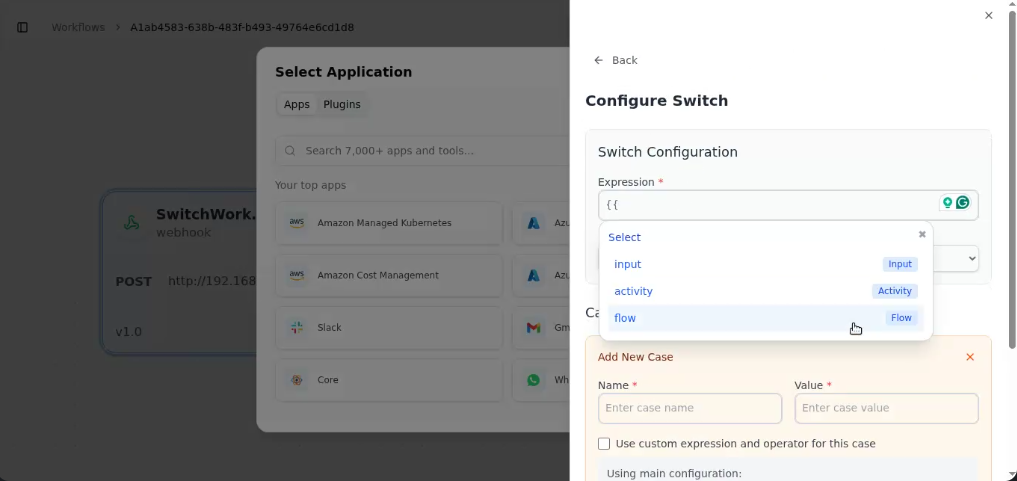
- In the Expression field, type {{.
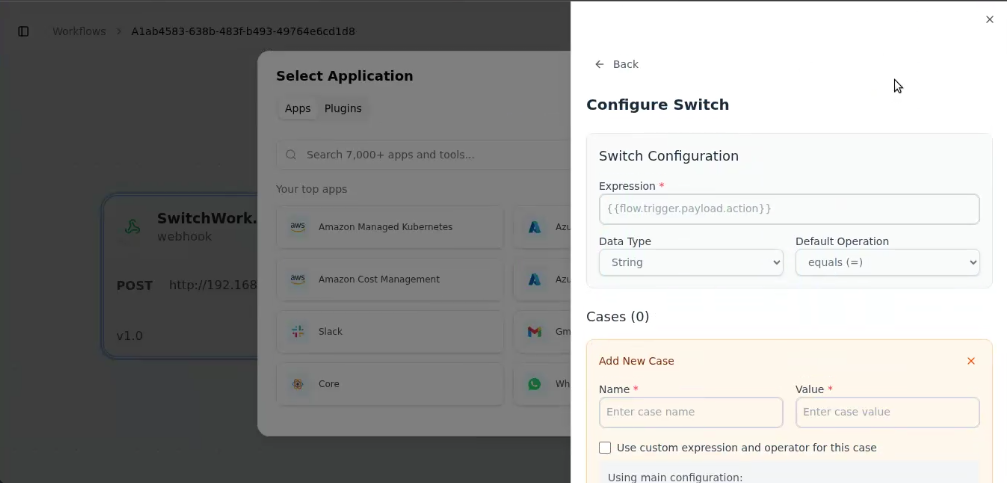
- From the dropdown, select Flow
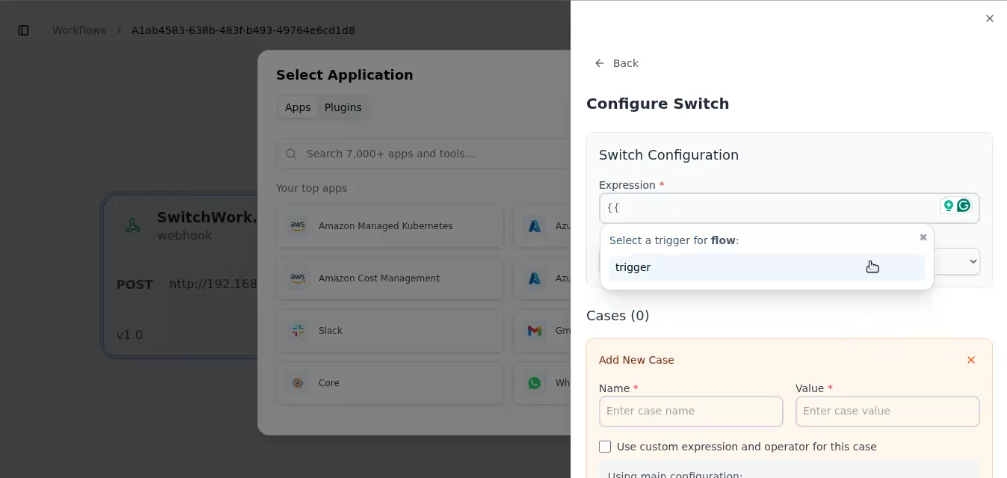
- Select Trigger
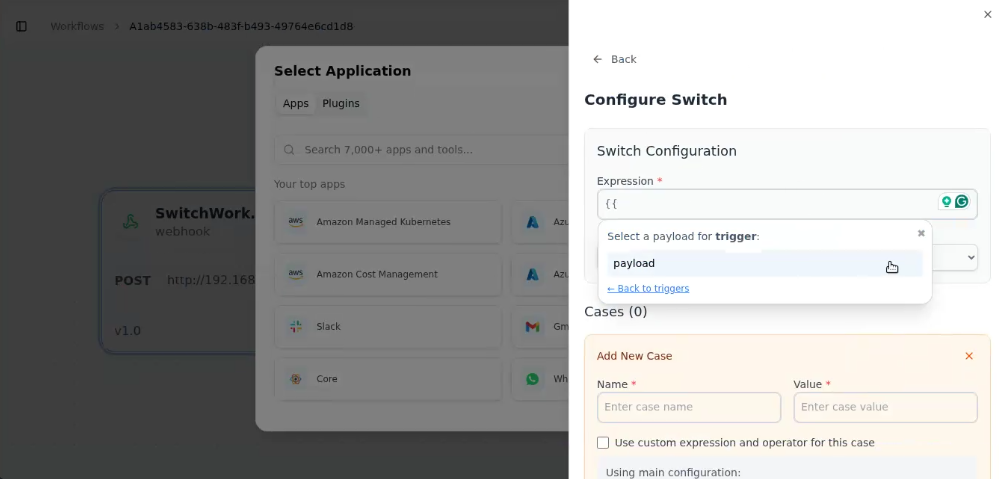
- Select Payload.
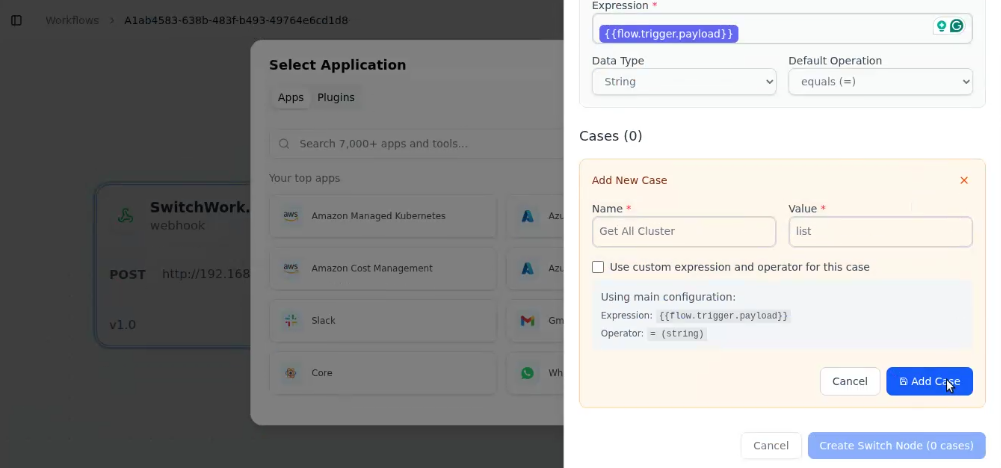
- In the Data Type dropdown, select String.
- In the Default Operator dropdown, select “=”.
Add Cases
- Now add the conditions that your Switch will handle:
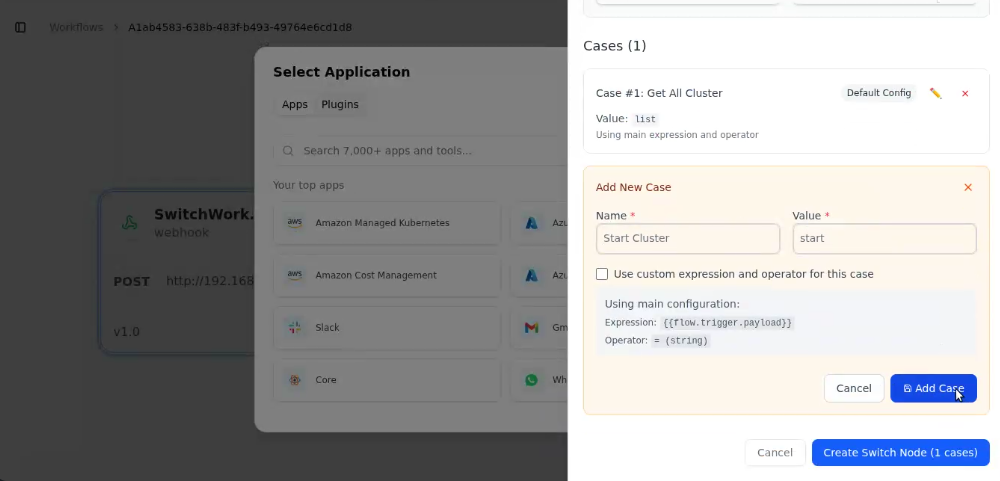
Case 1:
* Name: Get All Clusters * Value: list
- If you want to customize the expression, check the checkbox.
- Click Add to save the case.
Case 2:
- Name: Start Cluster
- Value: start
- Click Add Case.
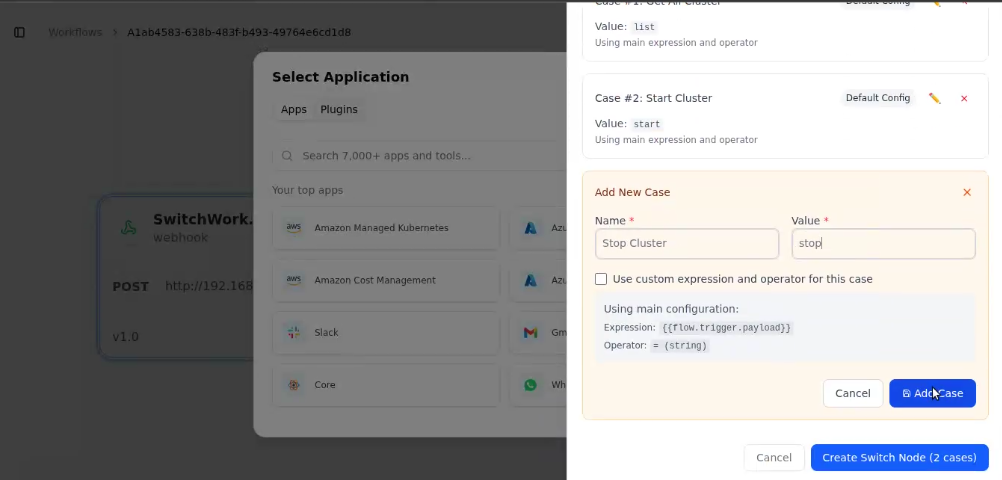
Case 3:
- Name: Stop Cluster
- Value: stop
- Click Add Case.
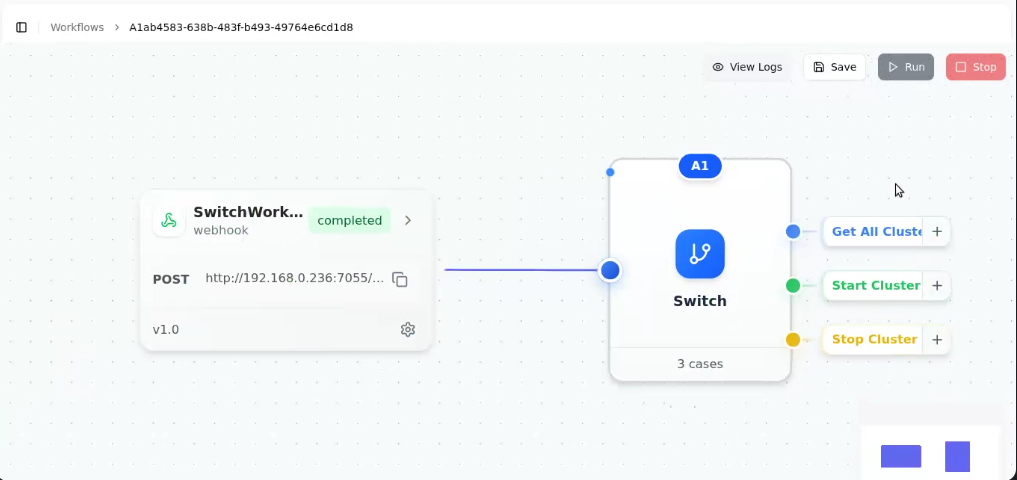
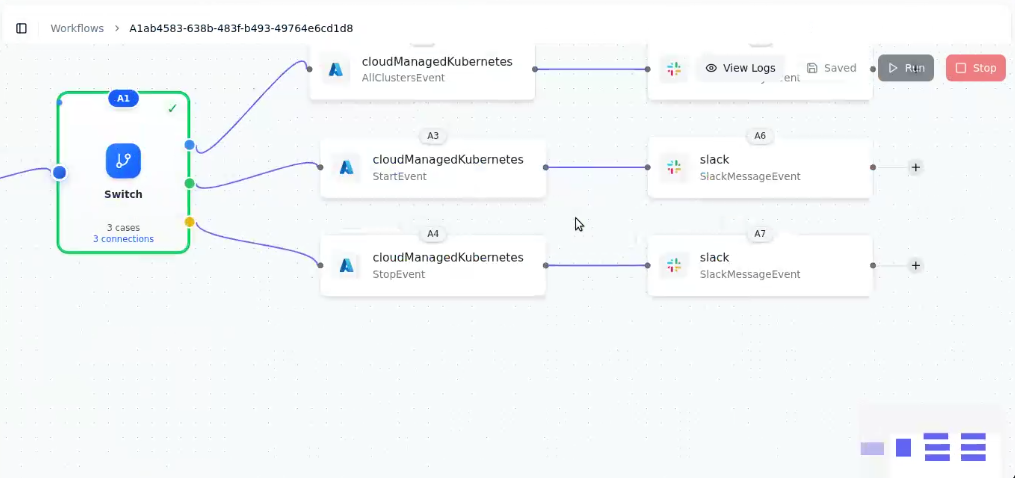
- Once all three cases are added, click on the Create Switch Node button.
- Your Switch node will now appear in the workflow.
Add Azure Managed Kubernetes Activities
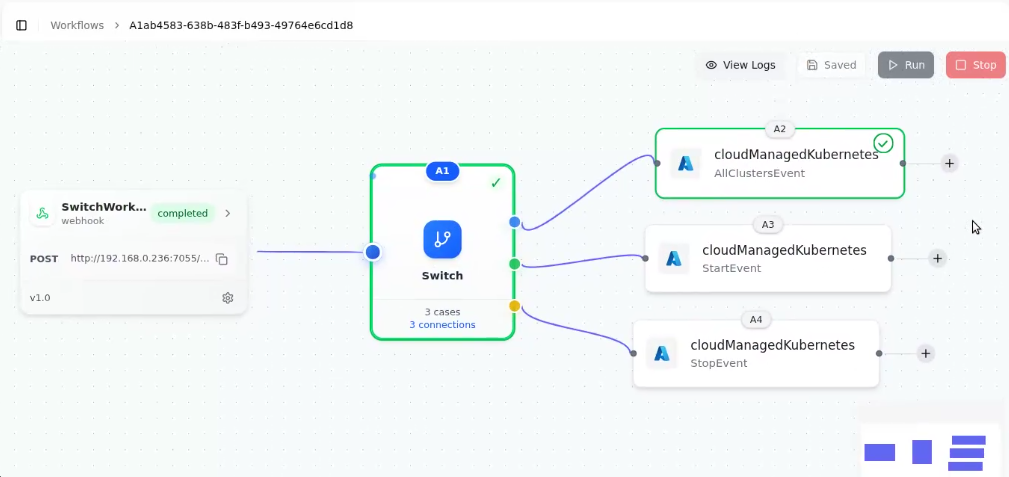
Next, link the respective activities to each case:
- For Get All Clusters → add All Cluster activity.
- For Start Cluster → add Start Cluster activity.
- For Stop Cluster → add Stop Cluster activity.
Run Workflow
To visualize the output:
- Add a Slack activity after each Azure Kubernetes action.
- Click Save and Run.
- A green tick indicates your workflow ran successfully
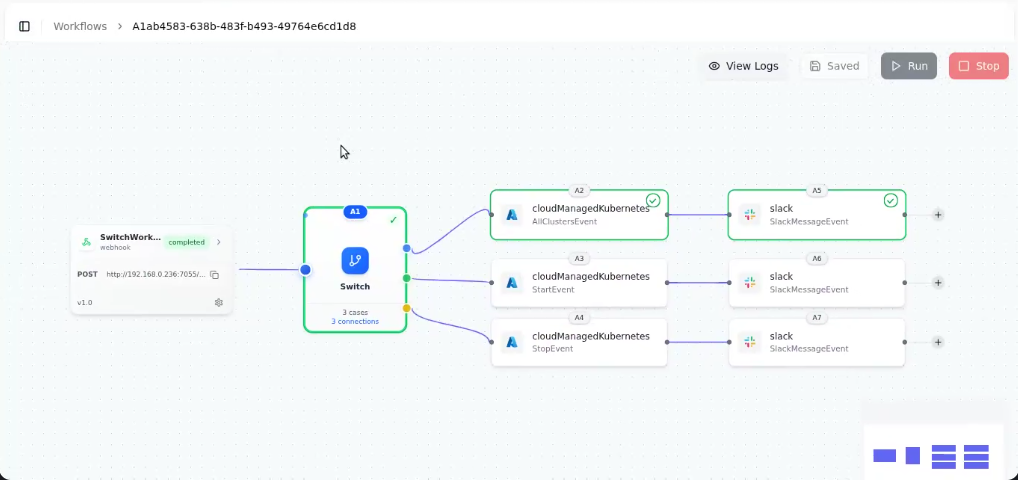
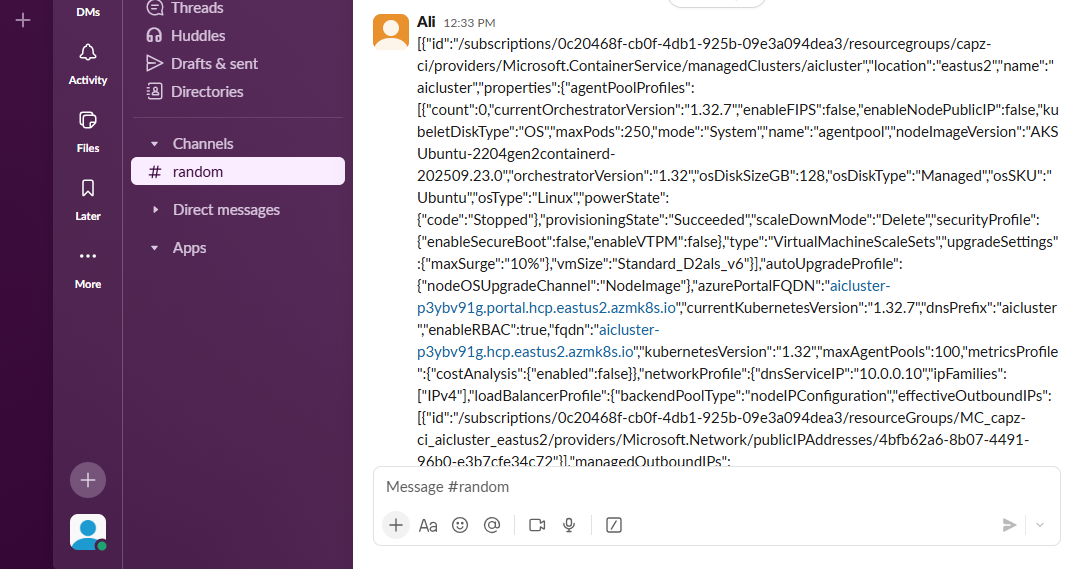
- On clicking the Run button, messages are sent to the configured Slack channel, showing the output of each activity in real time.