Linode’s Secret
To integrate your GRiPO application with Linode services like LKE, follow these steps
Create Credential On Gripo’s Workflow
- To create a connection, navigate to the Connection section
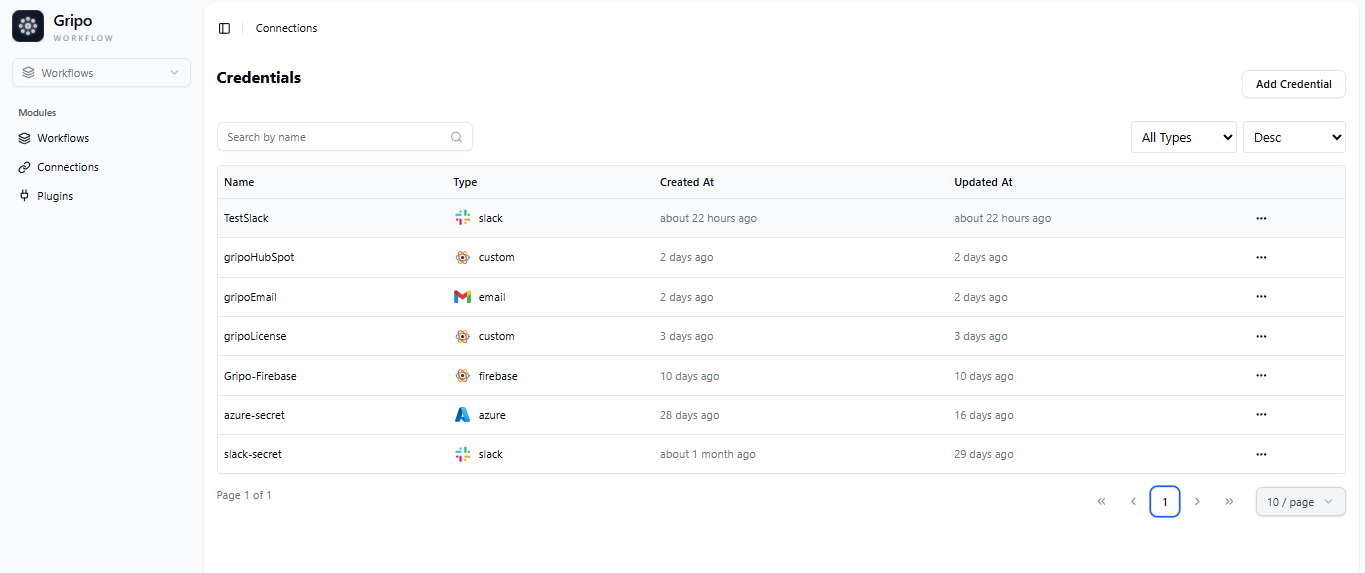
- Click on Add Credentials

- A window appears. From the Application dropdown, choose Linode.
- Click on Next button.
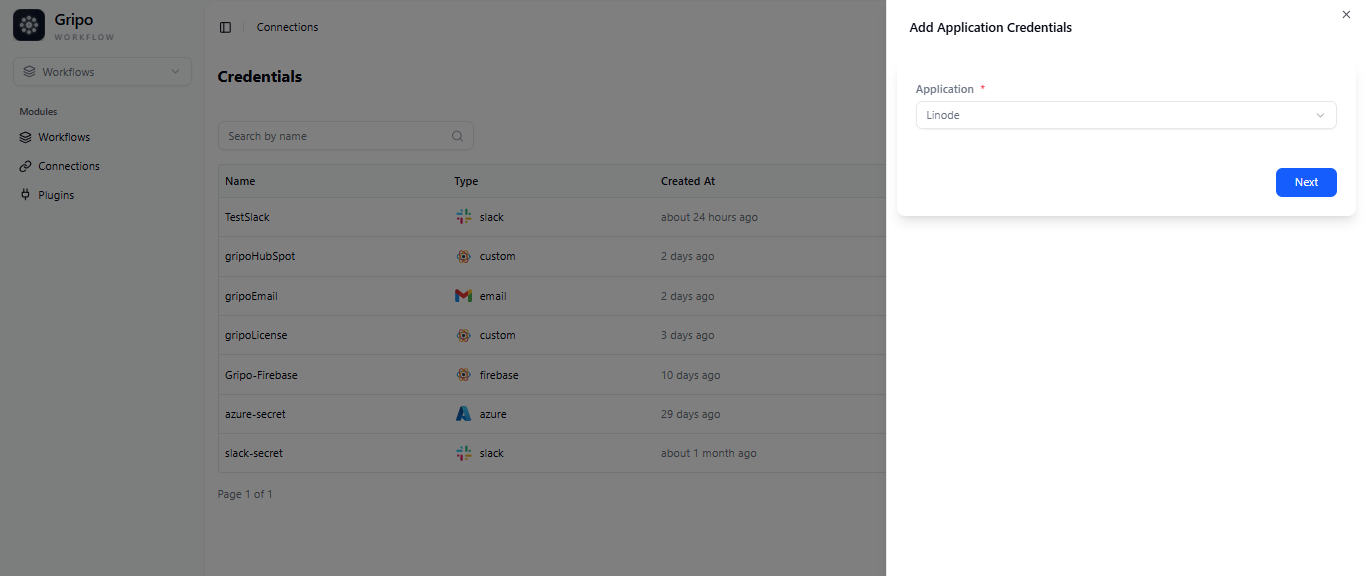
- Enter a Access Token for your account.
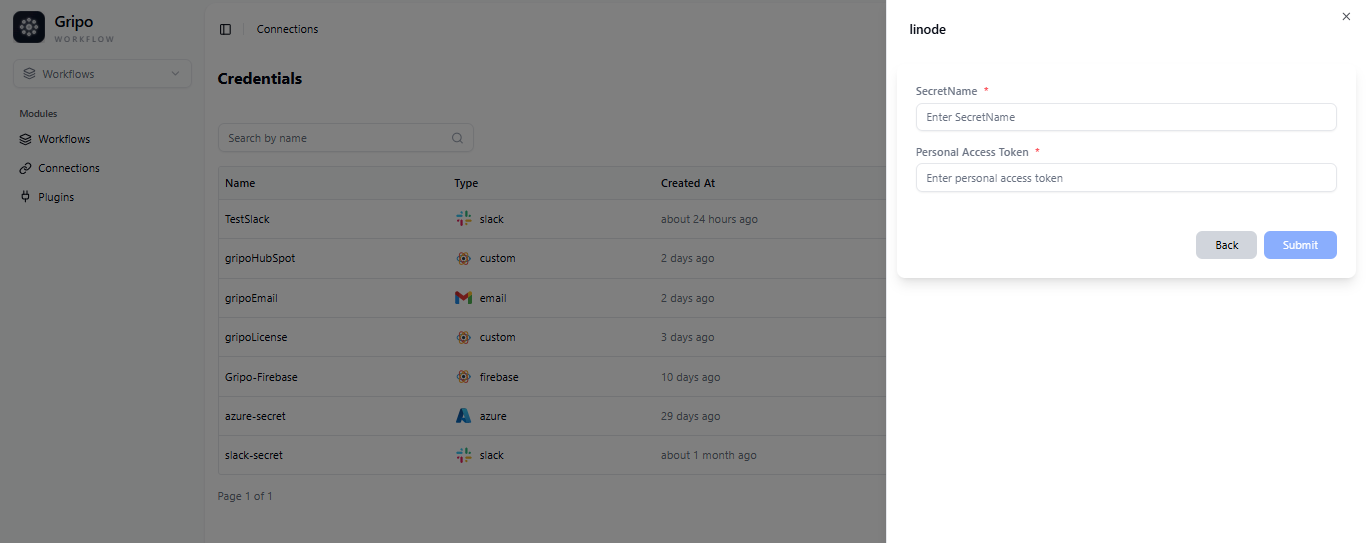
- To fill in the required fields, Personal Access Token must first be created in the Linode Portal.
Create Token from Linode Portal
- Visit https://login.linode.com/.
- Click “Sign In” after providing username and password.
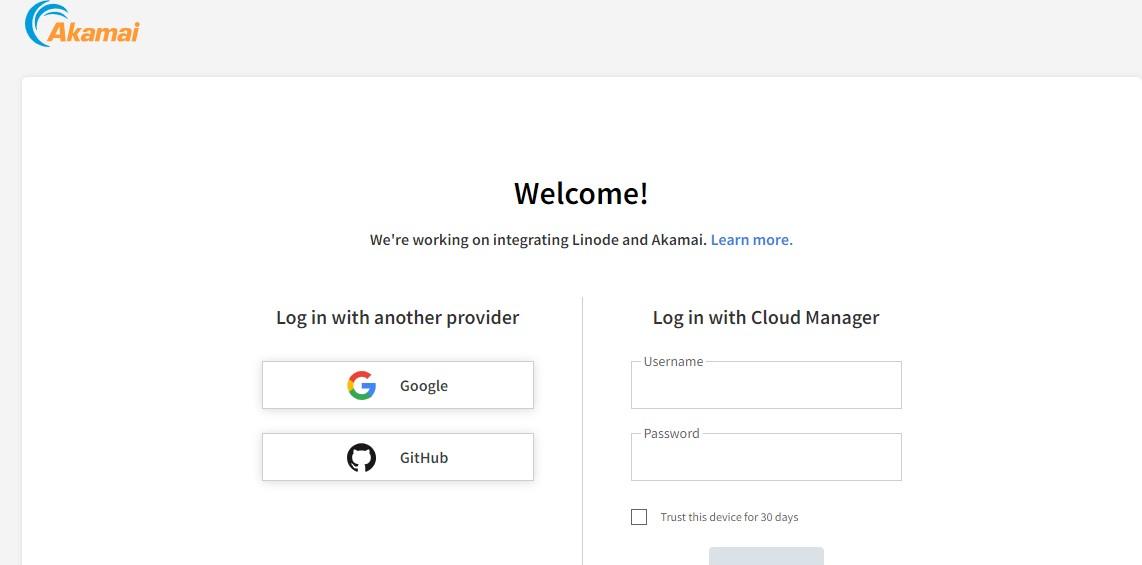
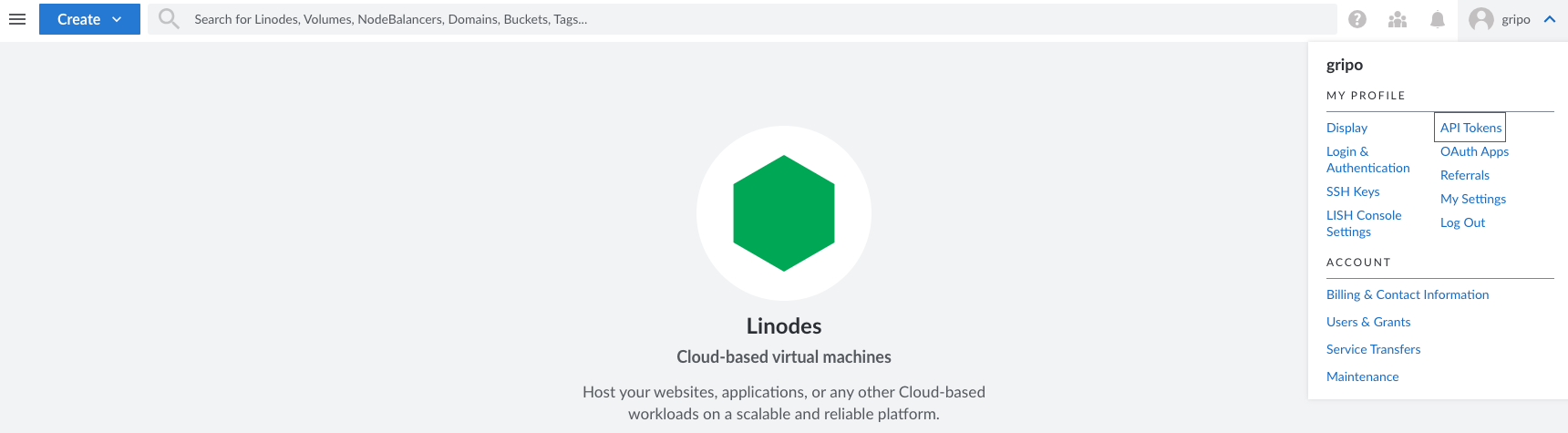
- Upon successfully signing in to the Linode interface, proceed to access the API Token functionality by clicking on API Tokens
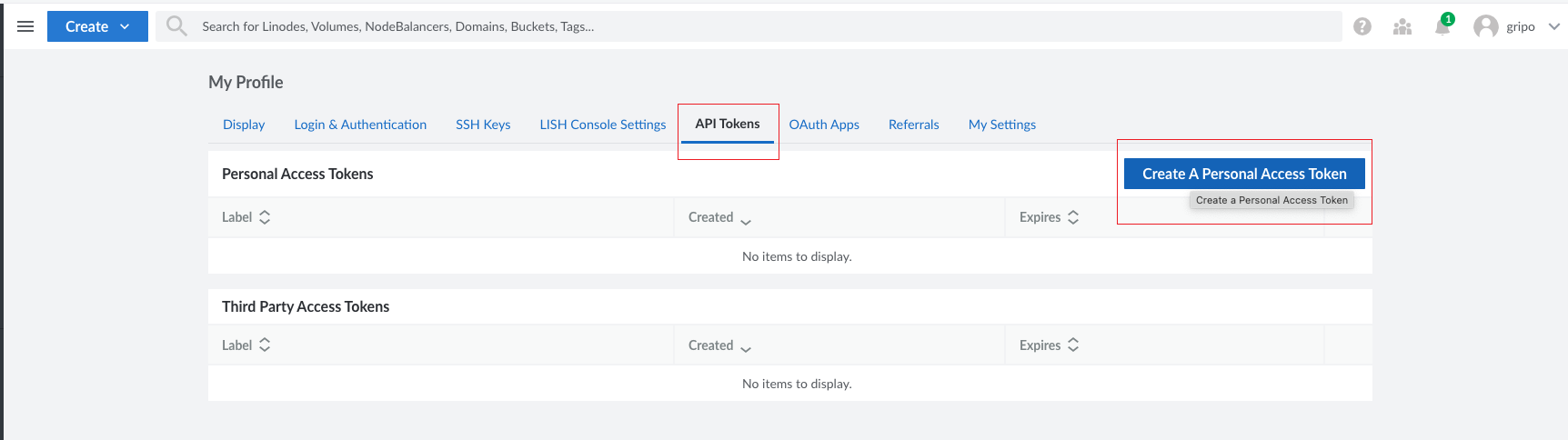
- Within the API Tokens section, locate and select “Create a Personal Access Token” to initiate the token creation process.
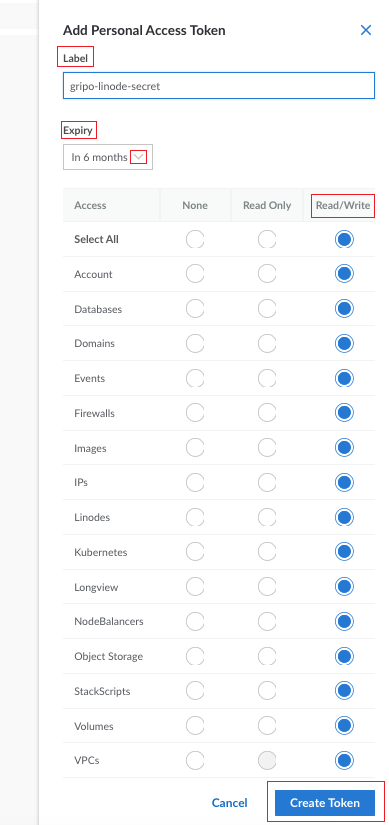
Complete the form by providing the necessary information:
- Label: Assign a label to the token for identification purposes.
- Expiry Duration: Set the expiration duration for the token.
- Ensure that you select “Read and Write” permissions for all relevant options.
- Click “Create Token” to generate the access token
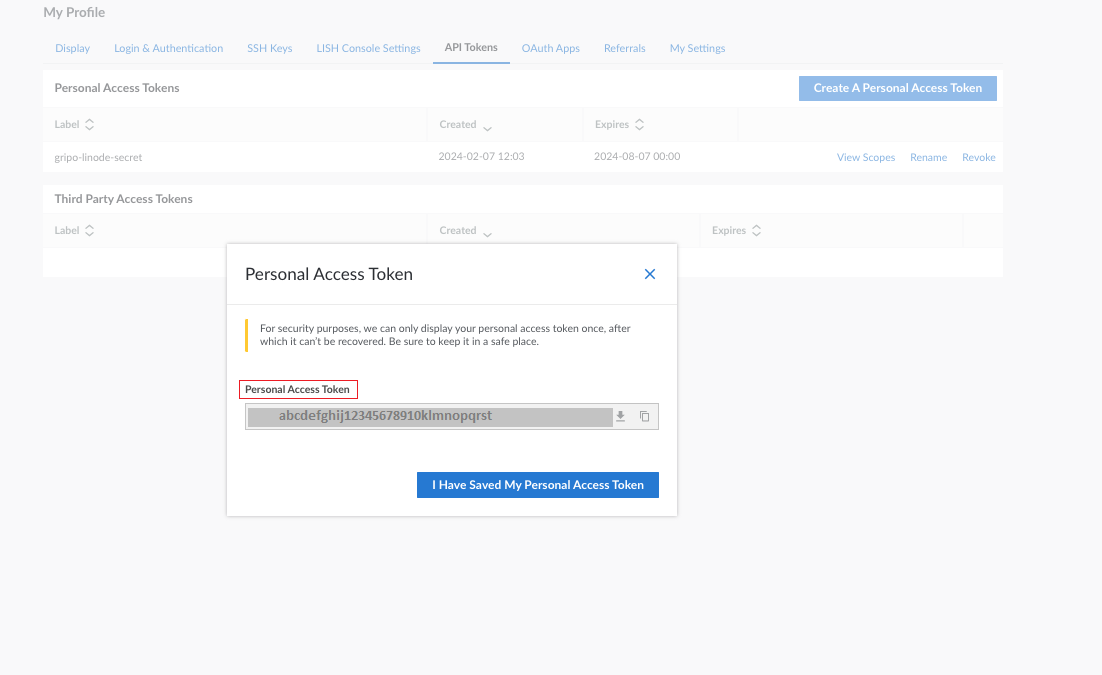
- A pop-up window will appear, displaying the generated personal access token.
Pasting Linodde’s Credential to Workflow
- Paste the copied Token from the Linode portal into the Secret field.
- Select the “Submit” button to confirm and complete the process.
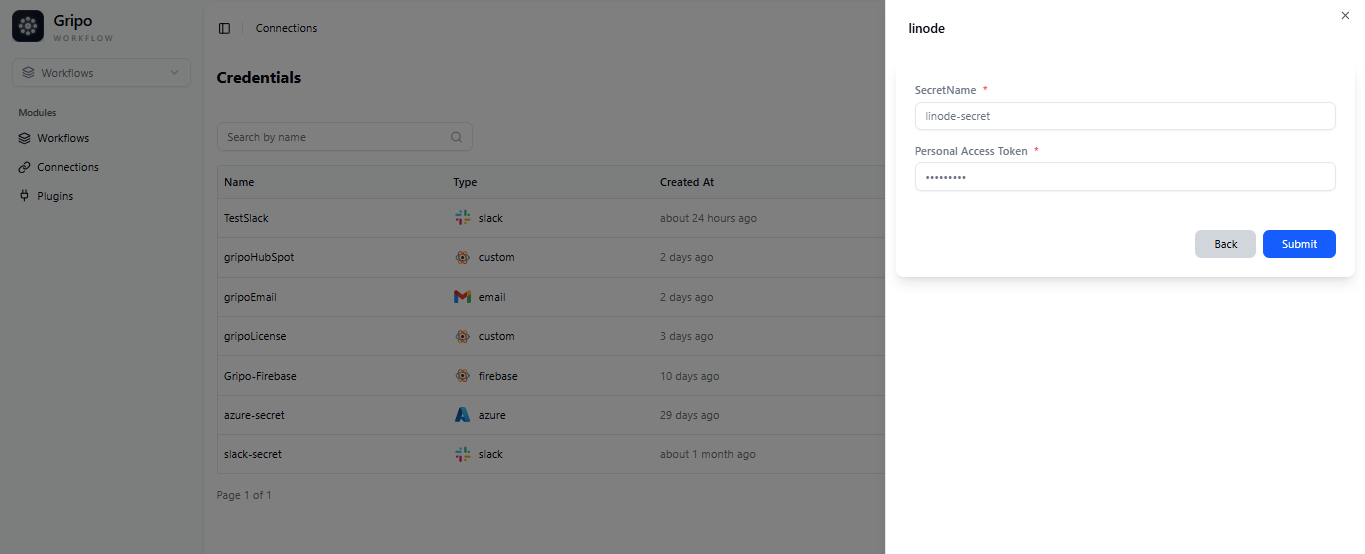
- Your recently created connection is now visible in the list of secrets for your reference.