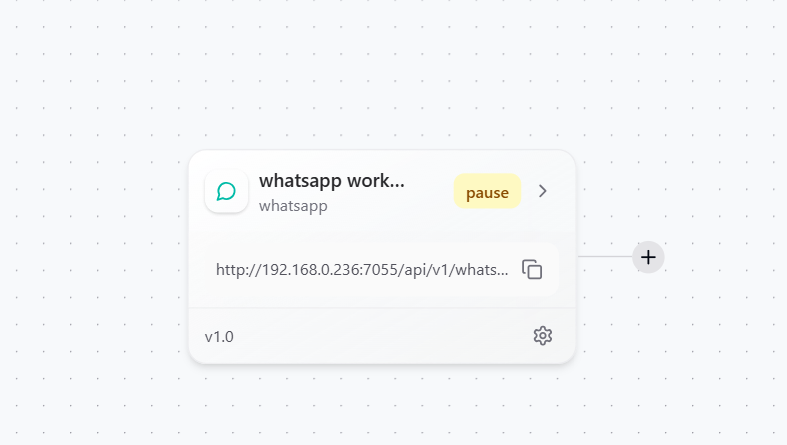
Whatsapp Workflow
When to Use: Choose a WhatsApp Workflow if you want to control or check your workflows directly from WhatsApp. It’s perfect for getting quick updates, triggering workflows, or receiving alerts without logging in to GRiPO.
Examples:- Send “Check Cluster Health” on WhatsApp to get the latest status of your cluster.
- Type “Stop AWS/EKS Cluster” to pause a cluster right from your phone.
- Get instant WhatsApp alerts whenever a workflow completes, fails, or needs attention.
Create Whatsapp Type Workflow
- Navigate to the Workflow tab from the main menu.
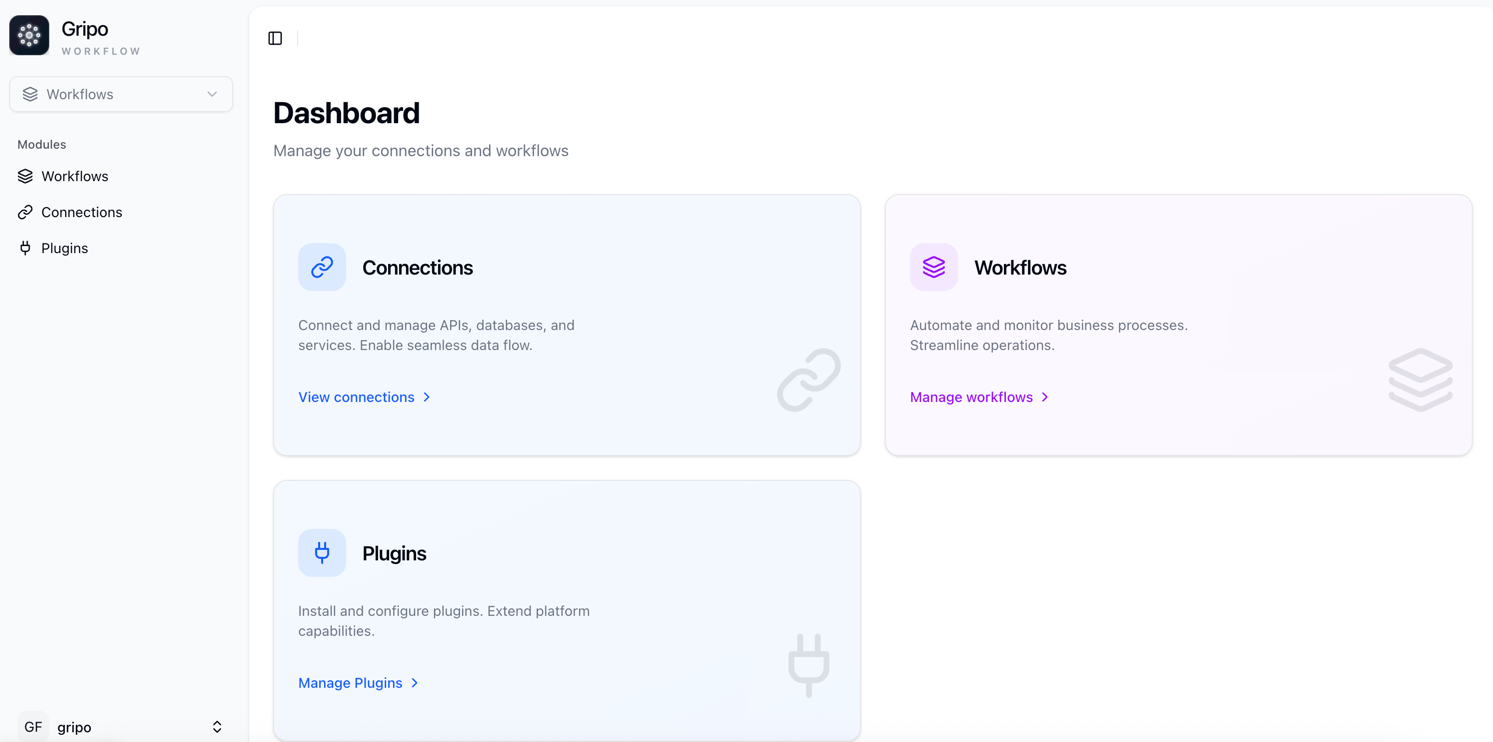
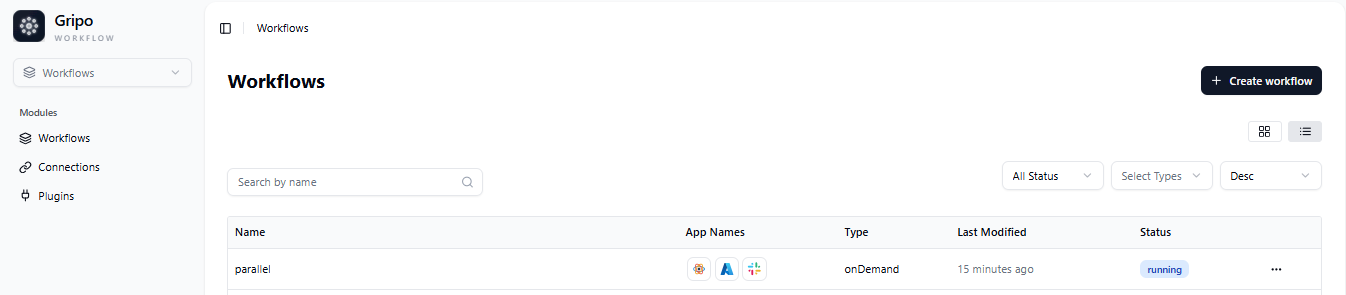
- On clicking Workflow, a window will appear displaying a list of all existing workflows.
- To create a new workflow, click on the Create Workflow button.
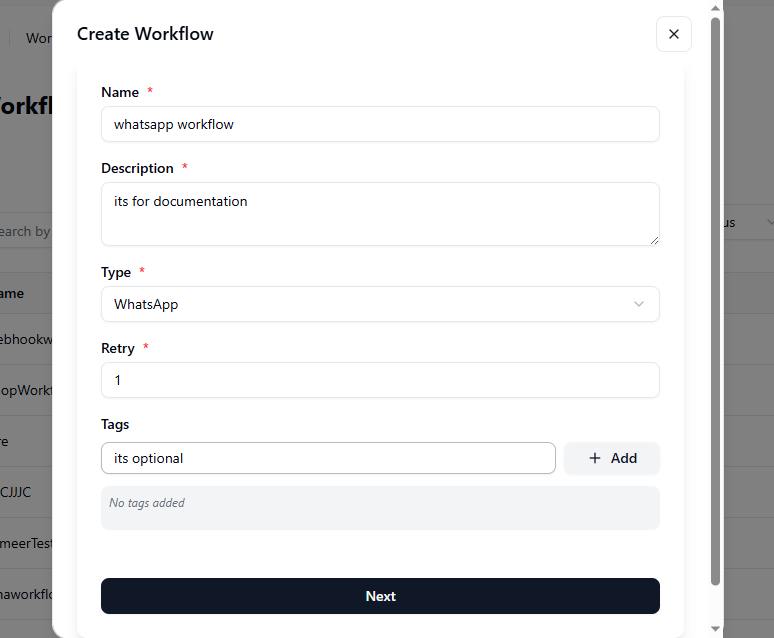
- A form will appear containing the following fields:
Name : Enter a unique name for your workflow.
Description : Add a short explanation of what the workflow does.
Type : Select the workflow type “Whatsapp” from the available options.
Retry : Define how many times a failed step should be retried.
Tags : Add relevant tags to help categorize and filter workflows.
- After Filling the form ,click on “Next”
A form appears with the following fields:
- Path: Define the API path for your WhatsApp trigger.
- Status: Choose Active or Inactive to control whether the WhatsApp trigger is currently running.
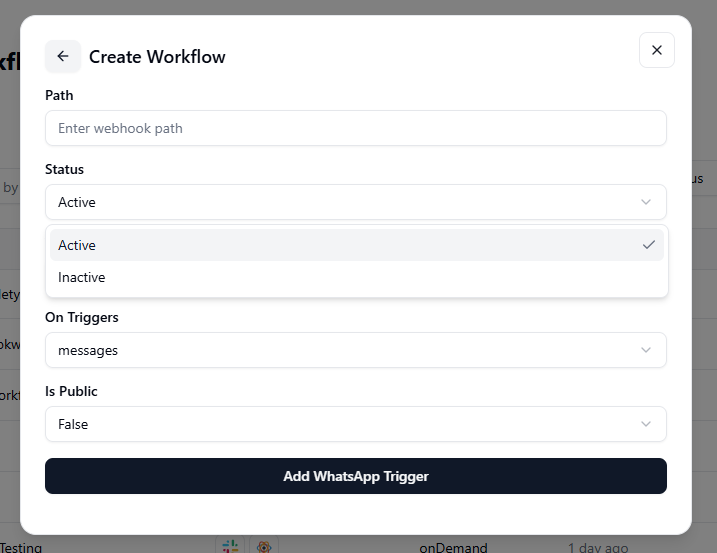
- Verifying Token: Enter a verification token used to securely connect your WhatsApp integration.
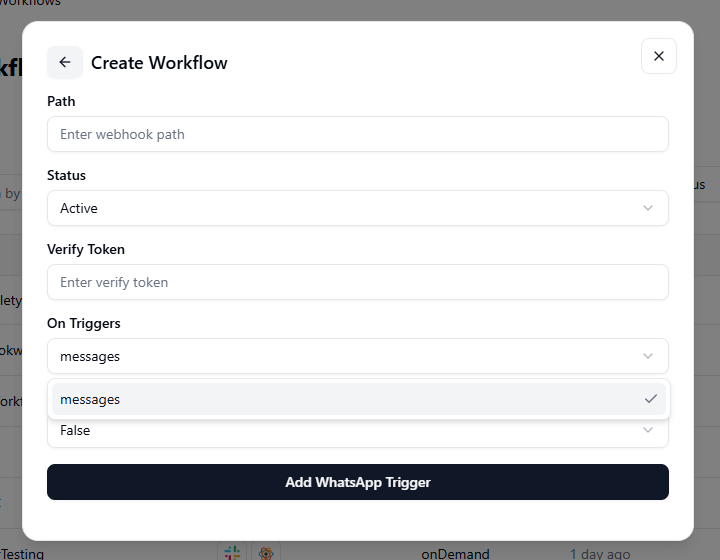
- On Triggers: Specify the messages or events that will trigger this workflow.
- Is Public: Select True or False to decide if the trigger should be publicly accessible.
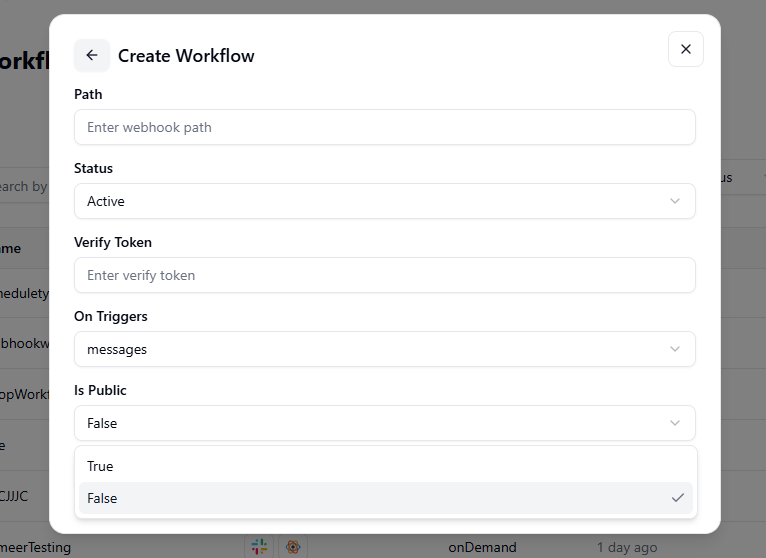
- After filling in all the details, click on “Add WhatsApp Trigger
- A confirmation pop-up window will appear, showing that your WhatsApp workflow has been successfully created.
- Once the workflow is created, you can view it in the workflow .