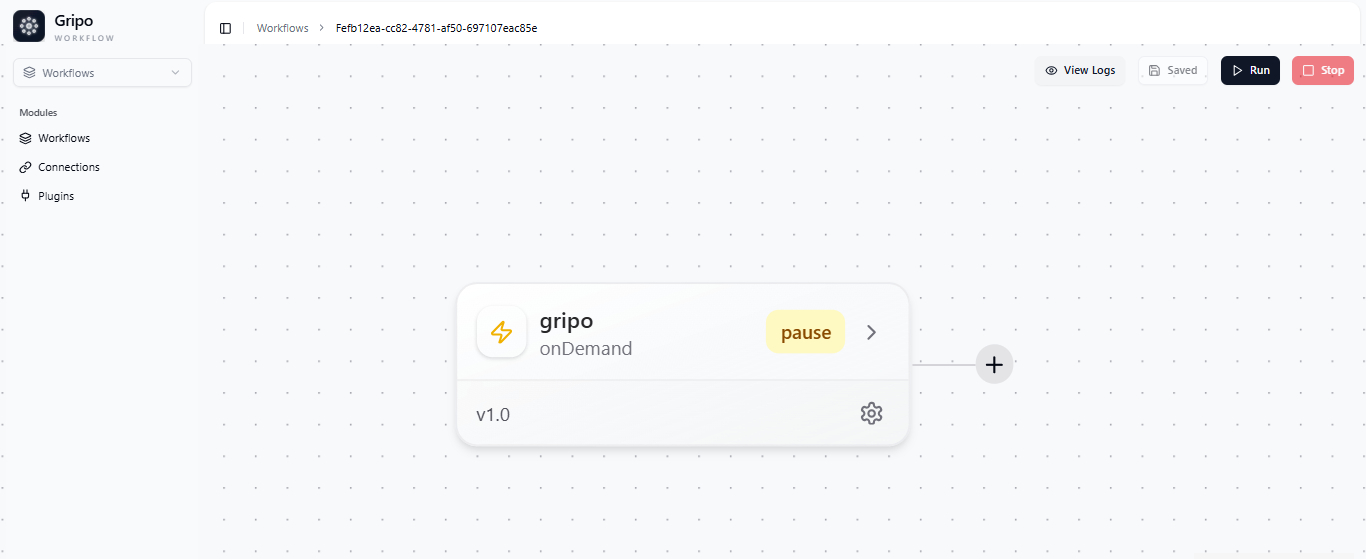
On Demand Workflow
When to Use: Use an On-Demand Workflow when you want to run a process manually whenever you need it. It’s best for one-time actions, testing, or checking something quickly without setting up any schedule or trigger. You’re fully in control — the workflow only runs when you start it.
Examples:- Run a workflow manually to check the health of your cluster after making updates.
- Redeploy an application on demand when a new version is ready.
- Generate a quick cost report before closing your billing cycle.
Create a On Demand Type workflow
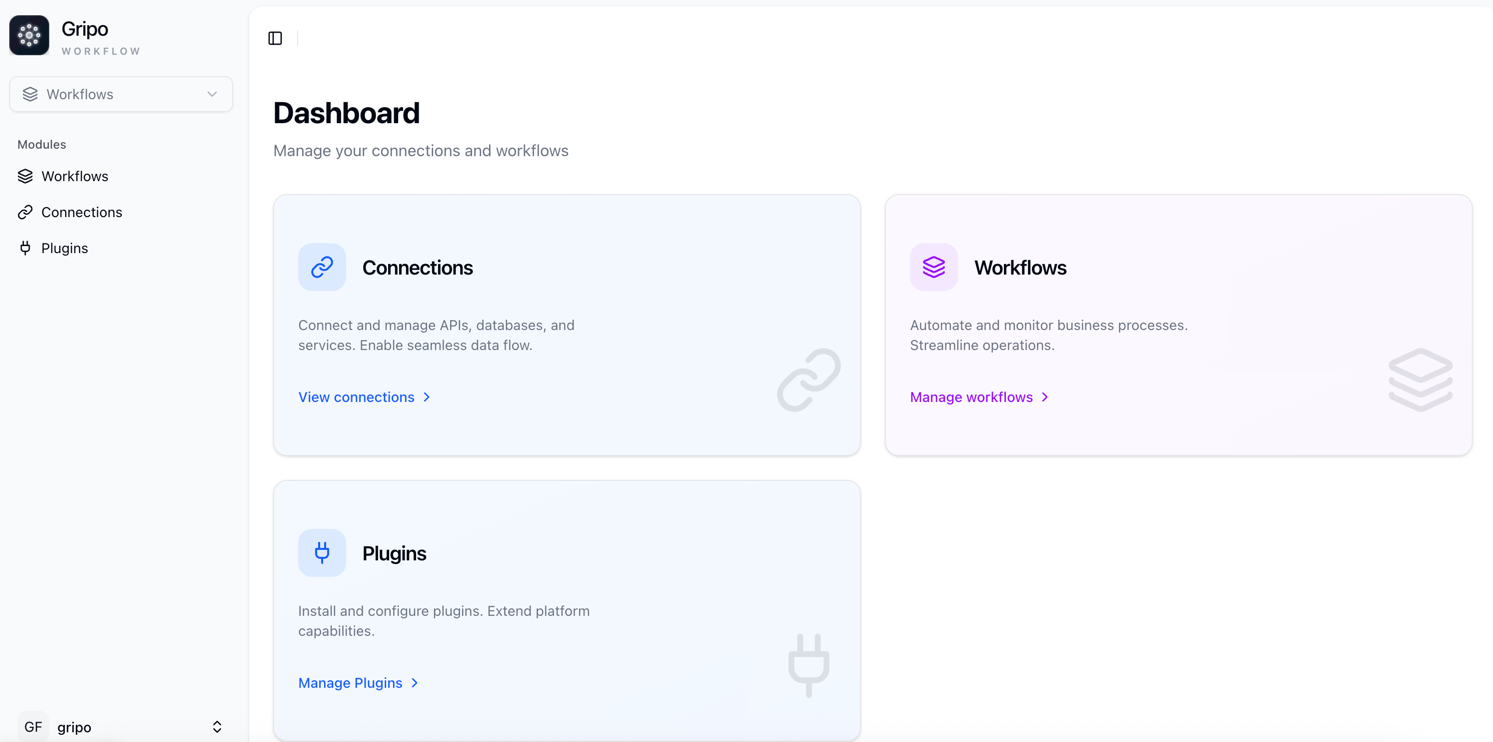
- Navigate to the Workflow tab from the main menu.
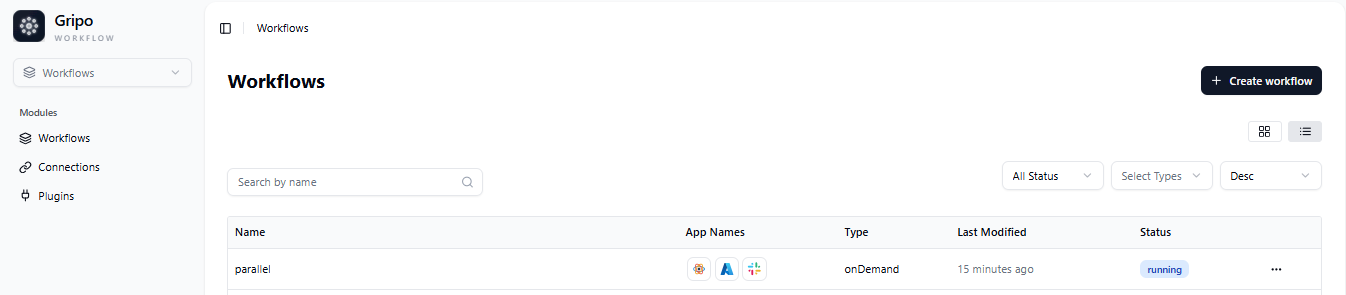
- On clicking Workflow, a window will appear displaying a list of all existing workflows.
- To create a new workflow, click on the Create Workflow button.
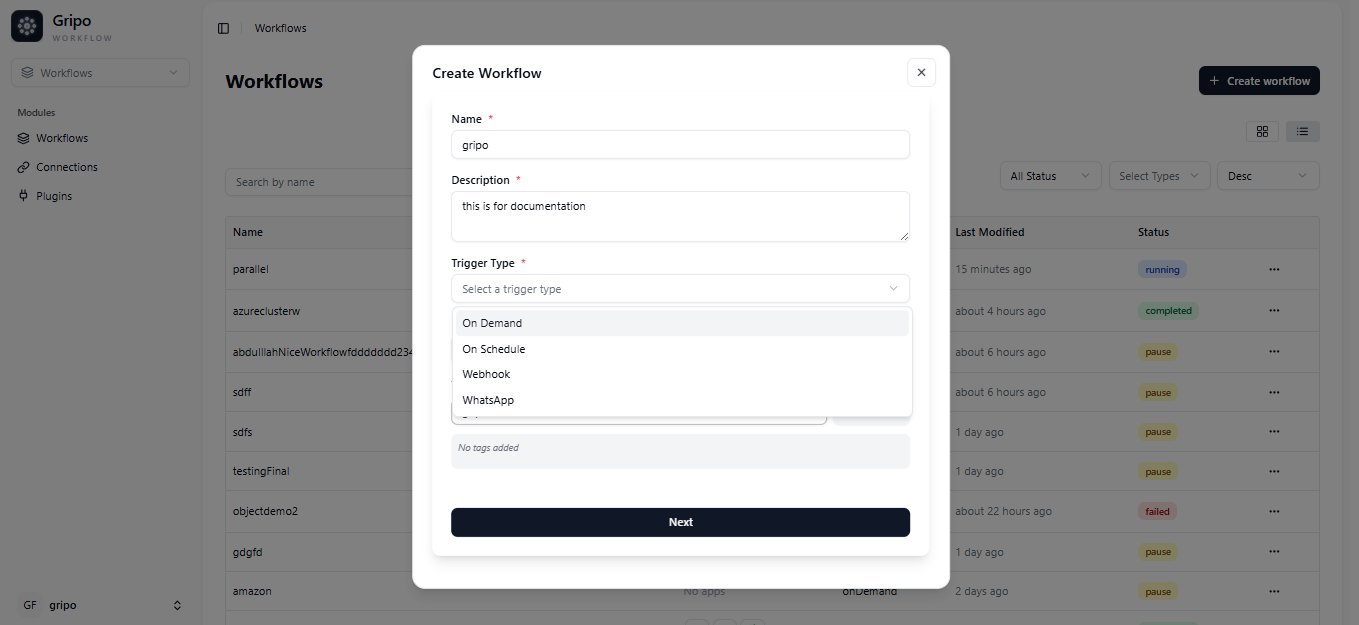
- A form will appear containing the following fields:
Name : Enter a unique name for your workflow.
Description : Add a short explanation of what the workflow does.
Trigger Type : Select the On Demand from the dropdown.
Retry : Define how many times a failed step should be retried.
Tags : Add relevant tags to help categorize and filter workflows.
- After filling in all the required fields, click on the Submit button to create your workflow.
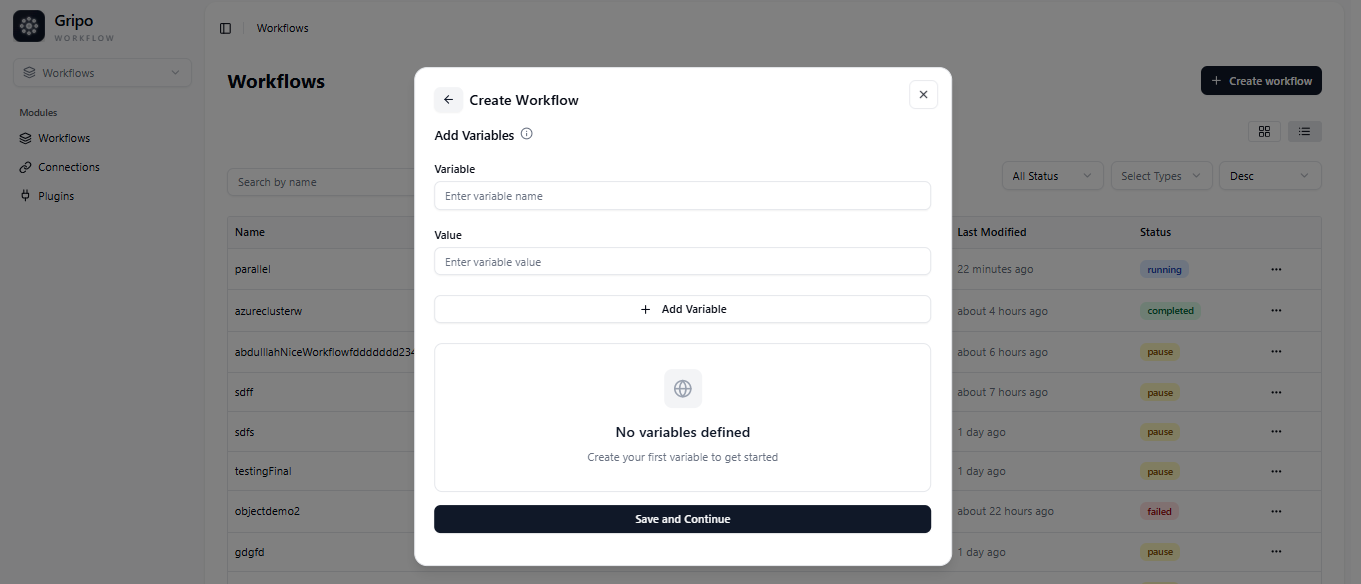
- A window will appear with fields for adding Variables and their Values.
- You can add as many variables as needed by clicking Add More Variable.
- If you don’t want to add any variables, click Skip Variables to move ahead.
- If you’ve added variables, click Save and Continue to proceed.
- A confirmation popup will appear, indicating that your workflow has been successfully created.
- Once the workflow is created, you can view it in the workflow .