Parallel Path
The Parallel Path activity allows your workflow to execute multiple actions simultaneously instead of one after another. It’s useful when you need to perform independent tasks at the same time — improving efficiency and reducing workflow execution time.
When to Use: Use Parallel Path when:
- You want to run multiple activities that don’t depend on each other.
- You need faster processing by executing actions concurrently.
- You want to collect results from different sources at the same time (e.g., monitoring, fetching data, or sending notifications).
- Run cost monitoring, cluster health check, and Slack notification activities together after a deployment.
- Fetch details from multiple Kubernetes clusters simultaneously using parallel branches.
- Send updates to Slack, Teams, and Email at the same time when a workflow completes successfully.
Example: Run Azure Managed Kubernetes Activities in Parallel Using Parallel Path
- After creating your workflow, click the “+” button to add an activity.
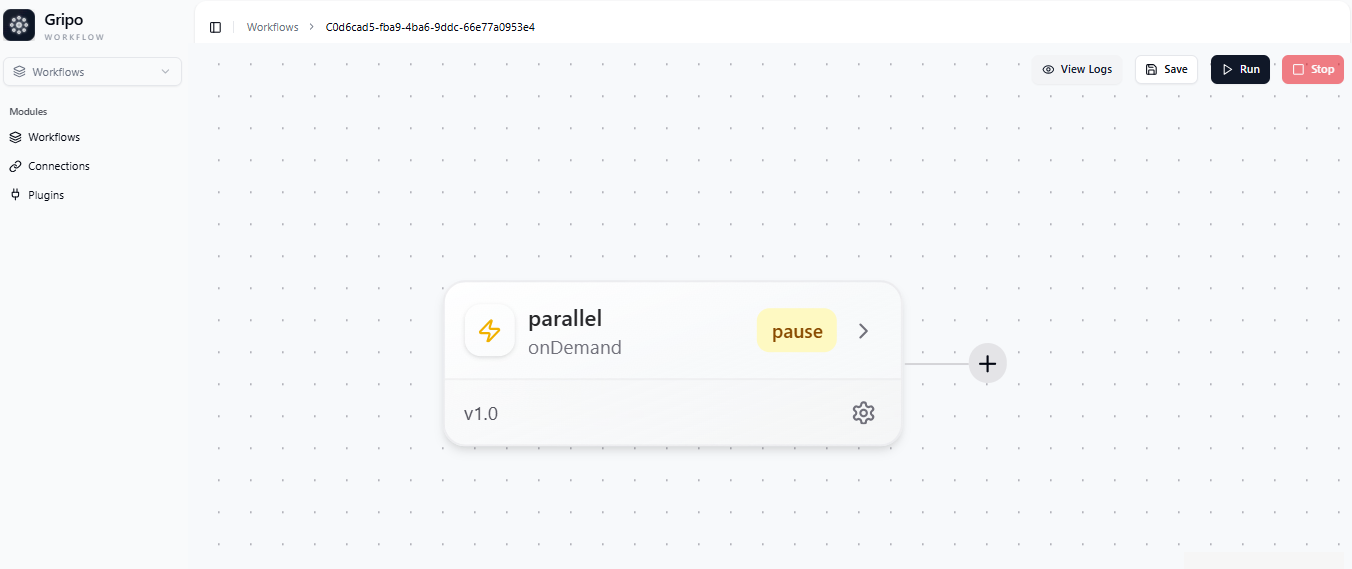
- To add a Parallel Path activity, again click the “+” button.
- Go to Core
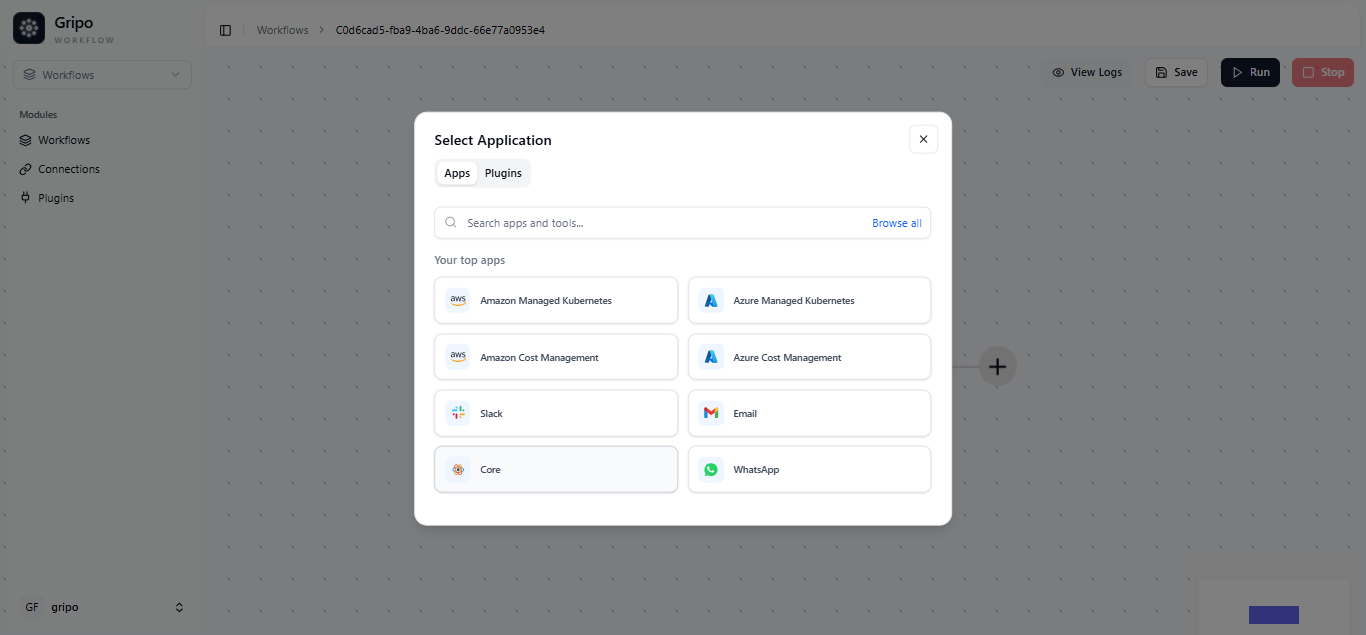
- Select Parallel Path.
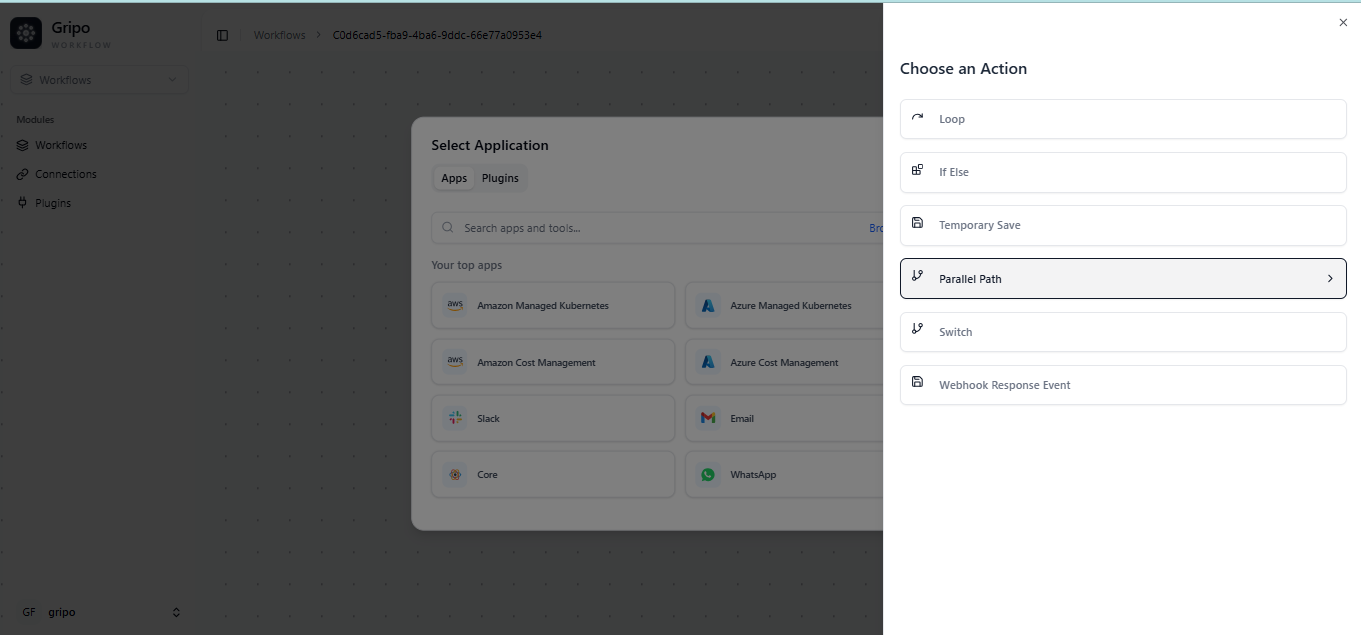
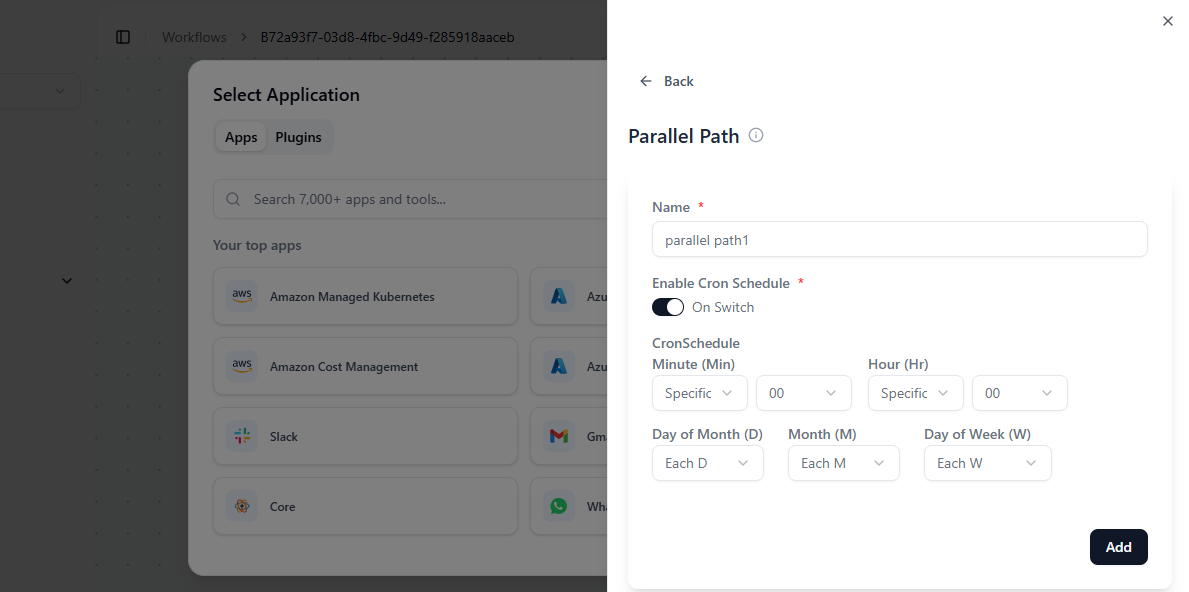
- A new window appears — click the Add Branch.
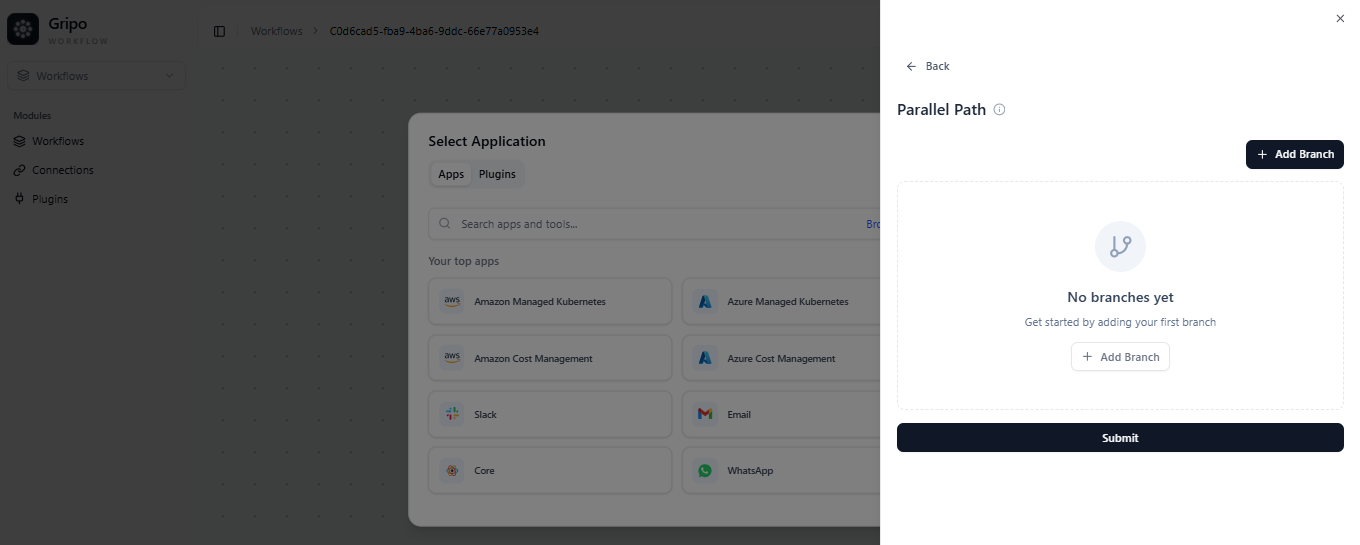
- A form will open.
- Give a Name to your branch.
- If you want to schedule this branch, enable Core Schedule.
- Set your cron schedule by specifying minutes, hours, days, and months, then click Add.
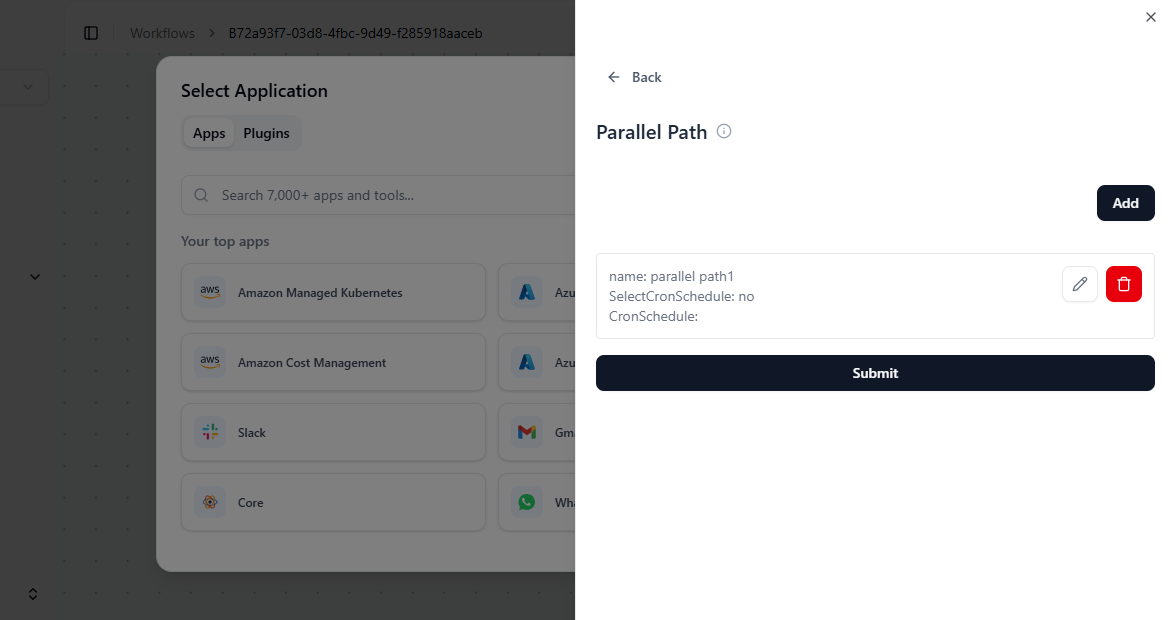
- To add another branch, click the Add button again.
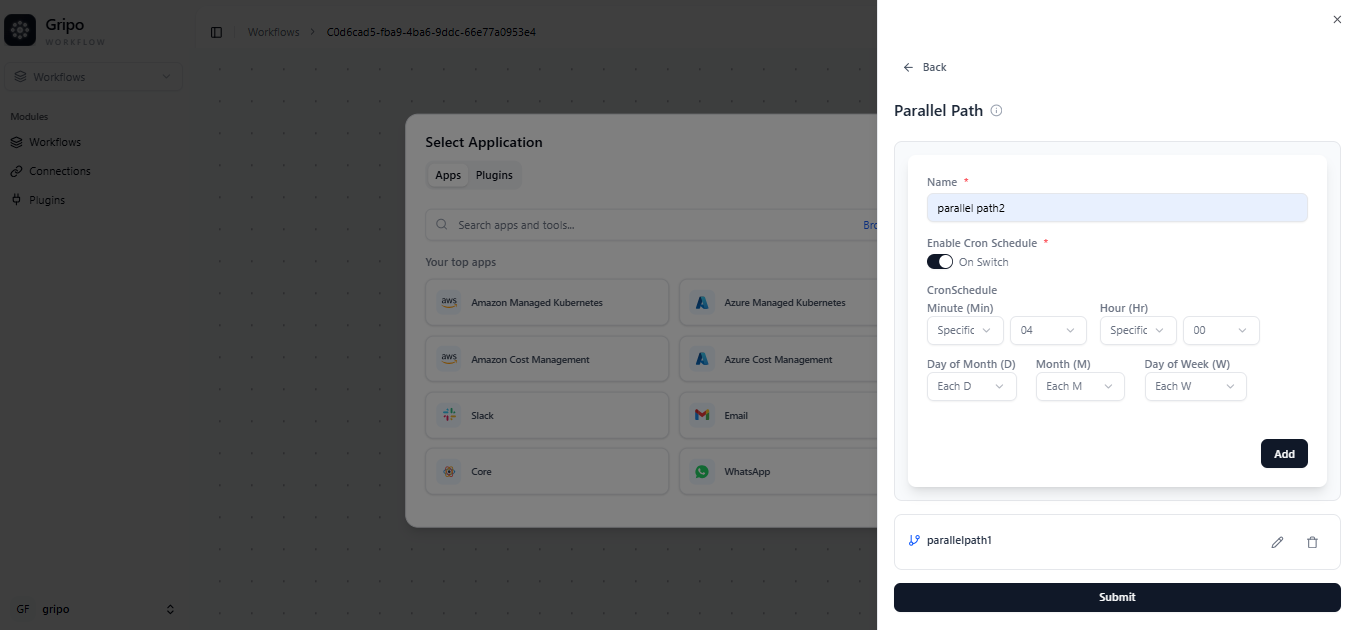
- Provide a branch name and set your cron schedule by specifying minutes, hours, days, and months,
- Click Add, then Submit.
- Parallel Path activity is added in workflow.
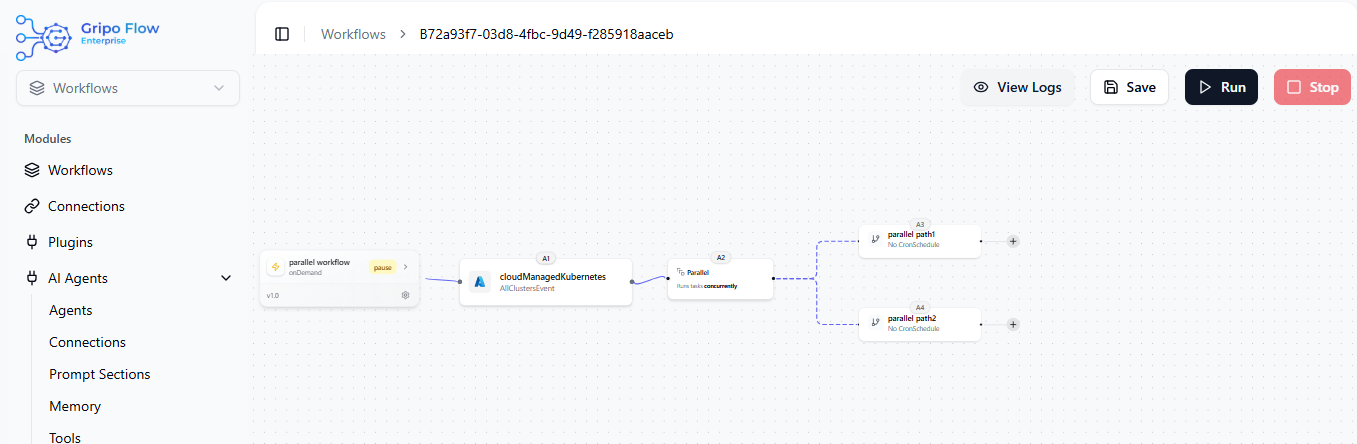
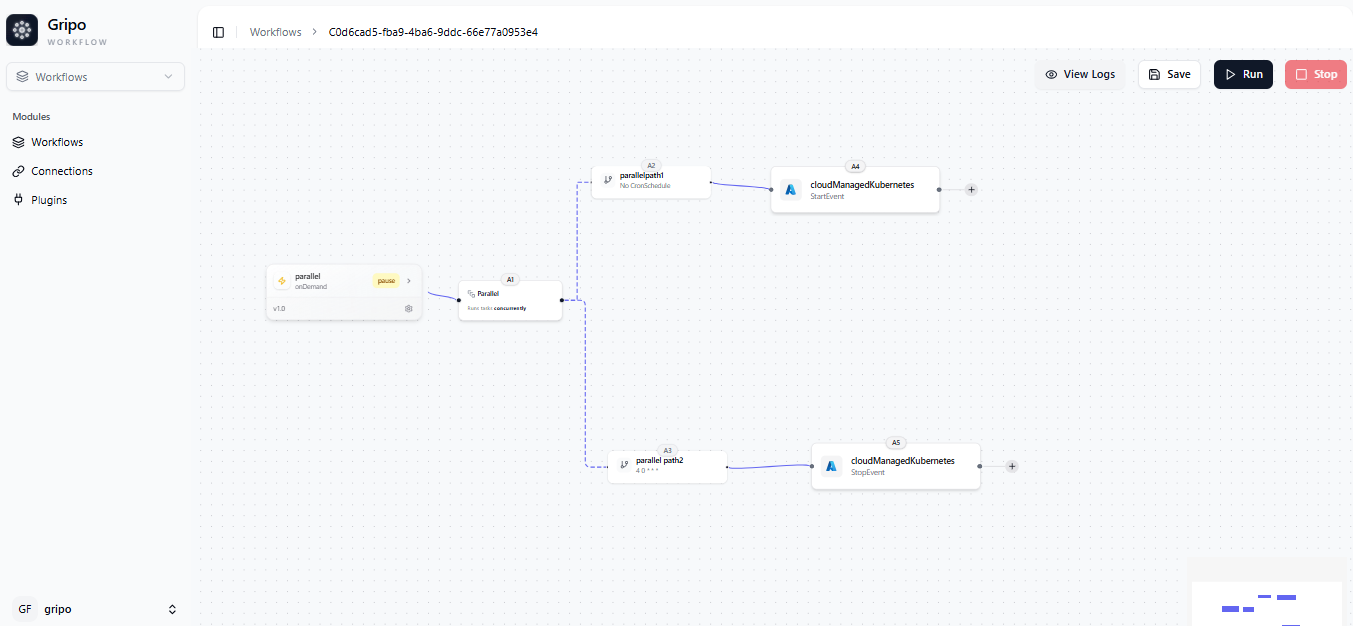
- To view the outcome, add a Slack activity to send results or status updates.

- Finally, click the Save and Run button.
- A green tick indicates that your workflow ran successfully.
