Loop Activity
Loop Activity in a workflow is used to repeat a set of actions multiple times for each item in a list or dataset. It helps automate repetitive tasks without manually creating the same steps again. We use Loop when we need to perform similar operations on multiple resources, records, or items in sequence — making workflows smarter and more efficient.
Use Case:
You can use this loop workflow to:- Automatically fetch all clusters and their nodes
- Resize or modify nodes one by one
- Get Slack notifications for every action taken
Example: Get Cluster Name and Node Pool Name using Loop Activity
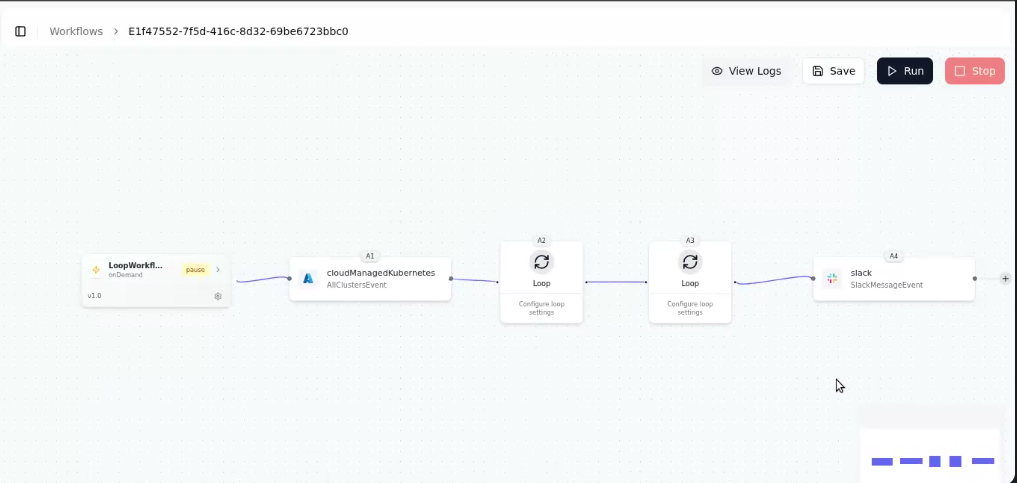
This workflow demonstrates how to automatically fetch the cluster name and node pool name by using Loop activities.It helps you process multiple clusters and their node pools without manually repeating steps.
Steps to Create the Workflow
Create Workflow in Gripo- Begin by navigating to the Workflow tab in your Gripo dashboard.
- Click “Create Workflow”, give it a name and description, and select the type of workflow you want to build. Once created, you can start adding activities.
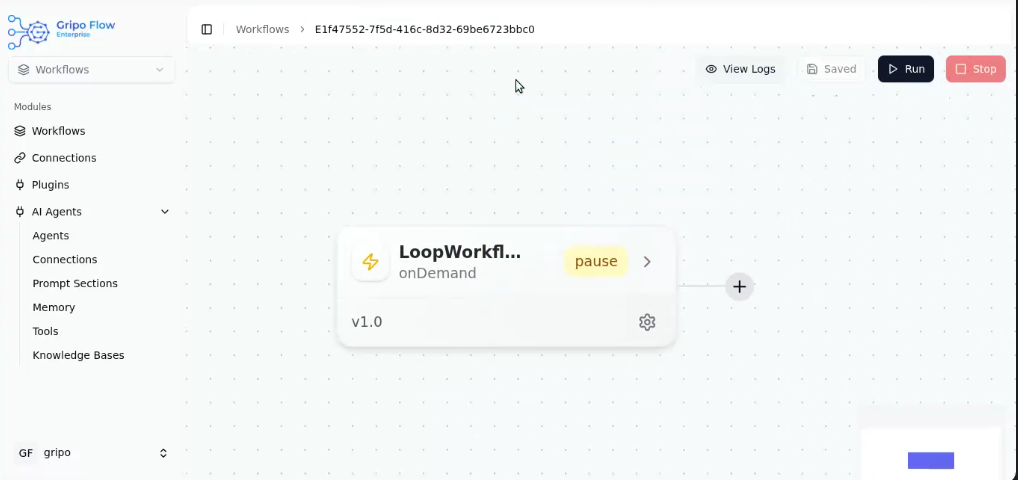
- Start by adding the Azure Managed Kubernetes activity to fetch all clusters available in your environment.
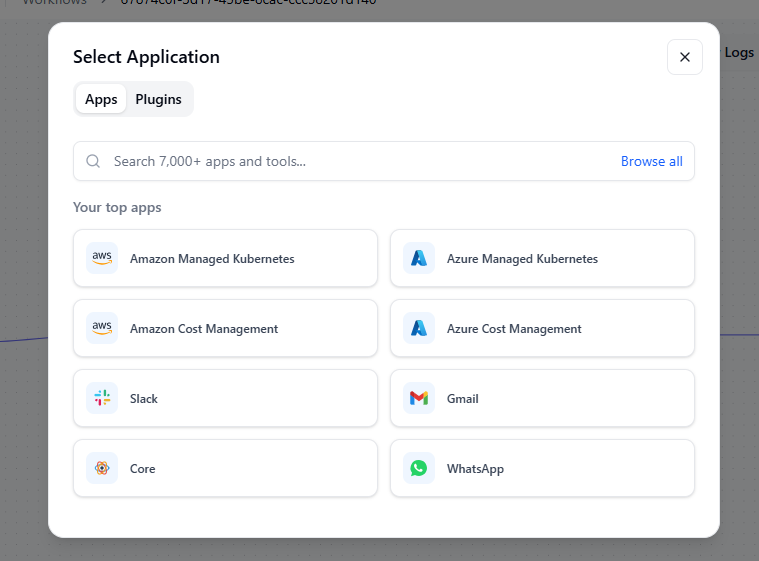
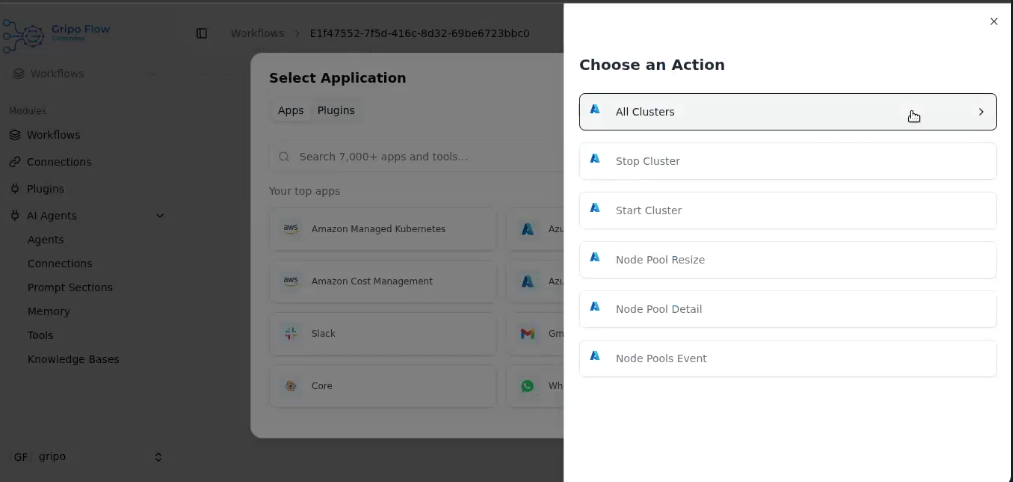
- When you select this activity, a list of available actions will appear.
- Choose “All Clusters” to fetch the complete list of clusters from your environment.
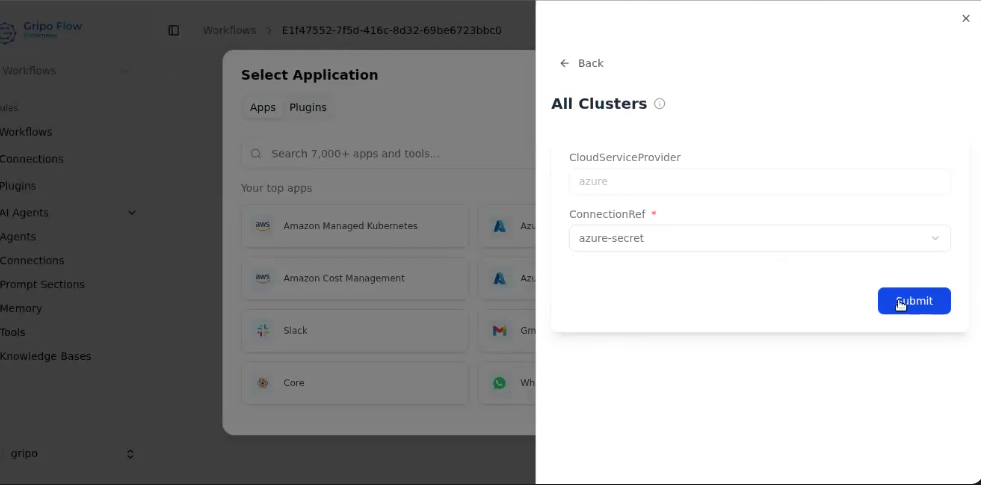
- In the configuration form, choose Azure in the cloud provider and select the Azure connection reference you’ve already created.
- Then click Submit to confirm.
- Azure Managed Cluster is added in the workflow to connect with Azure and manage cluster operations.
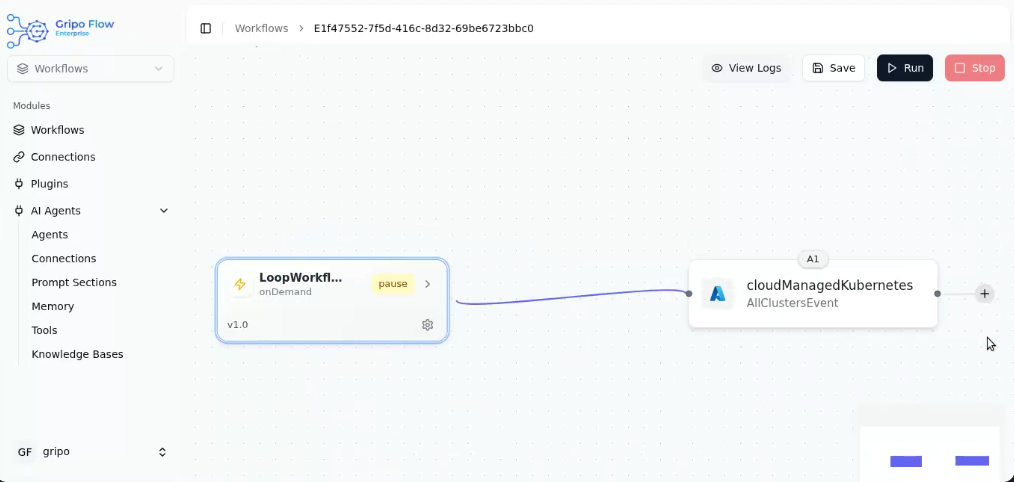
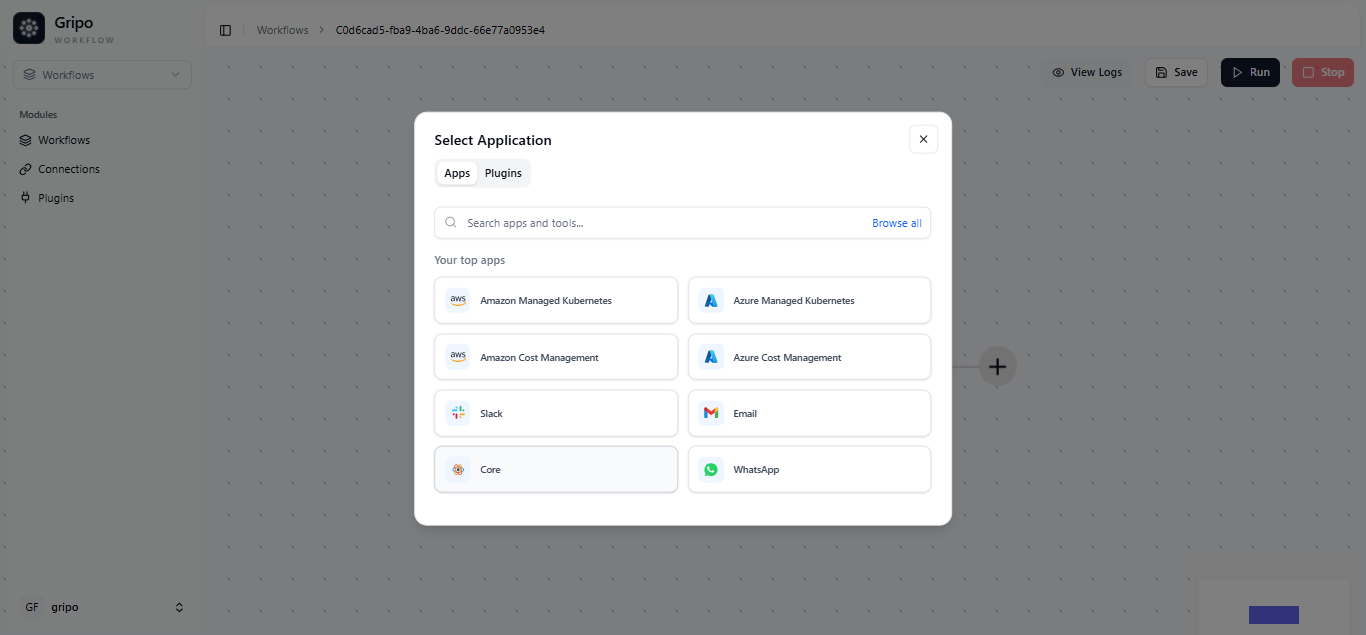
- Click on ”+” button to add a new activity
- Select Core
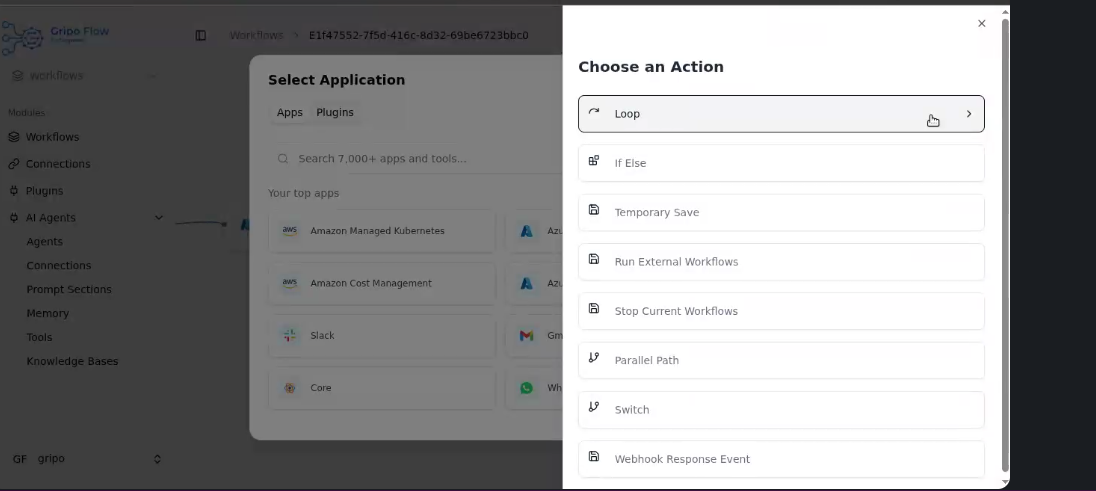
- Select a Loop activity.
- Inside the loop, add an item “AzureManagedKUbernetes A1, to Get Cluster information.
- Click on Submit Button.
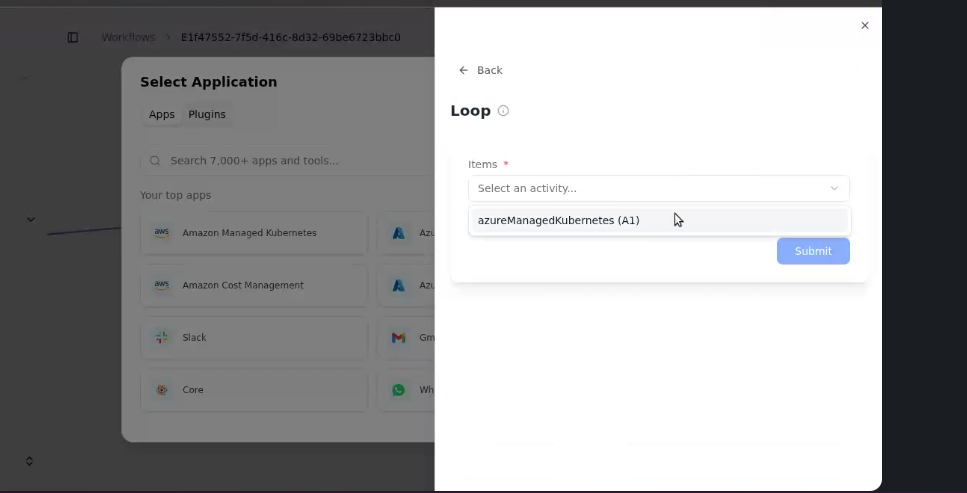
- The loop will now process cluster.
- This will return important details like Cluster Name, Region, etc.
- From the cluster data received in the previous step, add another Loop activity to go through each node pools.
- Click on ”+” button to add a new activity
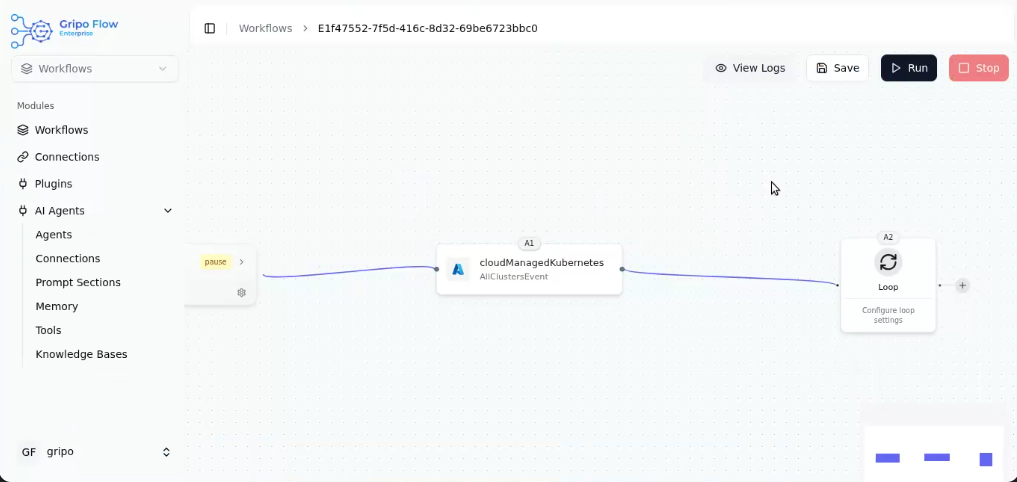
- Select Core
- Select a Loop activity.
- Inside this loop, you can extract details such as the Node Pool Name, node size, and statusby adding core A2 in item field.
- Click on Submit Button.
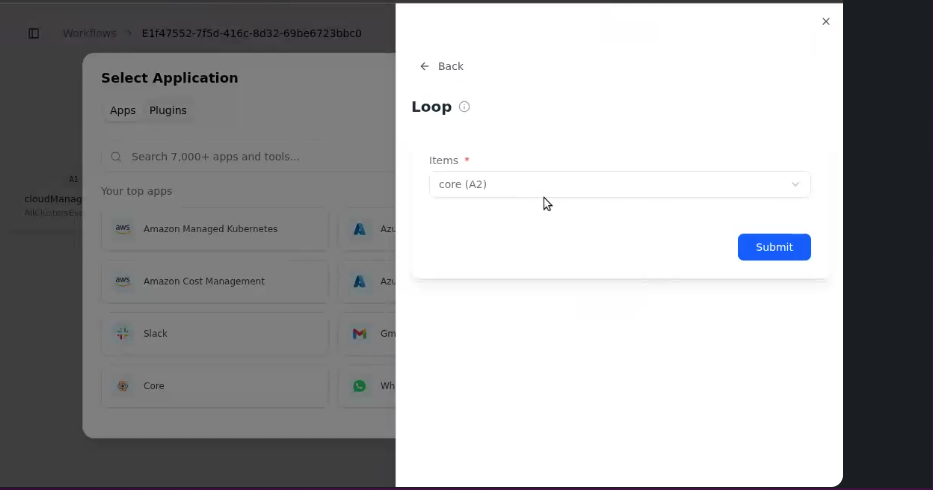
- The loop will now process each node pool of the cluster.
- This will return important details like Node Pool Name, Node Size, and Status.
- Add a Slack activity to send a message containing the Cluster Name and Node Pool Name. This allows you to receive instant notifications about each node being processed.
- Click on ”+” button to add a new activity

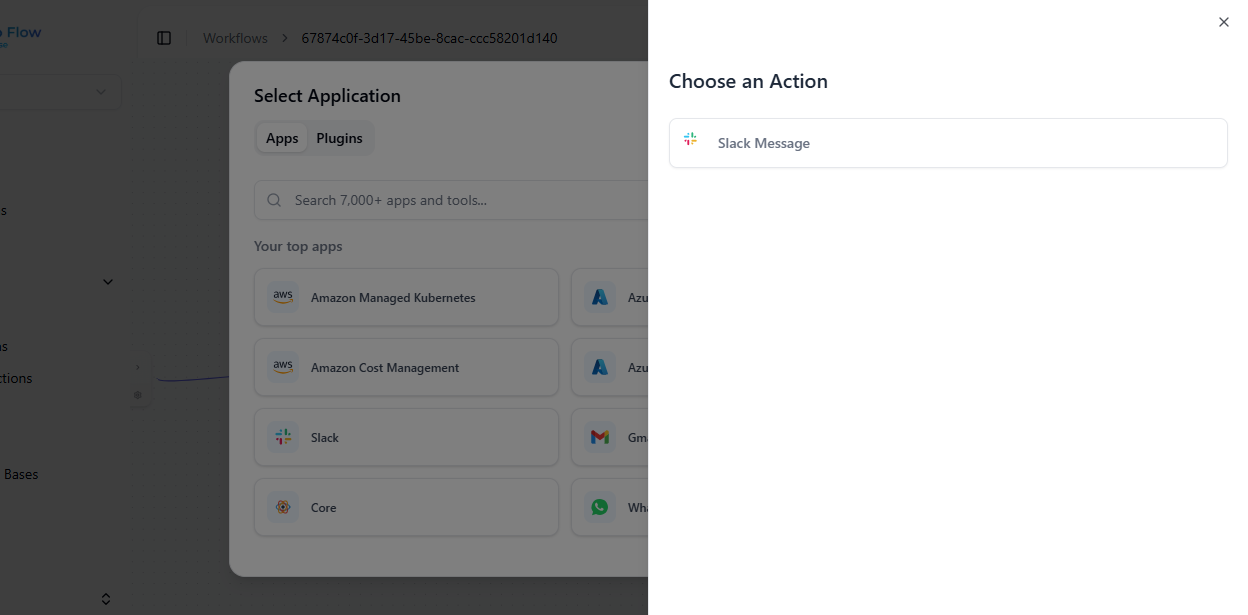
- Select Slack.
- Select “Slack Message” as action.
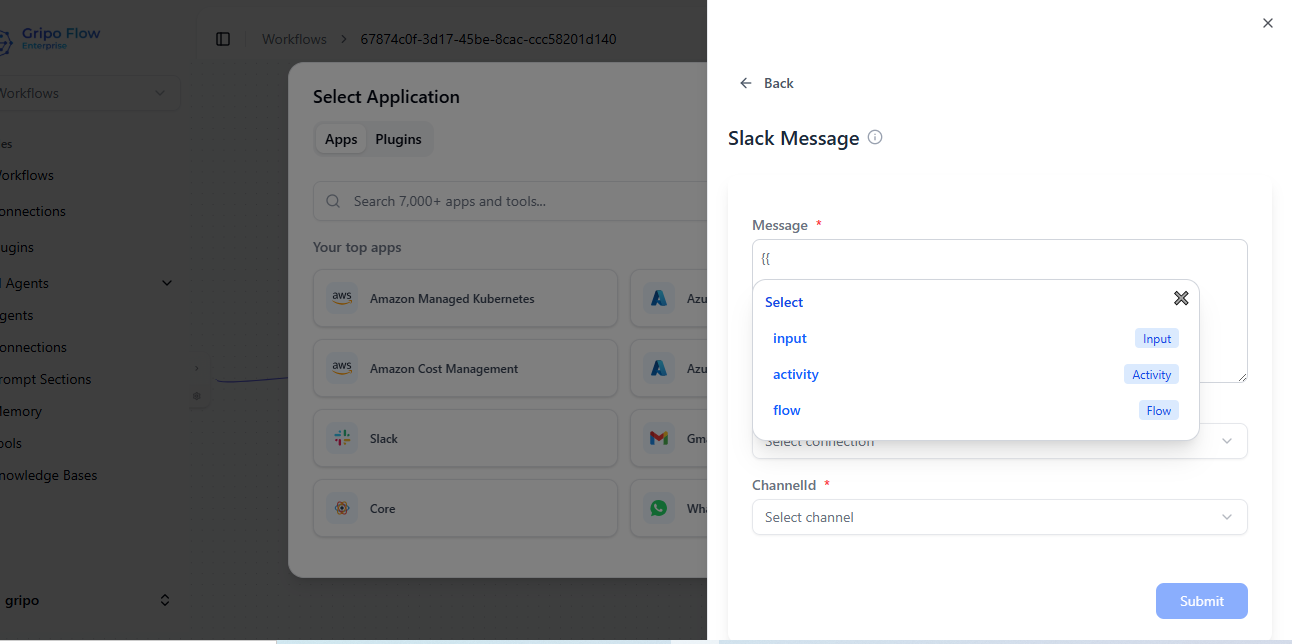
- You can type the message you want to send to the Slack channel
- You can use double {{to access dynamic values from previous activities
- To display the Cluster Names use activityA2.items and activity A3.items to display the Node Pool Name in your Slack message.
- Select the Connection Refrrence (Slack Secret).
- Select the Slack Channel in which you want to send the message.

- Slack is added in the WorkFlow.
- Click on Saved button to save WorkFlow.
- Click on Run button to start the workflow.
- The Cluster Name and Node Pool Name are sent to the selected Slack channel as a message.
