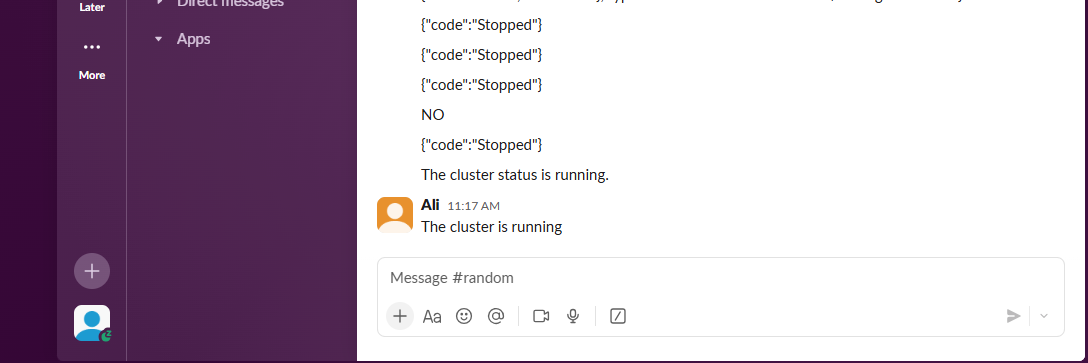
Example: Azure Checking Status
- After creating the workflow, click on the “+” button.
- From the list of available apps, select Azure Managed Kubernetes.
- Choose the“All Cluster” action to fetch details of all cluster
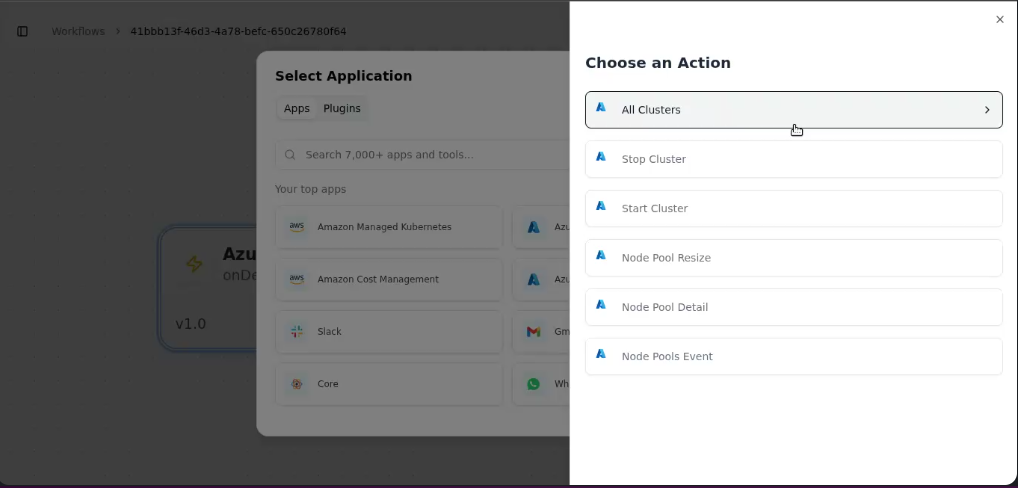
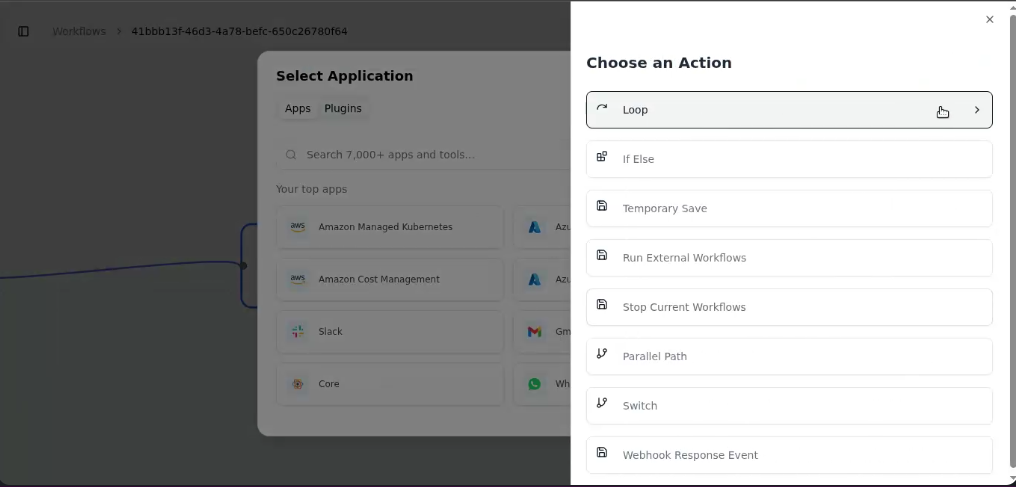
- To iterate through each cluster, click on Core and select the Loop activity.
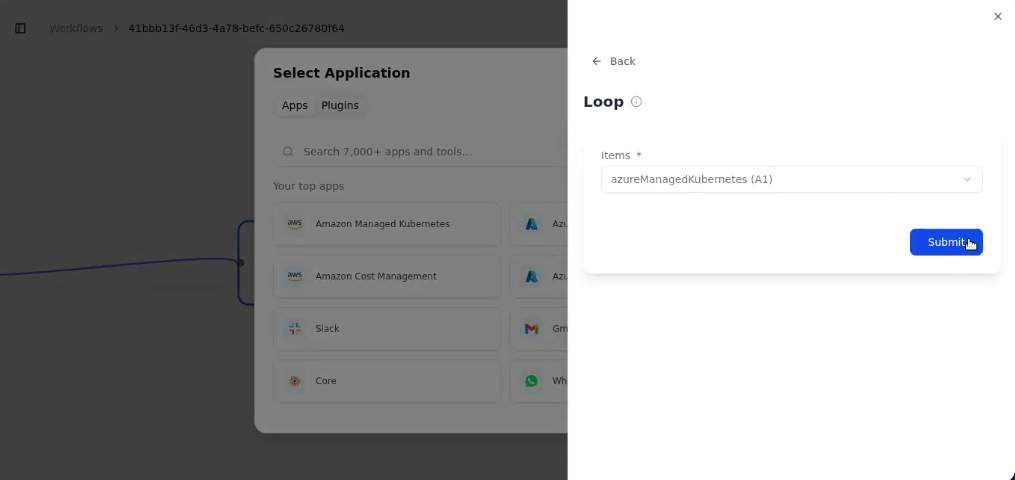
- In loop item select azuremanagedkubernetes(A1)
- Next, we’ll add a condition to check the status of each cluster.
- Click on Core, if/else activity.
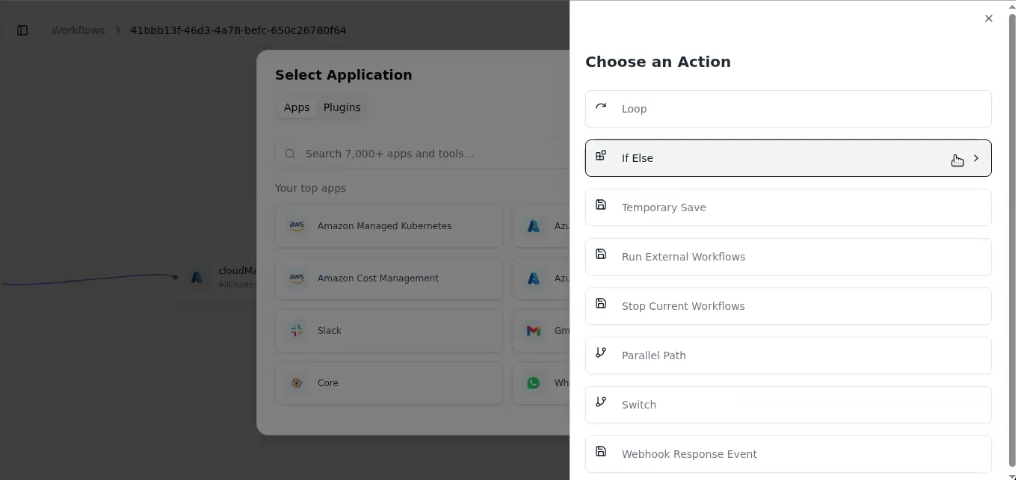
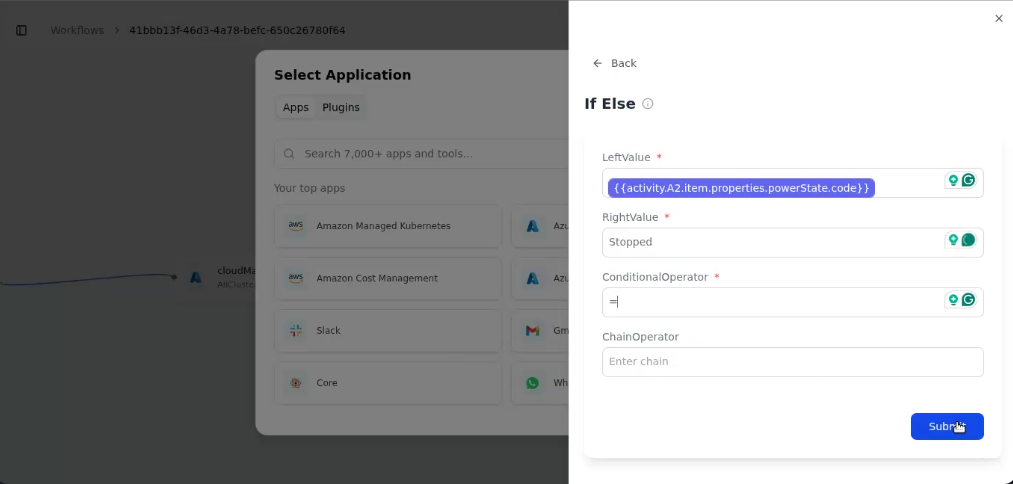
- A form will appear containing the following fields:
Right Value
Left Value
Conditional Operator
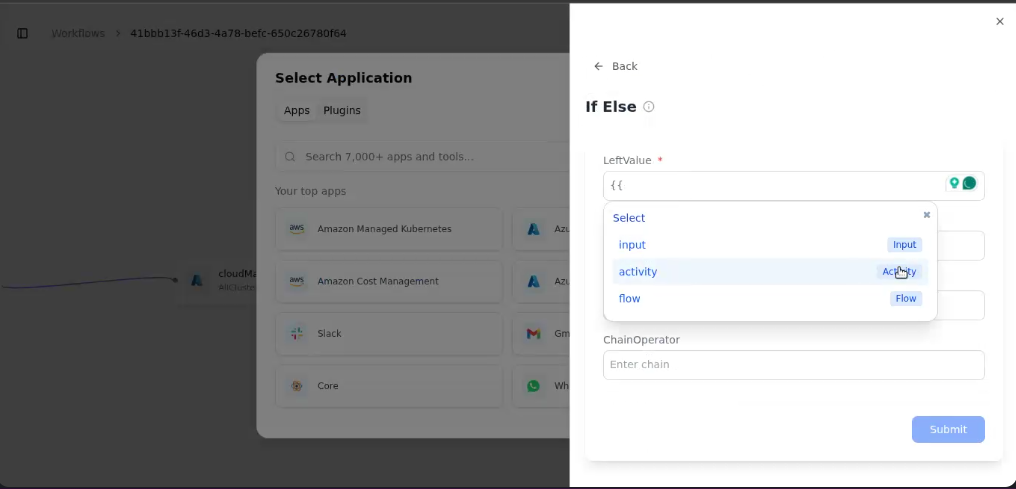
Chain Operator - In the Left Value field ,type {{, this opens a list of available variables.
- Select “Activity”
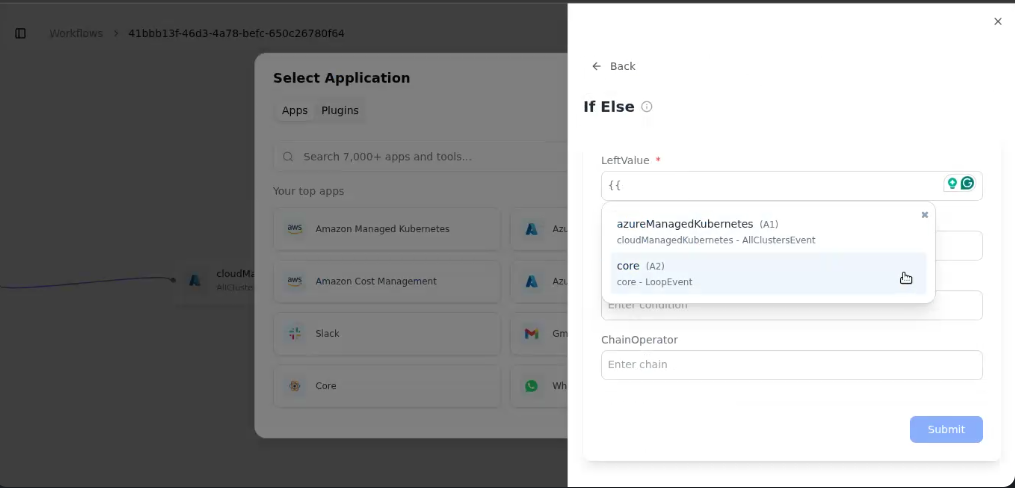
- Select ” Core(A2) ”
- Select ” items”
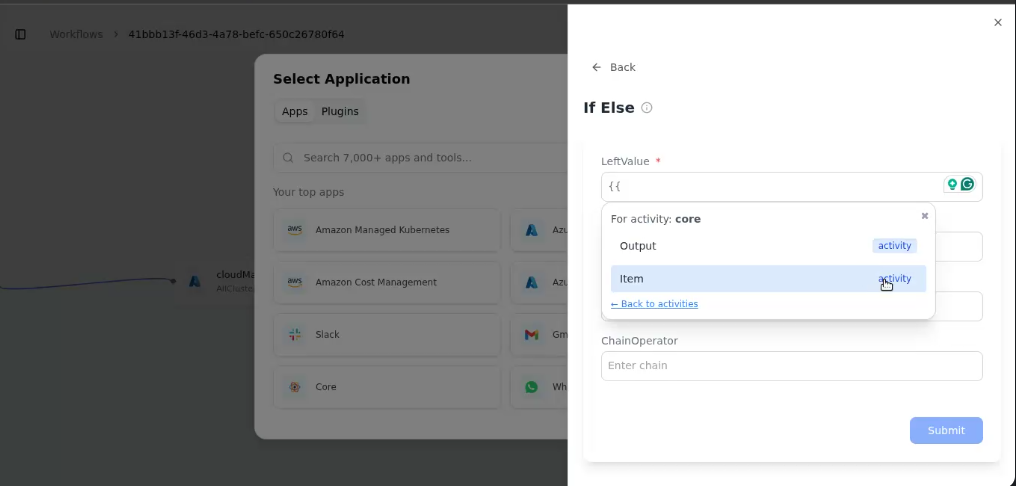
- The Left Value Field has valus ”
{{ActivityA2.items.properties.powerState.code}}” - In the “Right Value Field” type Stopped
- In the “Conditional operator , select =
- Fill ” Chain Operator ”
- Click on Submit button
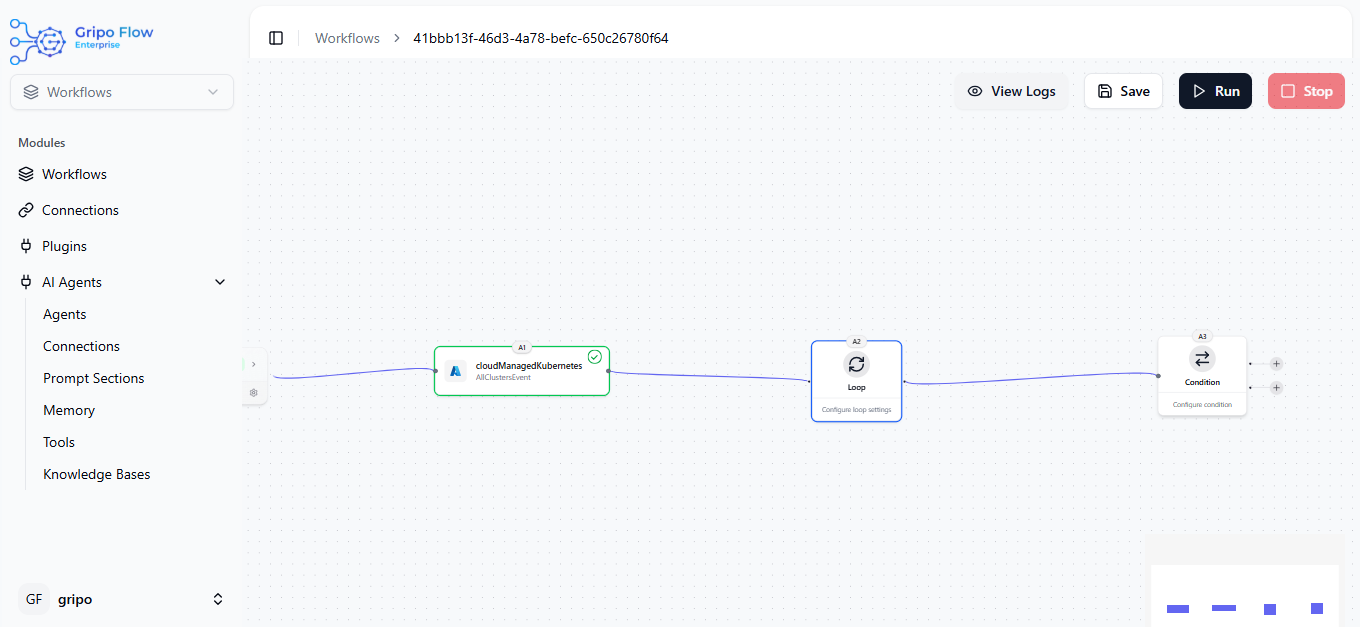
- After submitting the condition, two “+” buttons will appear
- The top one represents the Yes (True) condition.
- The bottom one represents the No (False) condition.
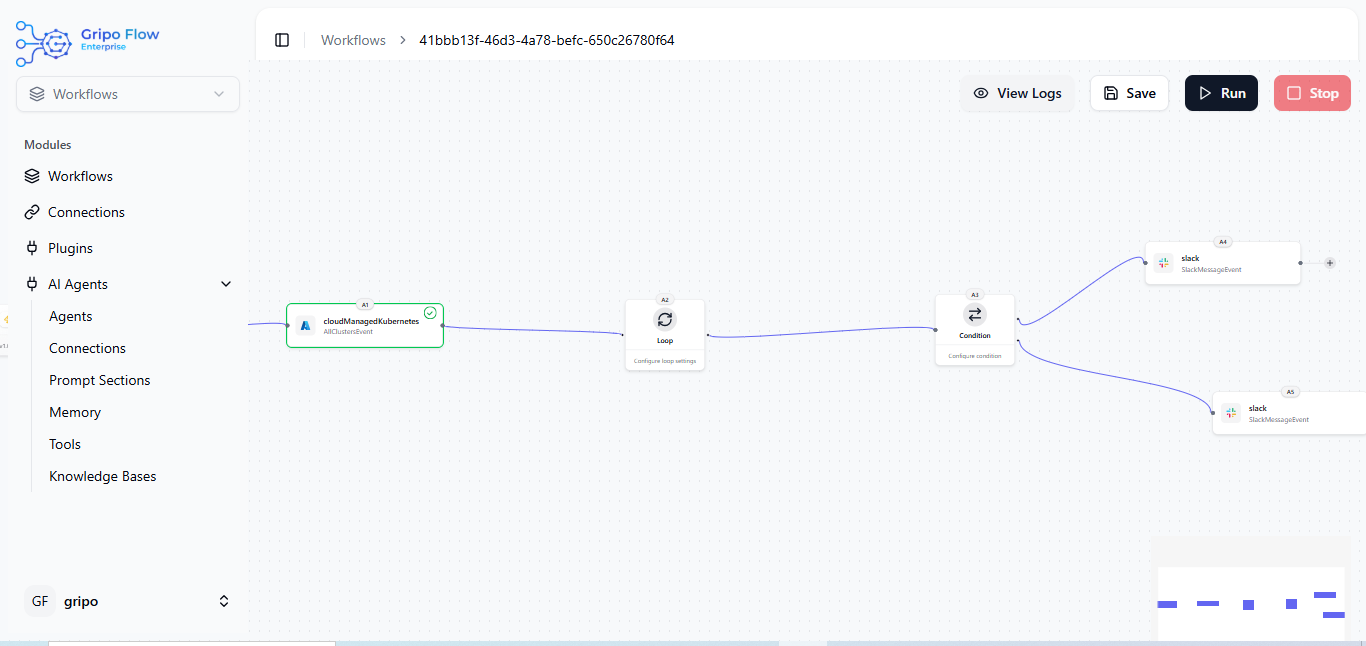
- To display results, add Slack on both paths
- For Yes, configure Slack to show the message: “Cluster is running.
- for NO,configure Slack to show the message: Stopped
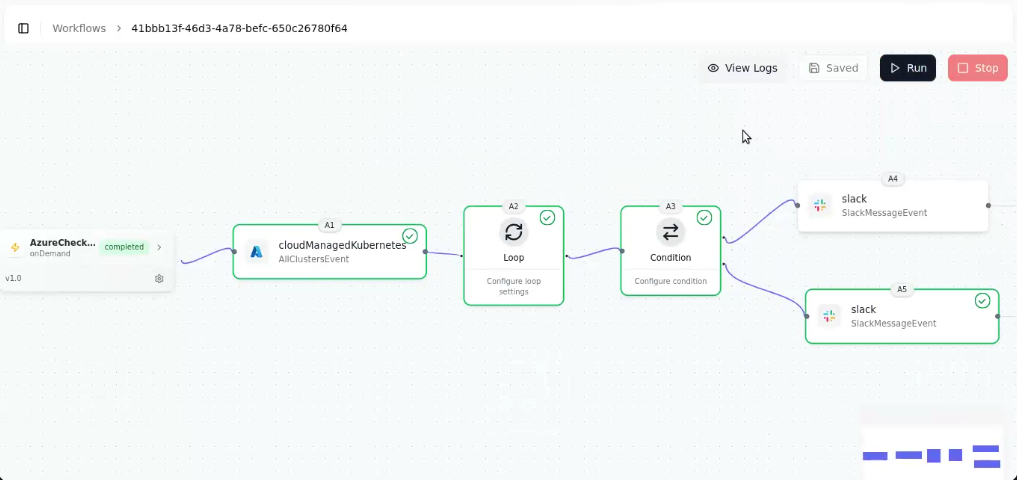
- Click on the Save button to store your workflow.
- Then click on the Runbutton.
- Once executed, you will see a green ticks indicating that the workflow ran successfully.
- As a result, you’ll receive a message onSlackshowing the current status of your cluster (Running or Stopped).