SSH Connection
SSH Provider Connections allow GRiPOFlow to securely connect to remote servers using either SSH Key authentication or Username & Password authentication.
Before You Begin
Before creating an SSH connection, ensure you have the connection details for your remote server. GRiPOFlow supports two authentication methods:
- SSH Key Authentication (Recommended)
- Username & Password Authentication
Choose the authentication method that matches your server configuration.
Use the following sections to complete the setup:
Configure the SSH Connection in GRiPOFlow
SSH Connection Form
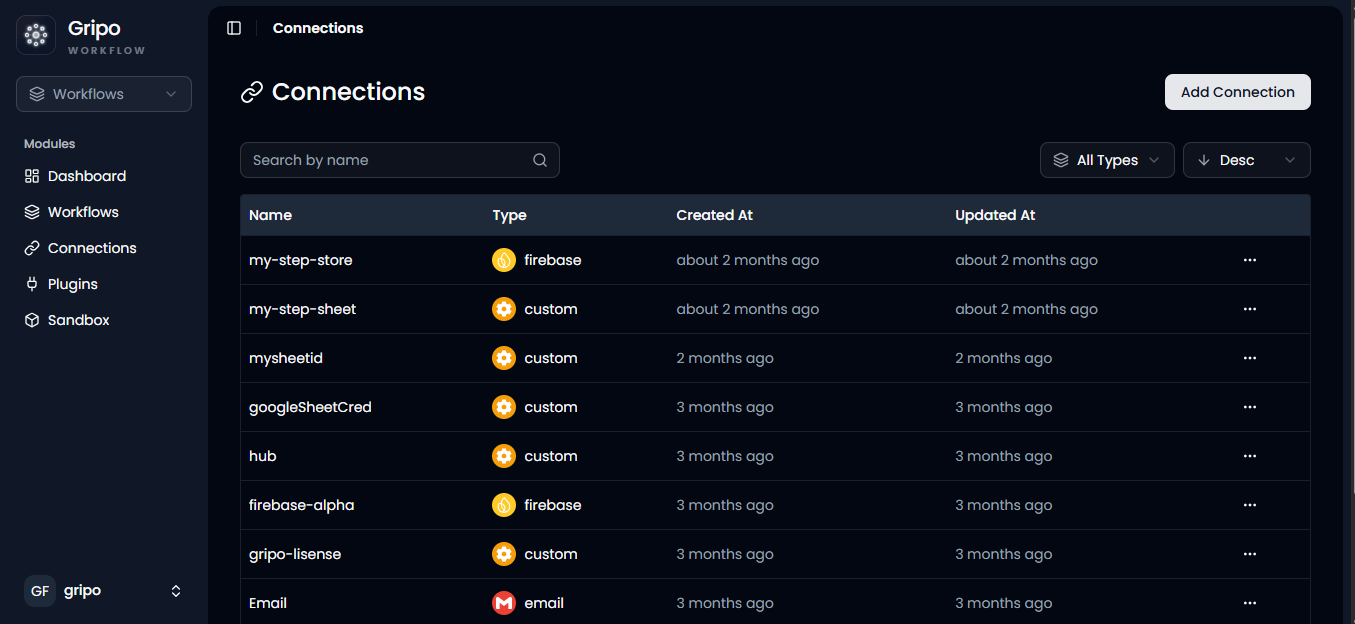
- Navigate to the Connection section.
- Click Add Credentials.
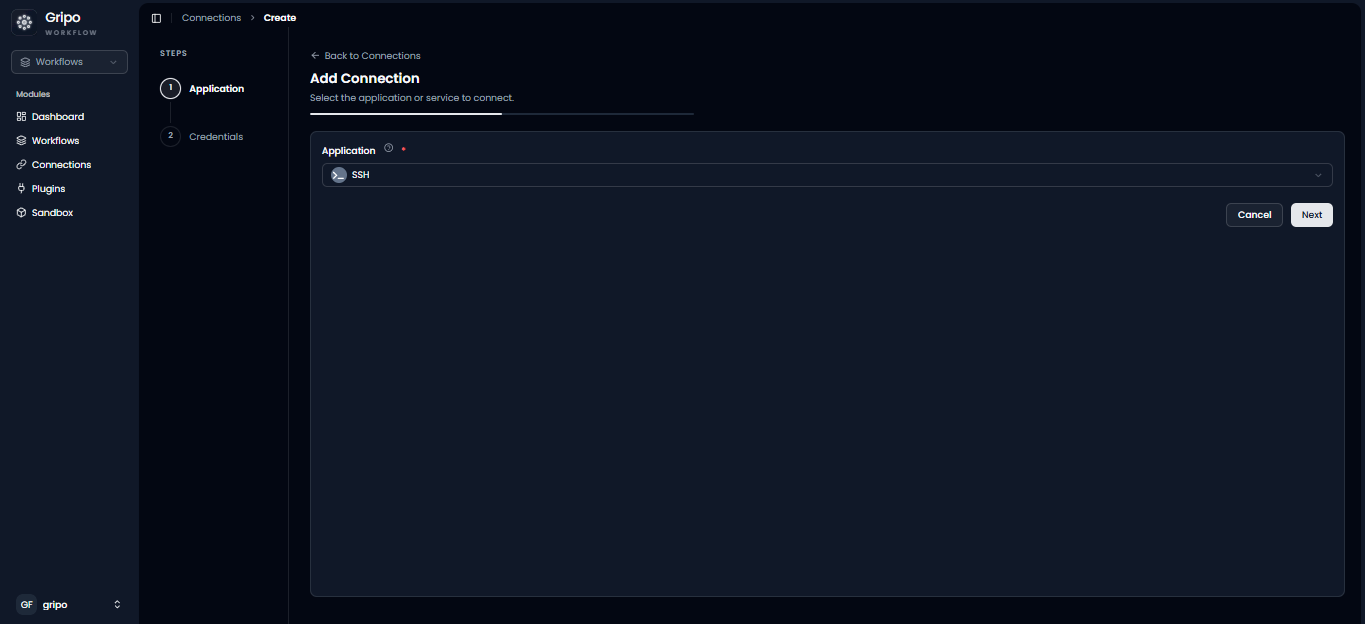
- A window will appear. From the Application dropdown, select SSH.
- Click Next.
- A form will be displayed for entering your SSH connection details.
- Enter a Connection Name.
- Select an Authentication Method:
- SSH Key
- Username & Password
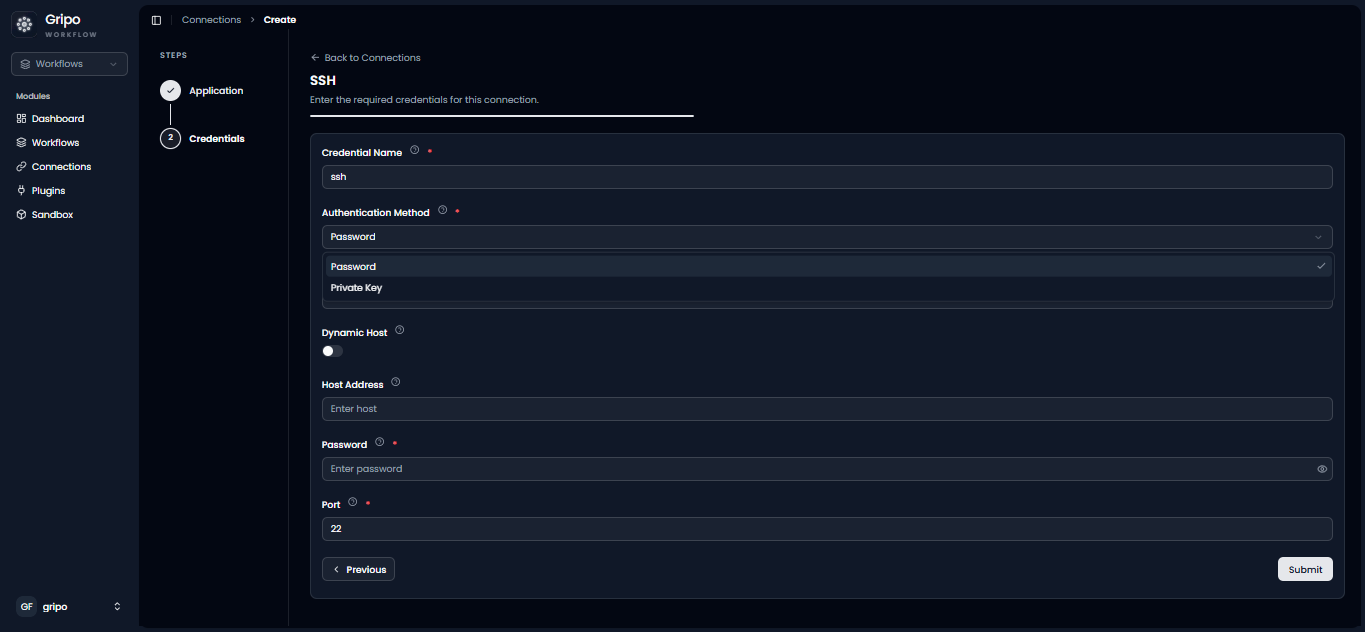
GripoFlow allows you to authenticate SSH connections using either a Private Key or a Username & Password. Choose the appropriate authentication method based on your server’s configuration before creating the connection.
SSH Key Authentication
Configure an SSH Key Connection
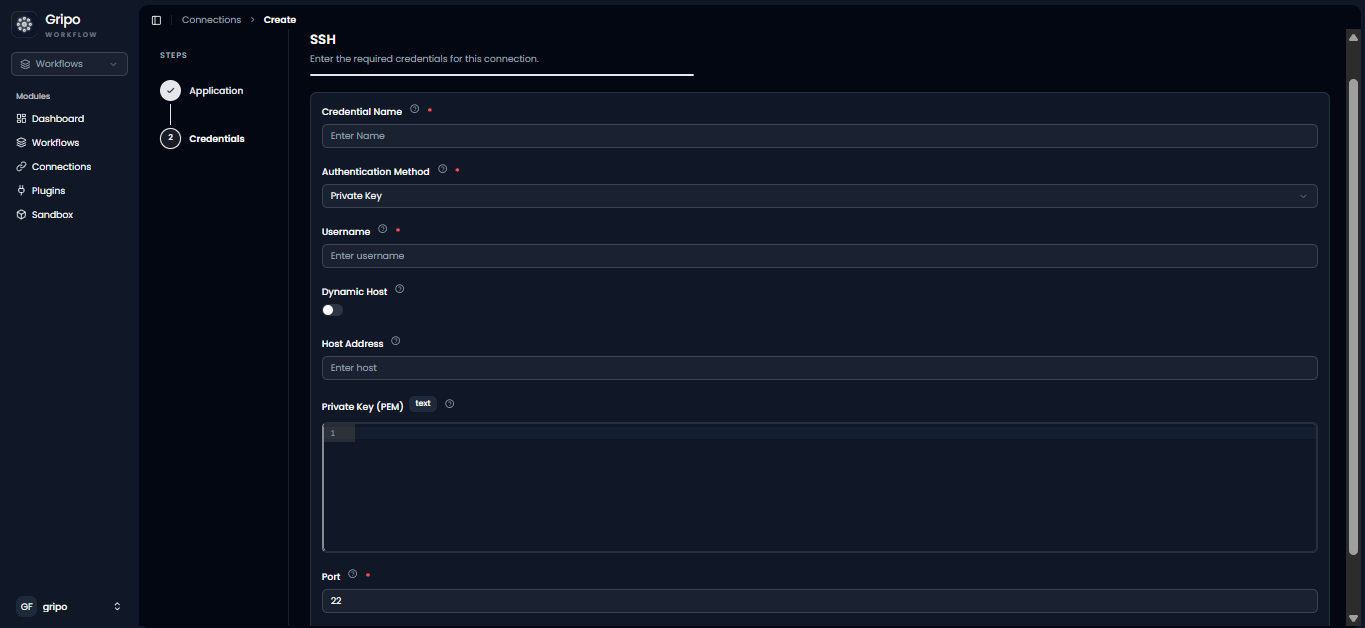
SSH Key Authentication provides a secure way to connect to remote servers without using a password. Instead of entering a password each time, GripoFlow authenticates using an SSH private key that matches the public key installed on the target server. This method is recommended for production environments because it offers stronger security and is widely used for server automation.
When Private Key is selected as the Authentication Method, complete the following fields:
| Field | Required | Description |
|---|---|---|
| Authentication Method | ✅ | Select Private Key to authenticate using an SSH private key instead of a password. |
| Username | ✅ | Enter the username of the remote server, such as root, ubuntu, or ec2-user. |
| Dynamic Host | Optional | Enable this option if the target host will be provided dynamically during workflow execution. Leave it disabled to connect to a fixed server. |
| Host Address | ✅ | Enter the IP address or Fully Qualified Domain Name (FQDN) of the remote server, for example 192.168.1.50 or ssh.example.com. |
| Private Key (PEM) | ✅ | Paste your complete SSH private key in PEM or OpenSSH format. The key usually begins with -----BEGIN OPENSSH PRIVATE KEY----- or -----BEGIN RSA PRIVATE KEY-----. |
| Port | ✅ | Enter the SSH port of the remote server. The default value is 22, but you can specify a different port if your server is configured to use one. |
Username & Password Authentication
Configure a Username & Password Connection
Username and Password Authentication allows GripoFlow to connect to a remote server using the login credentials of a user account on that server. This method is suitable for environments where SSH key authentication is not available or when password-based access is required. Ensure that the remote server allows password authentication before creating the connection.
When Password is selected as the Authentication Method, complete the following fields:
| Field | Required | Description |
|---|---|---|
| Authentication Method | ✅ | Select Password to authenticate using the remote user’s password instead of an SSH private key. |
| Username | ✅ | Enter the username of the account on the remote server that GripoFlow will use to establish the SSH session. |
| Dynamic Host | Optional | Enable this option if the target host will be supplied dynamically during workflow execution. Leave it disabled to always connect to the specified host address. |
| Host Address | ✅ | Enter the IP address or Fully Qualified Domain Name (FQDN) of the remote server, for example 199.176.0.78 or ssh.example.com. |
| Password | ✅ | Enter the password for the specified remote user account. The password field is masked for security. |
| Port | ✅ | Enter the SSH port used by the remote server. The default value is 22, but you can specify a different port if your server is configured to use one. |
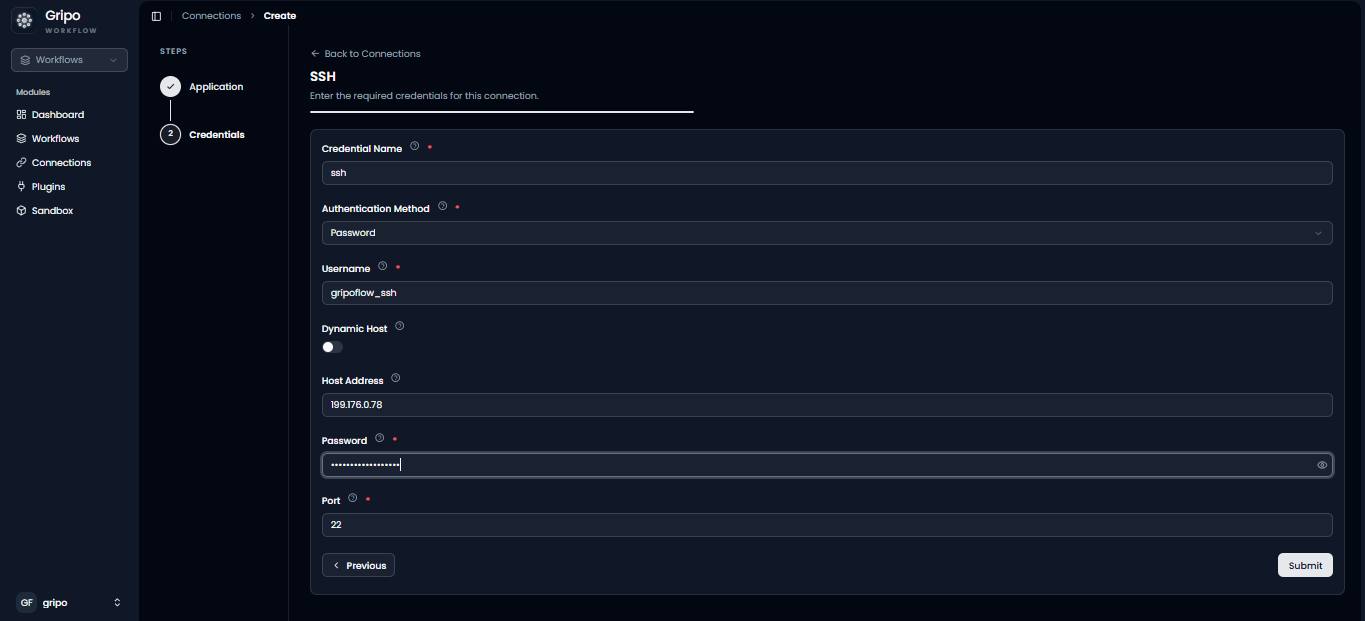
- After entering the required details for your selected authentication method: , click on Submit button
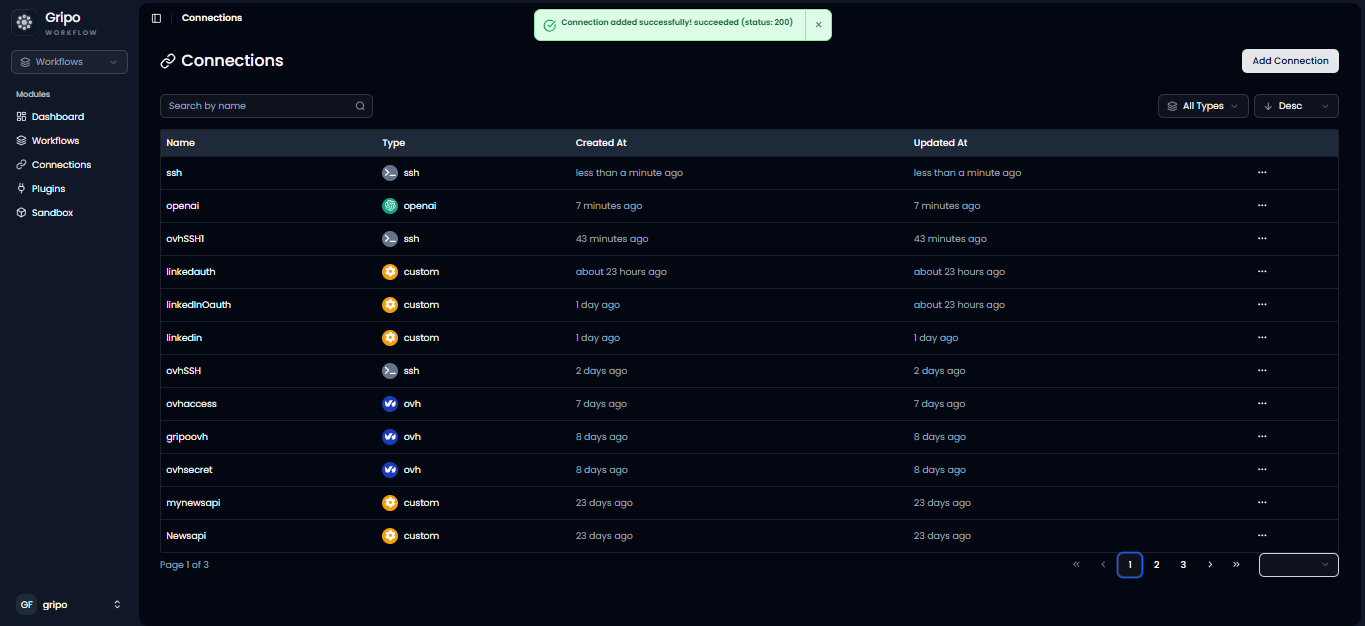
- Newly created SSH Connection will appeared in the list.