Firebase Connection
Firebase Provider Connections allow GRiPOFlow to securely authenticate with your Firebase project using a Service Account JSON key.
Before You Begin
To use Firebase services in GRiPOFlow, you must create a Firebase connection and generate a Firebase Service Account JSON key from the Firebase Console.
Use the following sections to complete the setup:
Configure the Firebase Connection in GRiPOFlow
Firebase Connection Form
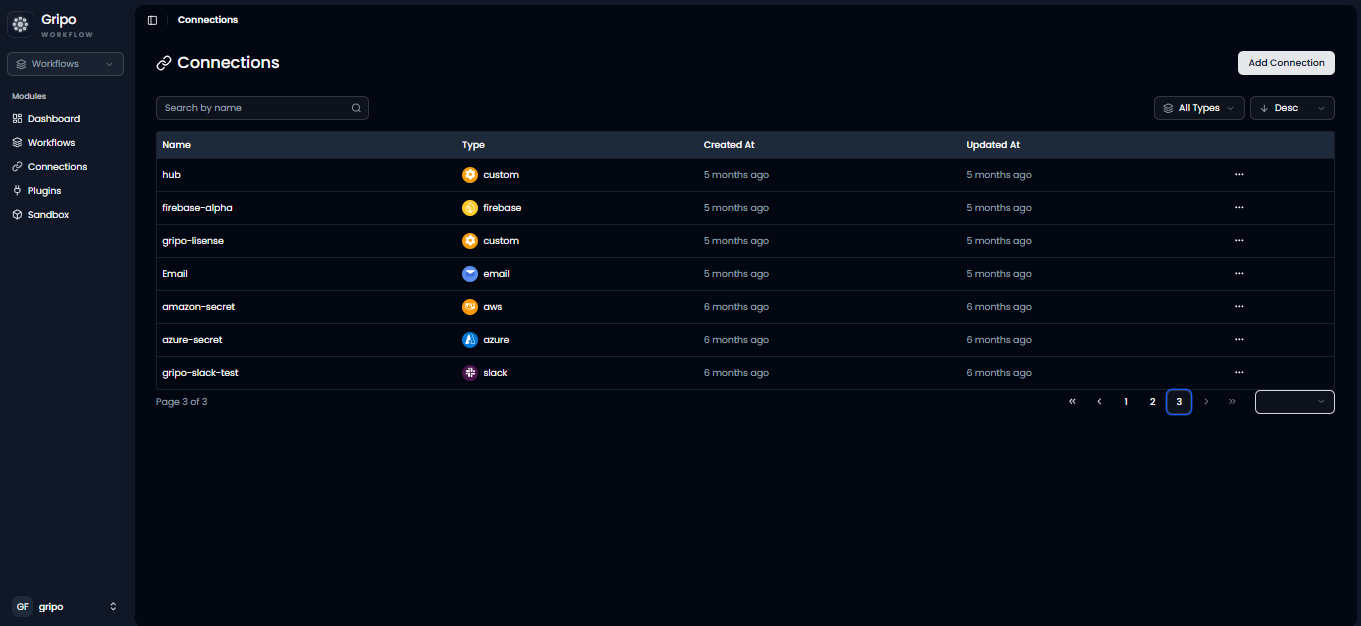
- Navigate to the Connection section.
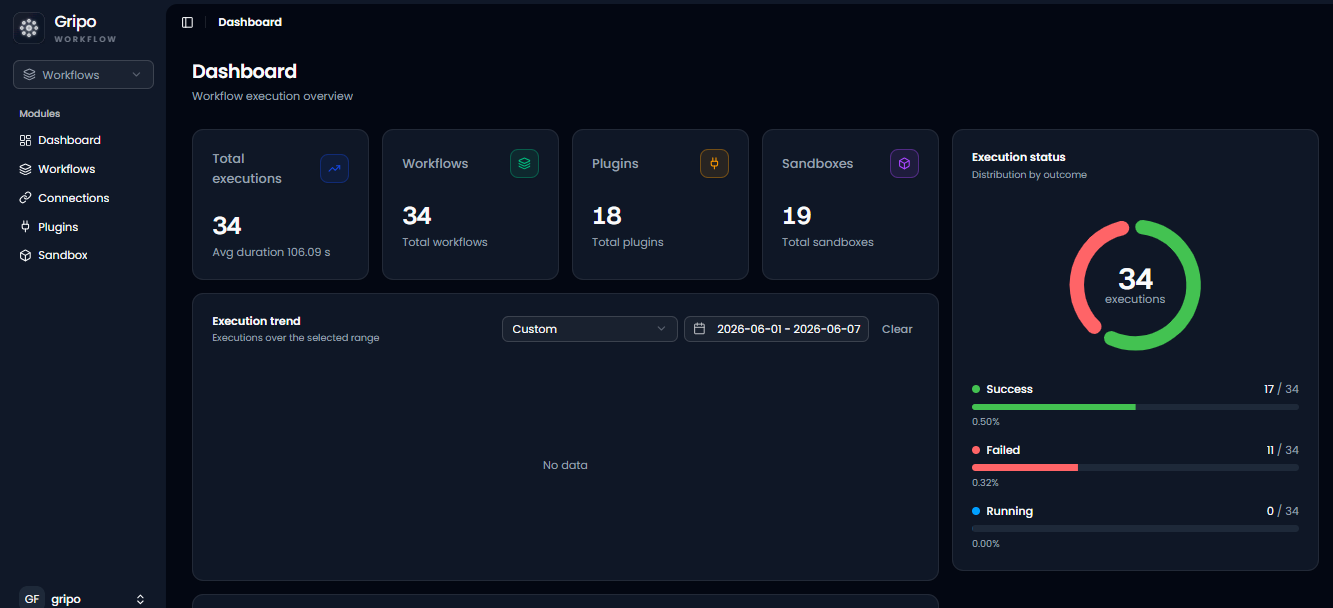
- Click Add Credentials.
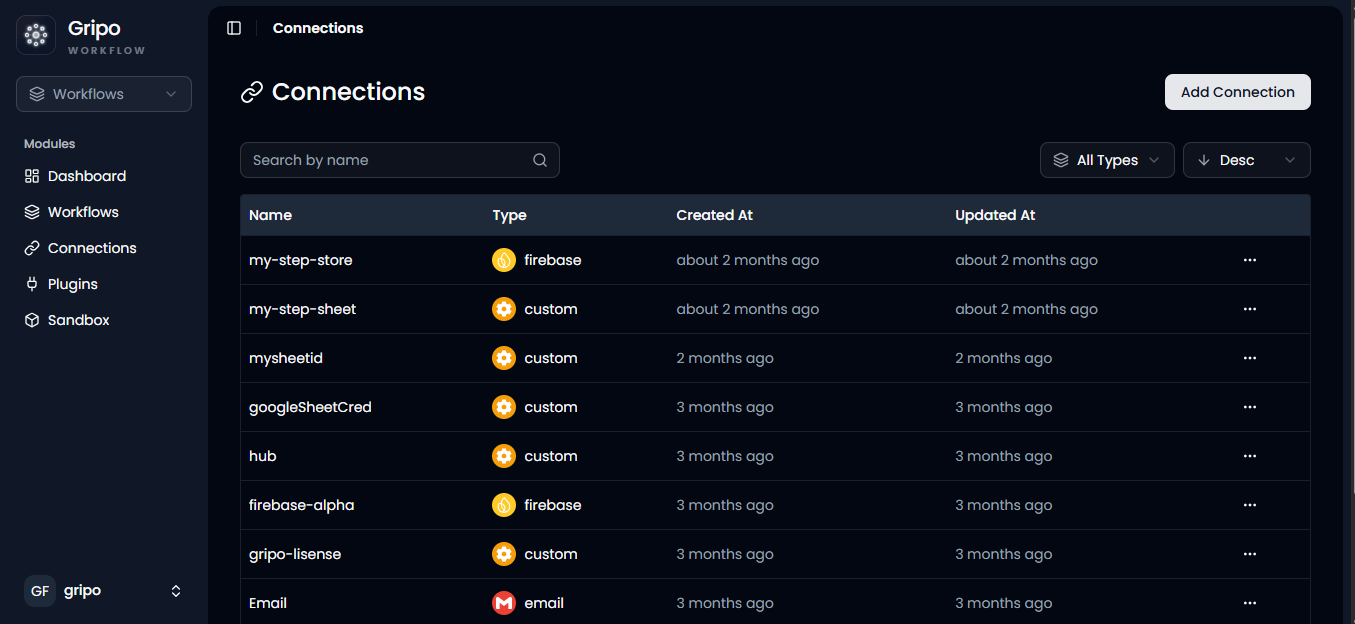
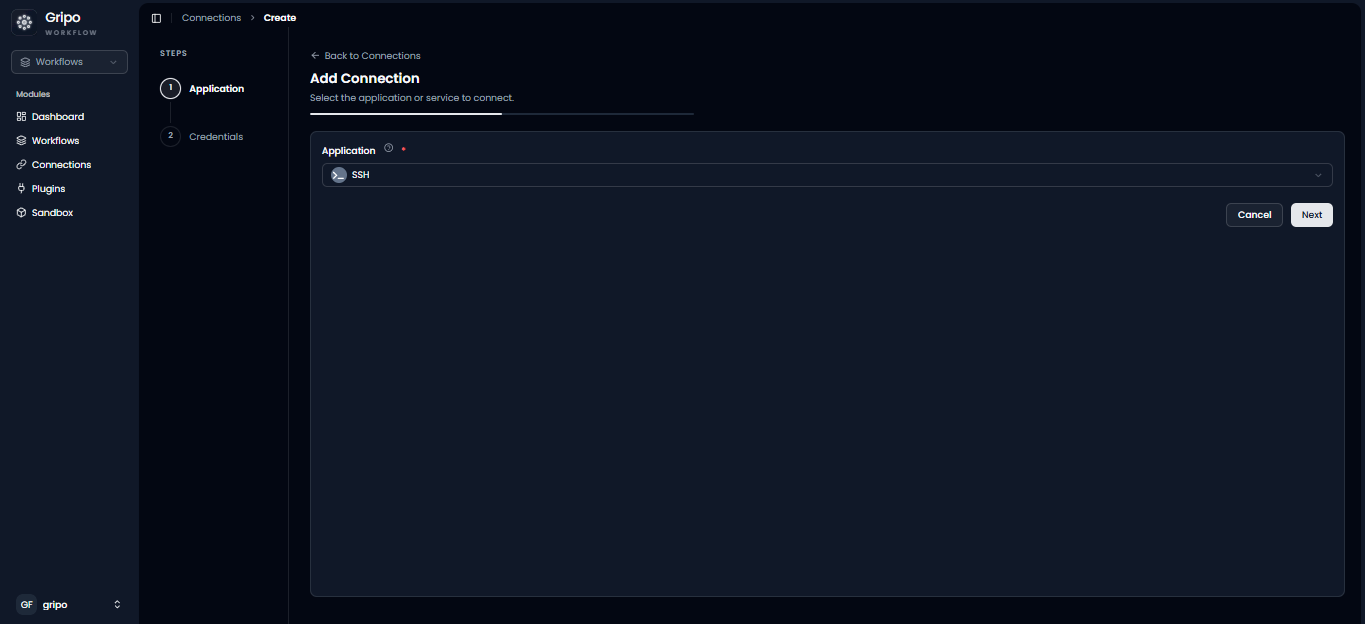
- A window will appear. From the Application dropdown, select Firebase.
- Click Next.
- A form will be displayed for entering your Firebase credentials.
- Enter a Connection Name.
- Upload the Firebase Service Account JSON file.
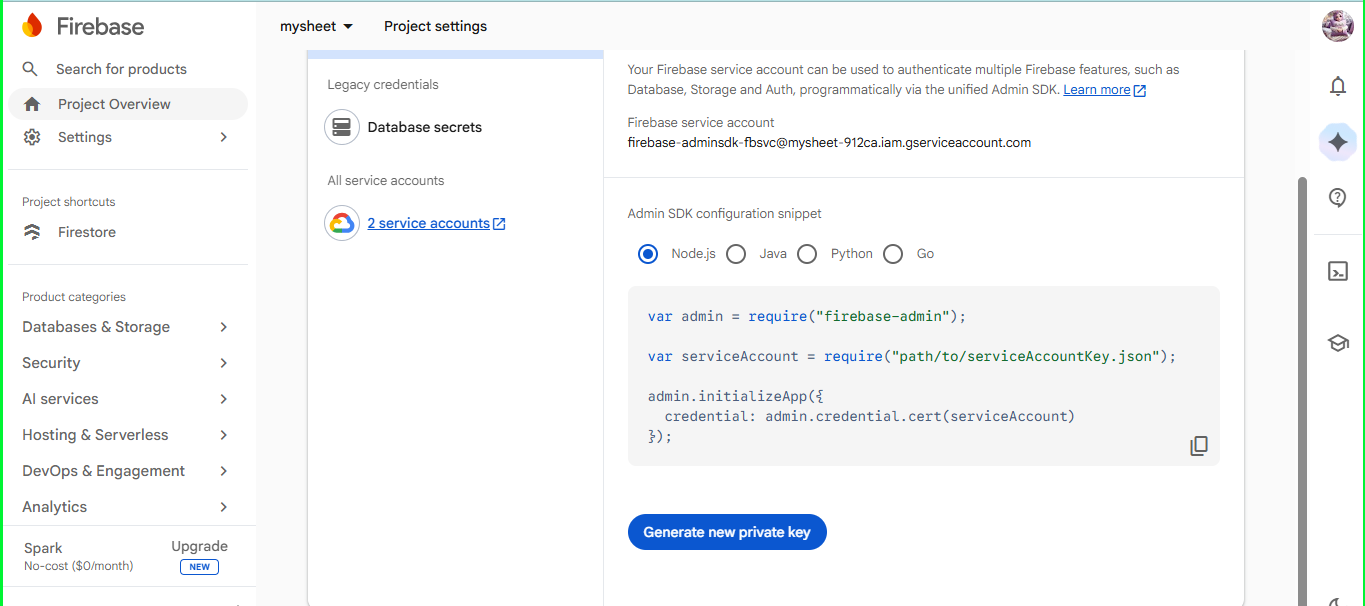
Before creating the connection, generate a Firebase Service Account JSON key from the Firebase Console.
Generate a Firebase Service Account Key
Create a Firebase Service Account Key
-
Open your web browser and navigate to the Firebase Console:
-
Sign in with your Google account.
-
Select your Firebase project.
-
Click the Settings icon next to Project Overview, then select Project Settings.
-
Navigate to the Service Accounts tab.
-
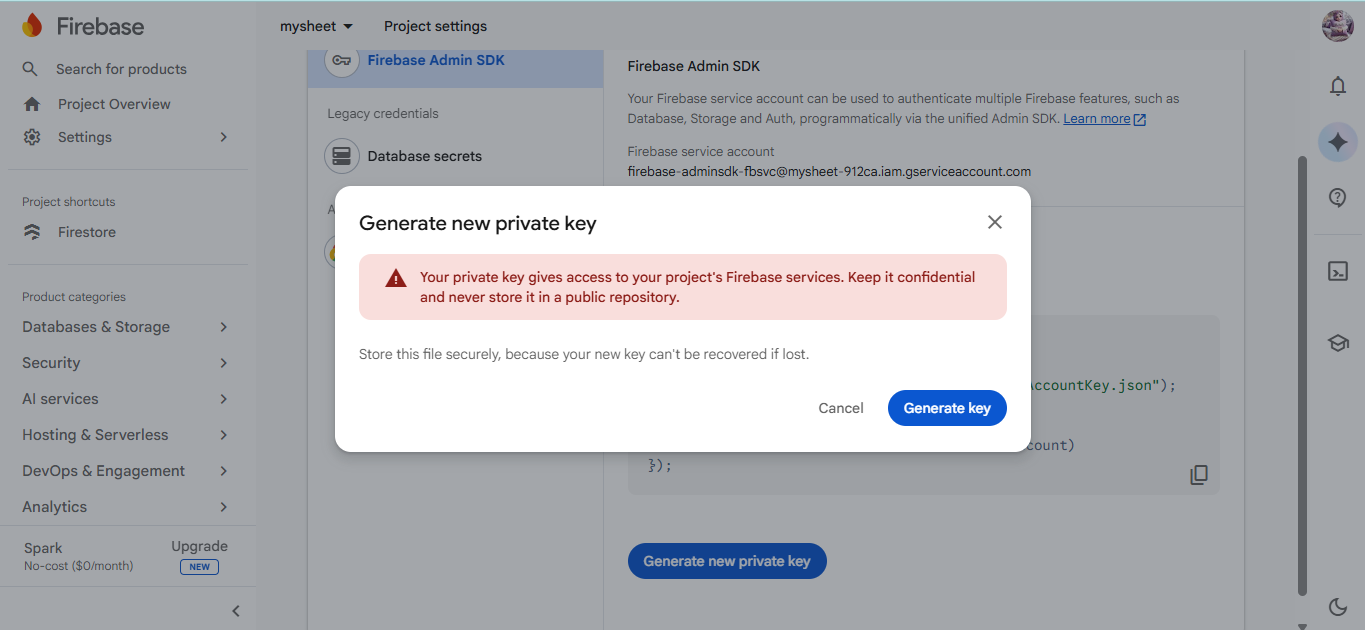
Click Generate New Private Key.
-
Confirm the prompt by clicking Generate Key.
-
A Service Account JSON file will be downloaded to your computer.
Complete the Firebase Connection
Add the Service Account JSON to GRiPOFlow
-
Return to GripoFlow.
-
Paste the downloaded Service Account JSON file in the Service Account field.
-
Click Submit to create the connection.
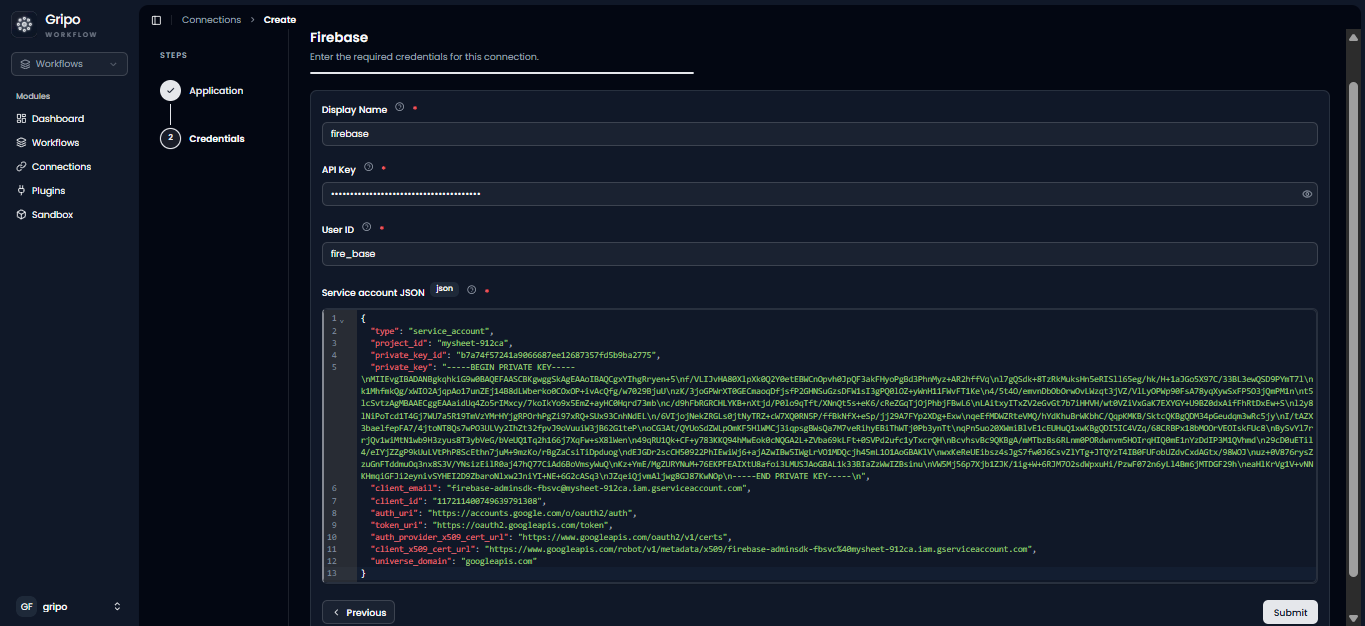
- The created connection will be seen in the list