Automate Azure Cluster Start & Stop to Save Costs
Running Azure Kubernetes clusters 24/7 can be costly — especially when they’re idle outside working hours. Automating cluster start and stop helps optimize resource usage and significantly reduce cloud costs without manual intervention.
⚙️ How Parallel Path Helps
Parallel Path in Gripo allows you to perform multiple tasks simultaneously — for example, starting and stopping clusters in separate paths or running multiple actions at once.
In this scenario, we’ll use Parallel Path to create two independent branches:
one for starting the cluster at 9 AM, and another for stopping it at 5 PM.
📅 Scenario: Start at 9 AM and Stop at 5 PM Automatically
Let’s imagine a company that only uses its Azure cluster during office hours — from 9 AM to 5 PM.
We’ll create a Gripo workflow that automatically starts the cluster each morning and stops it in the evening using a Cron schedule.
🧭 Steps to Create the Workflow
1. Navigate to the Workflow Page
-
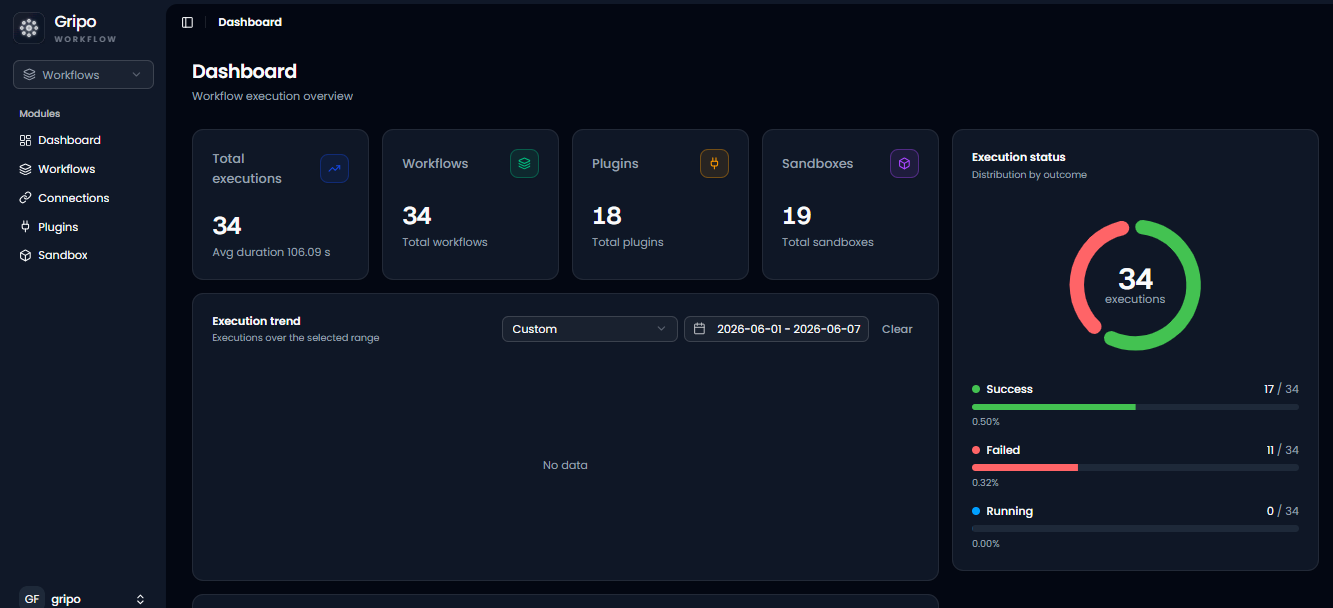
From the main menu, go to the Workflow tab.
-
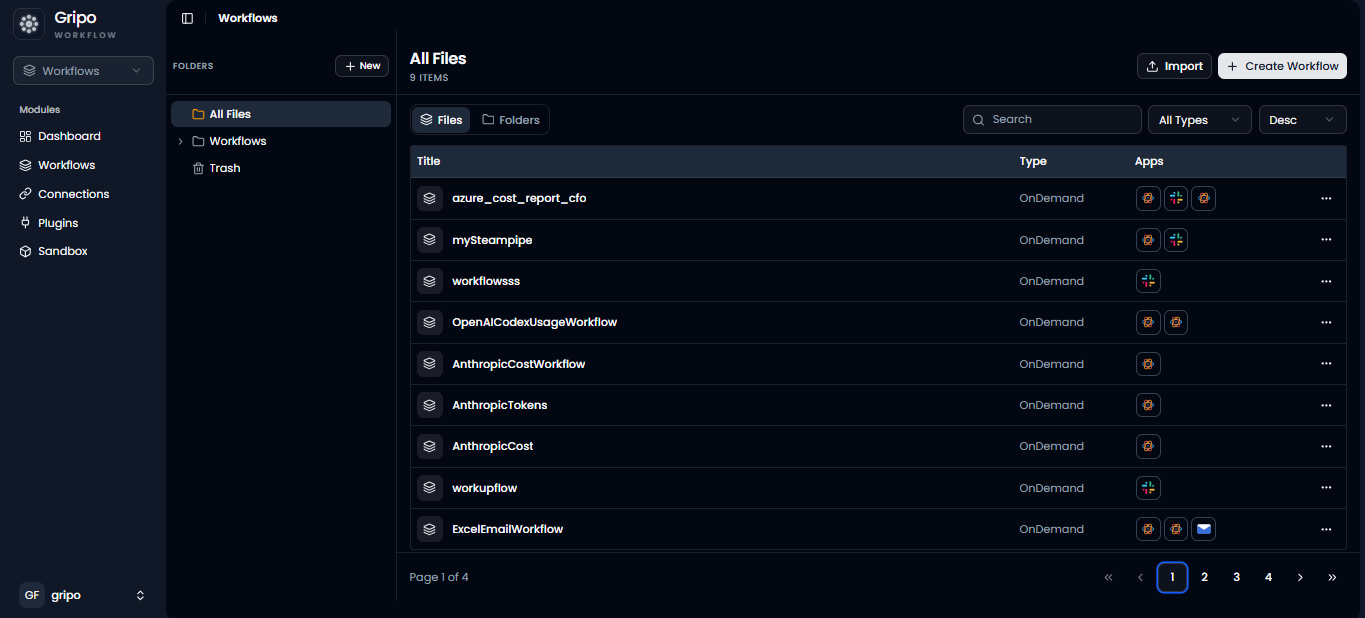
Click Create Workflow to begin.
2. Fill Out Workflow Details
-
Name:
Azure Cluster Auto Start-Stop -
Description:
Automatically start and stop Azure clusters to save cost. -
Type: Choose On Schedule.
-
Retry: Set retries (e.g., 3) for reliability.
-
Tags: Add tags like
Azure,Automation,Cost Saving.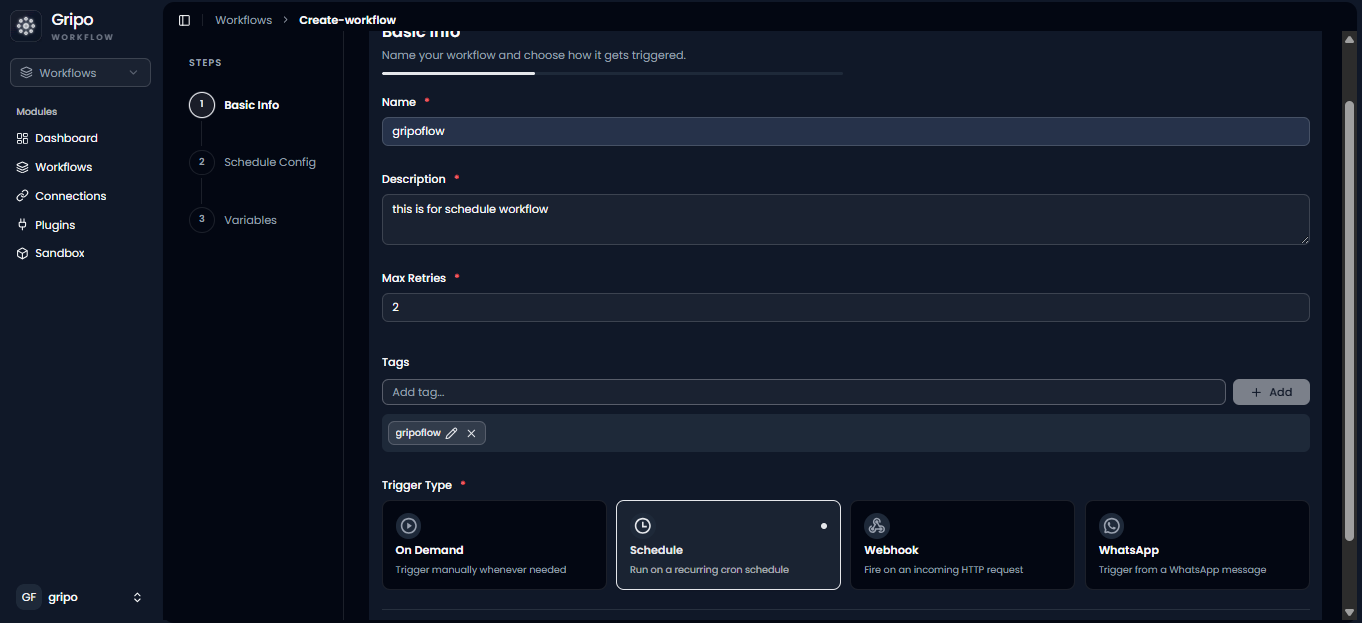
Click Next → define optional variables if needed → then Save and Continue.
🔀 Add a Parallel Path
-
After creating the workflow, click the “+” button to add a new activity.
-
Go to Core → select Parallel Path.
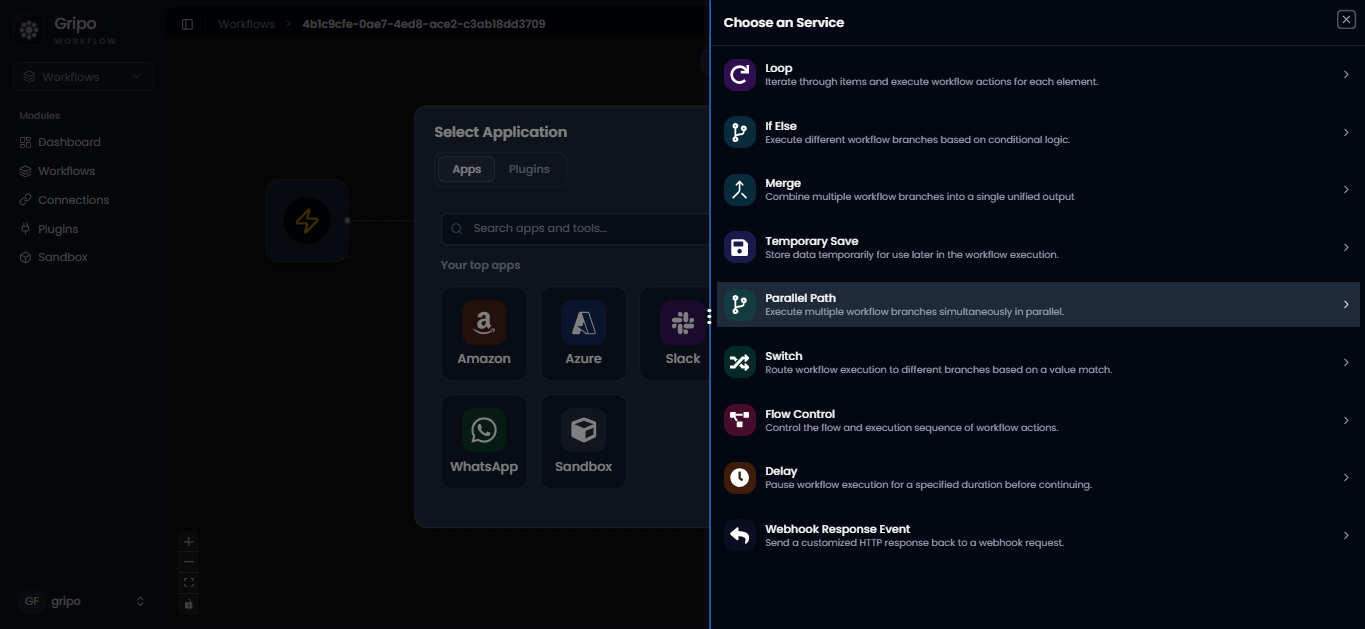
Parallel Path lets you divide your workflow into multiple branches.
We’ll create one branch for Parallel Path1 and another for Parallel Path2.
🕘 Branch 1: Start Azure Cluster at 9 AM
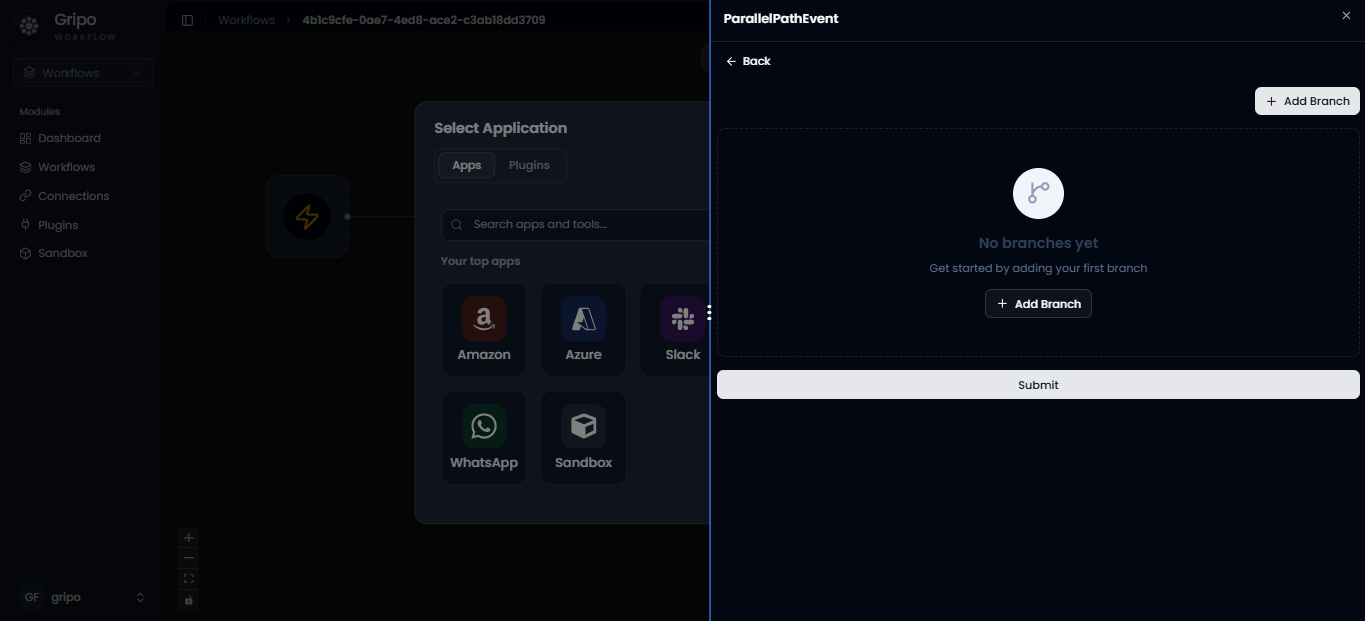
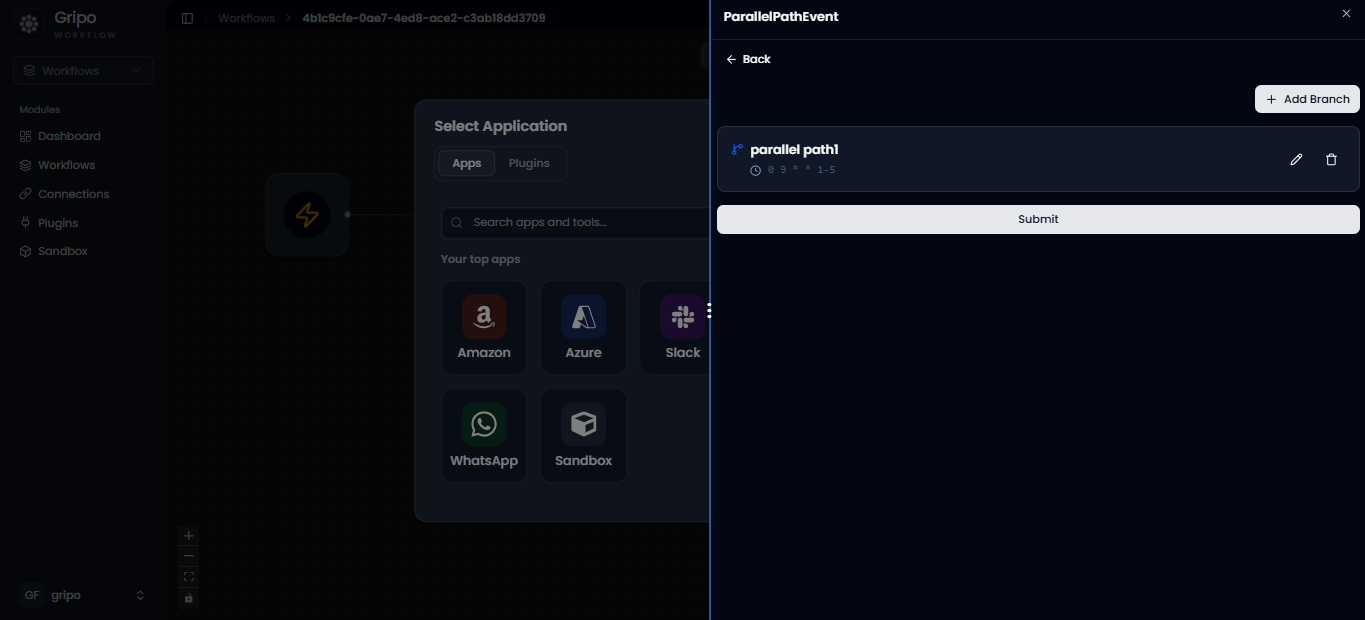
- Click on Add Branch button .
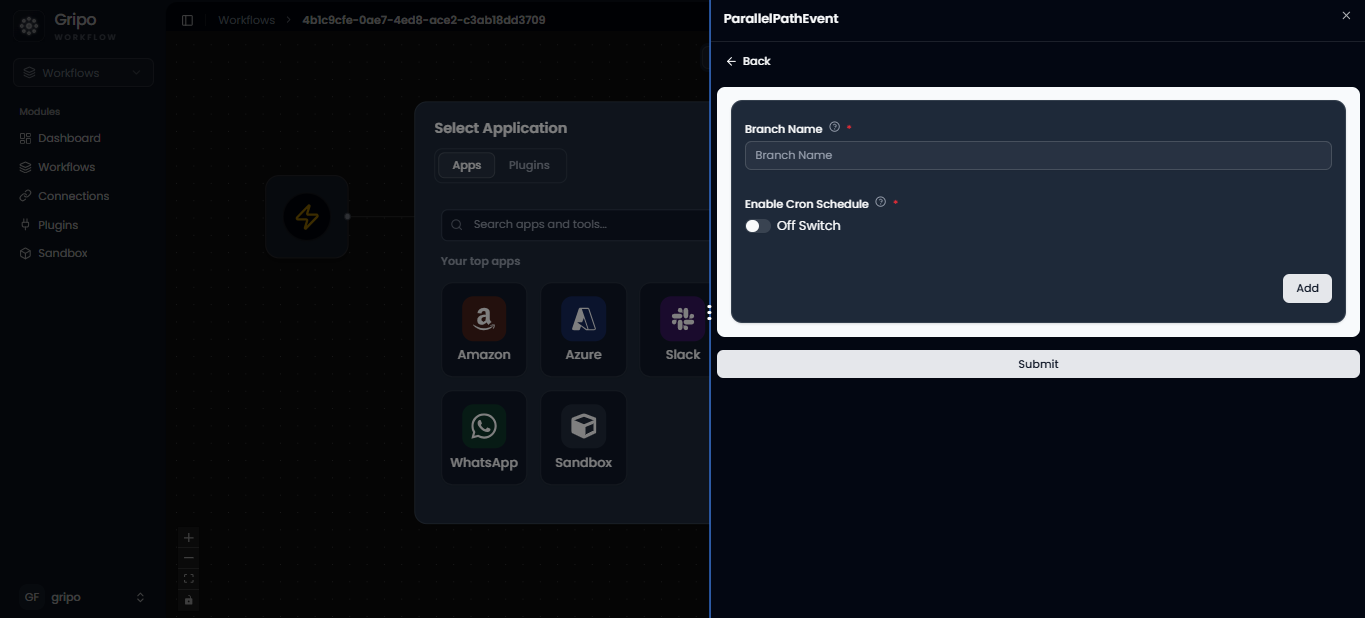
- Add a branch name, e.g., Parallel Path1.
- Enable Cron Schedule and set it to trigger at 9 AM every weekday.
⏱️ About Cron Schedule
A Cron schedule is a time-based job trigger.
It allows your workflow to run automatically at a specific time or interval
- In this branch, click “+” and select Azure Managed Kubernetes → Start Cluster.
- Fill in:
- Branch Name
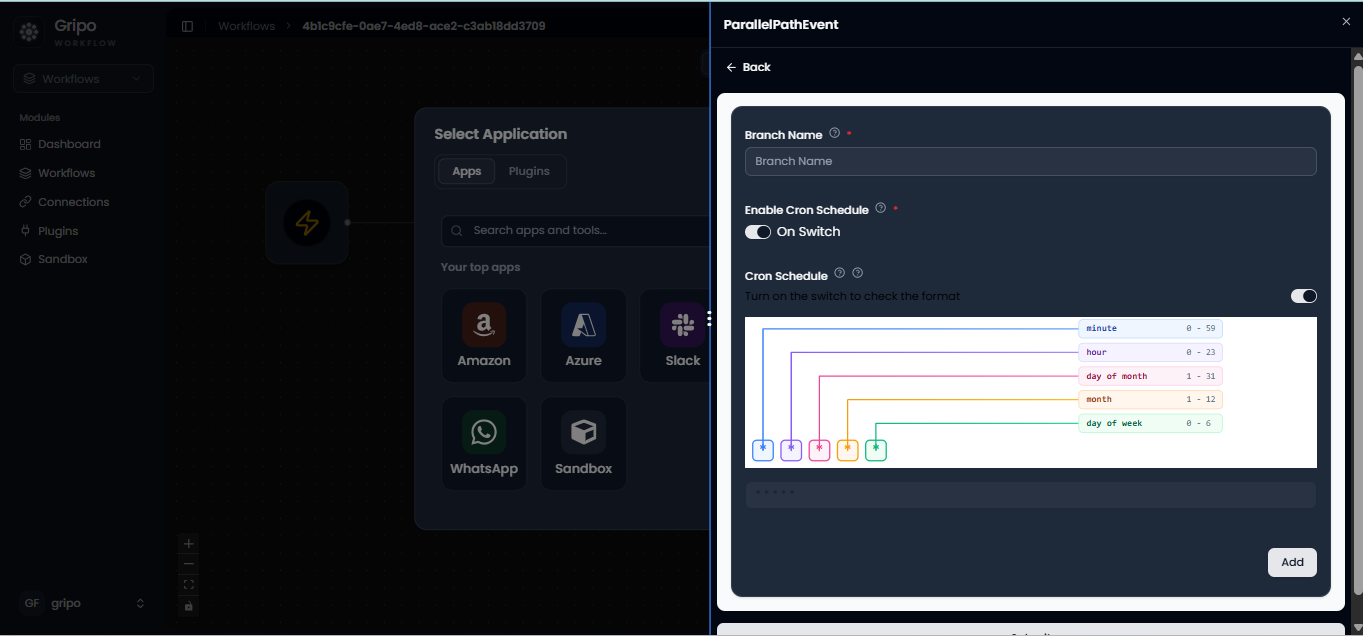
- Enable Cron Schedule and set it to trigger at 9 AM every weekday.
Understanding the Cron Schedule Configuration
Cron Schedule Breakdown
The workflow uses the standard 5-field cron syntax 0 9 * * * to manage automated execution times.
| Field | Value | Type | Description |
|---|---|---|---|
| Minute | 0 | Specific | Triggers exactly at the start of the hour. |
| Hour | 9 | Specific | Executes at 09:00 (9:00 AM). |
| Day of Month | * | Wildcard | Runs every day of the month. |
| Month | * | Wildcard | Runs during every month of the year. |
| Day of Week | * | Wildcard | Applies to all days of the week (Sunday through Saturday). |
🎯 Final Execution Rule
Result: This Cron configuration ensures that the workflow automatically executes every day at 9:00 AM without manual intervention.
-
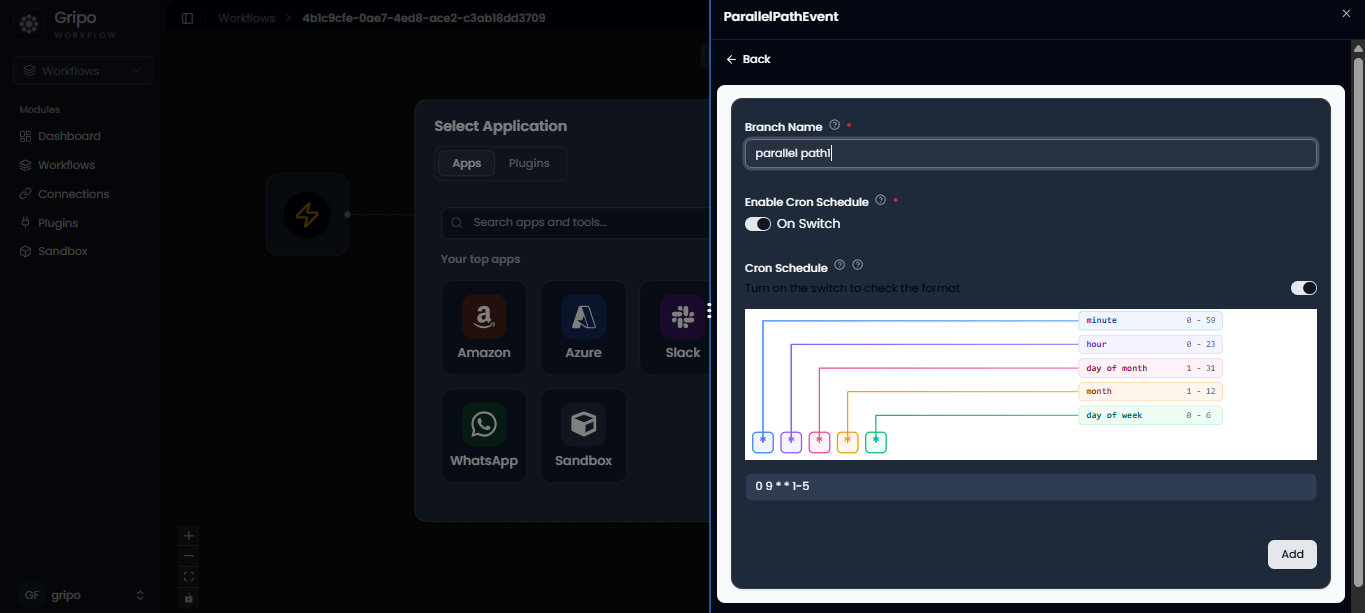
Click Add to add the action.
🕔 Branch 2: Stop Azure Cluster at 5 PM
-
Add another branch named Parallel path 2 by clicking on Add Branch button .
-
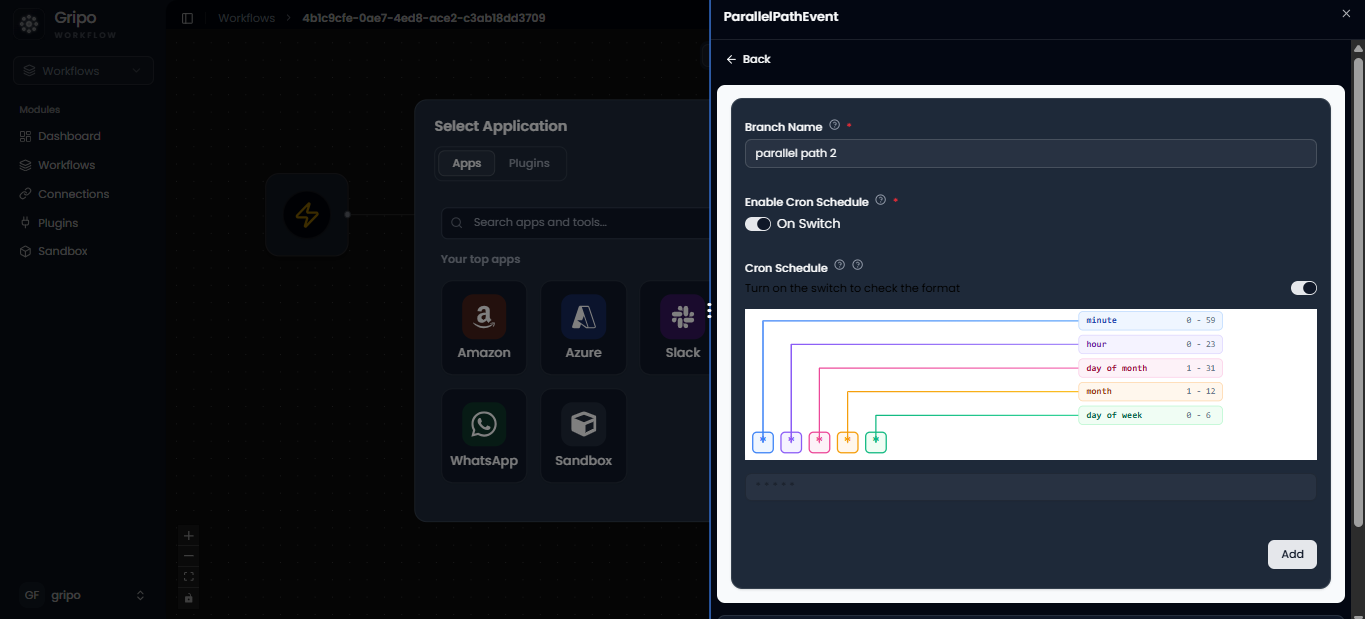
Provide the Branch name.
-
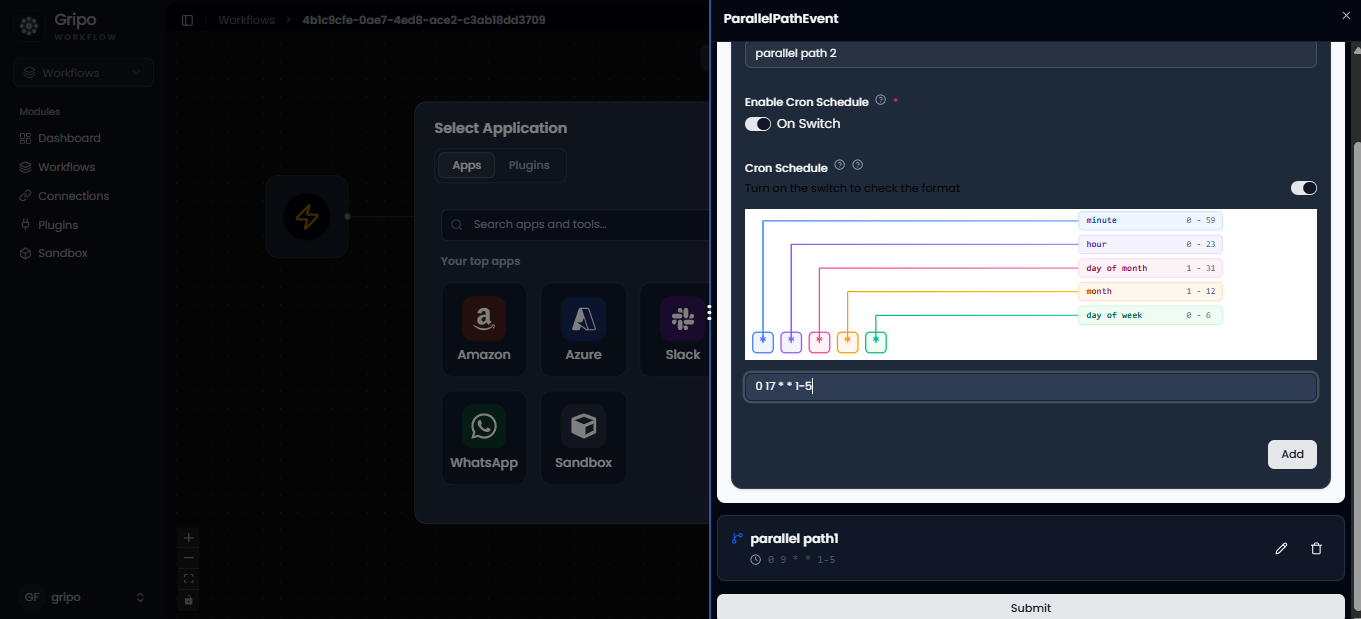
Enable Cron Schedule again and set it to trigger at 5 PM every weekday.
Understanding the Stop Cluster Cron Schedule
Cron Schedule Breakdown
The workflow uses the standard 5-field cron syntax 0 17 * * 1-5 to manage automated execution times.
| Field | Value | Type | Description |
|---|---|---|---|
| Minute | 0 | Specific | Triggers exactly at the start of the hour. |
| Hour | 17 | Specific | Executes at 17:00 (5:00 PM in 24-hour time). |
| Day of Month | * | Wildcard | Runs regardless of the calendar date. |
| Month | * | Wildcard | Runs during every month of the year. |
| Day of Week | 1-5 | Range | Restricts execution to Monday through Friday only. |
🎯 Final Execution Rule
Result: This Cron configuration ensures that the workflow automatically executes every weekday (Monday to Friday) at 5:00 PM, allowing resources to safely shut down before the weekend to optimize cost efficiency.
- Click Add.
🔔 Add Notifications (Optional)
You can add a Slack or Email notification after each action to confirm the status.
This keeps your team updated automatically when clusters start or stop.

✅ Save & Verify
Once both branches are configured:
-
Click Save Workflow.
-
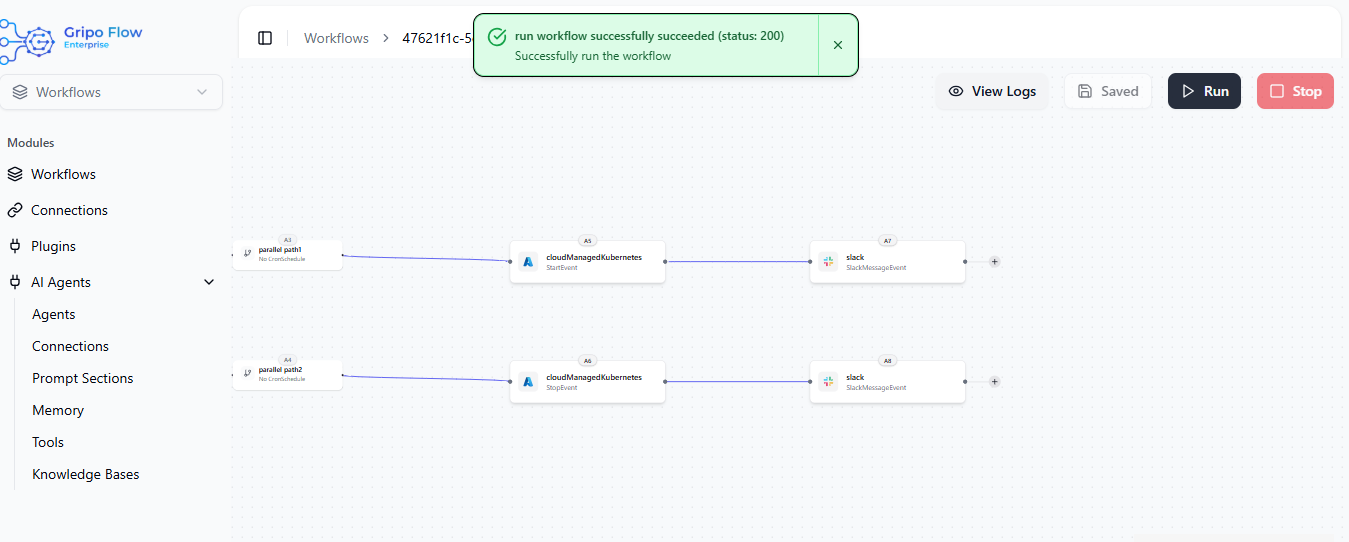
The workflow will now automatically start the cluster at 9 AM and stop it at 5 PM daily.
-
You can monitor execution results from the workflow dashboard.
🎯 Outcome
With this workflow:
- Azure clusters start automatically during business hours and shut down after to save money.
- Parallel Path ensures both start and stop operations are independently scheduled.
- Cron jobs remove manual effort, ensuring cost optimization with full control.
Result:
A smart, automated Azure cluster management system that saves time, cuts costs, and runs exactly when you need it — powered by Gripo’s visual workflows.
For a complete visual walkthrough of this workflow, you can watch the video tutorial below to see each step in action.
Watch the full demo video here 👇